
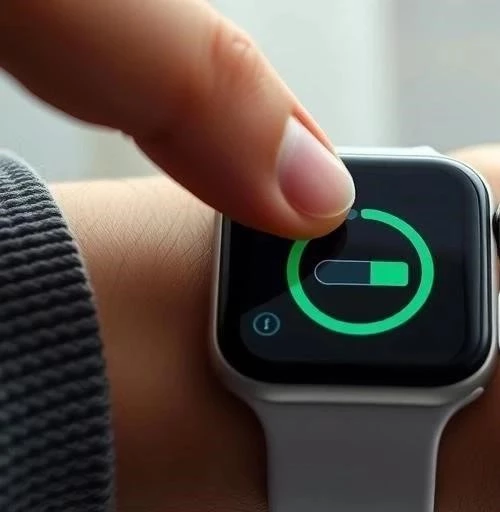
You can check an Apple Watch’s current charge, recent battery use, and battery condition in Settings. These details help distinguish normal power use from a possible battery or charging problem. Menu names can vary slightly by watchOS version, but the main steps are similar across recent models.
Check the current charge
To see the battery percentage on the watch, press the side button to open Control Center. The battery percentage appears there; tap it to view a larger charge display and, when available, options such as Low Power Mode. On some older watchOS versions, Control Center opens by swiping up from the bottom of the watch face instead.
You can also add a Batteries complication to a compatible watch face. Touch and hold the face, tap Edit, move to the complications screen, and select a battery display for an available position. The complication provides a quick estimate without opening Settings. Its appearance and available positions depend on the watch face.
View battery use and charging information
- Press the Digital Crown to open the app grid or list.
- Open Settings on the Apple Watch.
- Tap Battery.
The Battery screen shows the current charge and a graph of battery level over time. Depending on the software version, it may also show when the watch was last charged and periods of activity or screen use. These figures provide context: a rapid drop during a day with workouts, navigation, or frequent notifications may reflect heavier use rather than a fault.
For a convenient view while charging, place the watch on its charger. The charging screen displays the battery level; a green lightning symbol indicates that it is charging. If the display does not appear, tap the screen or press a button. Make sure the magnetic charger is aligned with the back of the watch and that both the charger and power adapter are connected.
Check battery health and maximum capacity
- On the watch, open Settings.
- Tap Battery, then Battery Health.
- Review the value shown under Maximum Capacity.
Maximum Capacity compares the battery’s present capacity with its capacity when new. A lower percentage is expected as a rechargeable battery ages; it does not represent the current charge. For example, Maximum Capacity and the percentage shown in Control Center answer different questions: one estimates long-term condition, while the other shows how much charge remains now.
The Battery Health screen may also display a message about peak performance or recommend service. Read any notice shown on the watch. Battery health is an estimate, and performance depends on usage, temperature, charging habits, and the age of the device. A reduced capacity alone does not necessarily mean that the watch needs immediate repair.
If the battery seems to drain quickly
First, note how long the watch lasts under your usual routine and compare similar days. A new software update, setup or data synchronization, a long workout, GPS use, frequent notifications, or a bright display can temporarily or routinely increase consumption. Check for available watchOS updates and restart the watch if the behavior is unusual. After an update or initial setup, allow time for background tasks to finish before judging battery life.
- Reduce screen brightness or shorten the wake duration if practical.
- Review notifications and turn off alerts you do not need.
- Use Low Power Mode when extending runtime matters more than some background features.
- Check that the charger, cable, and adapter are undamaged and compatible.
Low Power Mode can limit or change certain functions, so check its on-screen description before enabling it. It is a temporary way to conserve charge, not a repair for a worn battery. If the watch repeatedly shuts down while showing charge, will not charge, or loses power unusually fast after basic checks, record the symptoms and contact Apple Support or an authorized service provider.
When to seek service
Consider professional assessment if Battery Health recommends service, the watch becomes unusually hot, the case or display appears to lift, or charging remains unreliable with a known-good power source. Stop using and charging a watch with visible swelling or damage, and seek assistance; do not try to open the case or replace the battery yourself. Apple or an authorized provider can assess the device and explain available service options.
In brief: Control Center shows the current charge; Settings > Battery shows usage and charging details; and Settings > Battery > Battery Health shows estimated maximum capacity and any service message.
9 Comments. Оставить новый
The distinction between current charge and battery condition is helpful. The instructions are concise and organized.
The article gives clear directions for finding the Battery screen and checking charging status.
The note about differences between watchOS versions is useful. It helps readers understand why their menus may look slightly different.
This is a practical overview of battery percentage, complications, and charging indicators. The sections make the information easy to scan.
The article clearly explains how to check an Apple Watch’s charge and battery information. The steps are easy to follow.
This guide is easy to navigate and covers the main places to review Apple Watch battery information.
The explanation of battery use provides helpful context for interpreting changes in charge during a typical day.
The charging guidance is straightforward and includes useful checks for charger alignment and power connections.
Including both Control Center and a watch-face complication gives readers more than one convenient way to check charge.