
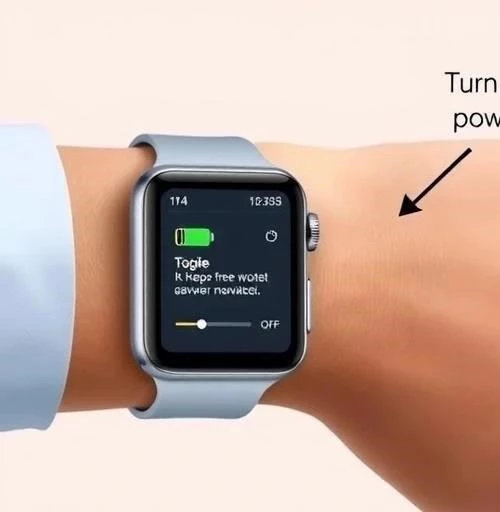
If your Apple Watch is showing a yellow battery icon, Low Power Mode may be enabled. It is designed to extend battery life by reducing or delaying some background activity, but it can also limit features you expect to work normally. Turning it off is straightforward; the exact route depends on your watchOS version. In most cases, the best choice is to disable it when you need full functionality, rather than leave it on simply because the icon looks different.
Turn it off from Control Center
- Wake your Apple Watch and open Control Center. On watchOS 10 or later, press the side button once. On watchOS 9, swipe up from the bottom of the watch face.
- Tap the battery percentage button. If Low Power Mode is active, the screen will show its status and controls.
- Tap Low Power Mode, then choose Turn Off if prompted.
The yellow battery indicator should return to its usual appearance after the mode is disabled. If you do not see the battery control straight away, scroll through Control Center or check that you are opening the correct screen for your watchOS version. On newer software, swiping up from the watch face opens Smart Stack, not Control Center; use the side button instead.
Turn it off in Settings
You can also change the setting directly on the watch:
- Press the Digital Crown to open the app list.
- Open Settings, then tap Battery.
- Tap Low Power Mode and switch it off.
This method is useful when Control Center is difficult to navigate or its layout has been customized. The setting is on the Apple Watch itself, so you do not need to use your iPhone to disable it. Menu wording can vary slightly with software updates, but the Battery section remains the place to look.
Why turn it off?
Low Power Mode is useful when you need the watch to last longer before you can charge it. However, conserving power involves trade-offs. Depending on your model, connection, and watchOS version, the mode may reduce or delay background measurements and notifications, limit some network activity, and affect features such as heart-rate readings during workouts. The watch can still show the time and run many apps, but some information may not update as promptly as usual.
That is why disabling the mode makes sense when you are relying on timely alerts, tracking a workout, or checking health and activity data. Conversely, if the battery is nearly empty and charging is not available, keeping the mode on may be more valuable than having every feature respond immediately. The right choice depends on what you need the watch to do at that moment; Low Power Mode is a battery-saving option, not a repair for a battery problem.
What if it turns on again?
Check whether the watch is being switched to Low Power Mode manually or as part of a routine. If you enable it through a prompt or a shortcut, it may remain active until you turn it off. Also check the Battery screen after restarting the watch: a restart does not necessarily change the selected setting. Some Apple Watch versions can automatically leave Low Power Mode after charging to 80 percent, but this behavior depends on how the mode was enabled and the software version. Do not assume that charging alone has switched it off; check the icon or Battery settings.
If the toggle will not respond, place the watch on its charger for a short time, then try again. Make sure watchOS is up to date, and restart the watch if the interface appears frozen. To restart, hold the side button until the power controls appear, tap the power button, and use the on-screen slider. Do not force-restart the watch unless it is unresponsive, because that is not normally needed for changing a battery setting.
Low Power Mode is not Power Reserve
These names describe different power behaviors. Low Power Mode keeps the watch usable while reducing selected functions. Power Reserve, available on older watchOS versions, was much more restrictive and could leave the watch displaying only the time. If your watch only shows a clock and does not respond normally, follow the on-screen instructions or connect it to its charger; the steps for Low Power Mode may not resolve a Power Reserve state.
Quick answer
Press the side button on watchOS 10 or later, tap the battery percentage, open Low Power Mode, and turn it off. On watchOS 9, swipe up to open Control Center first. If you prefer, use Settings > Battery > Low Power Mode. Check the battery indicator afterward to confirm the change. This gives you the simplest reliable way to restore the watch’s normal operation while letting you turn power saving back on whenever longer battery life matters more than immediate access to every feature.


4 Comments. Оставить новый
The troubleshooting note about Smart Stack is a worthwhile addition because gestures changed in newer watchOS versions. The instructions are easy to follow, though checking the exact software version could make them even more precise.
It is helpful that the article explains both how to turn Low Power Mode off and why someone might choose to keep it enabled. The trade-off between battery life and background features gives readers a practical basis for deciding.
The Settings alternative makes the guidance more accessible for people who have difficulty navigating Control Center. Mentioning that an iPhone is not required also answers a likely question clearly.
The distinction between watchOS versions is useful, especially the reminder that the side button opens Control Center on newer software. That small detail can prevent readers from following outdated instructions.