
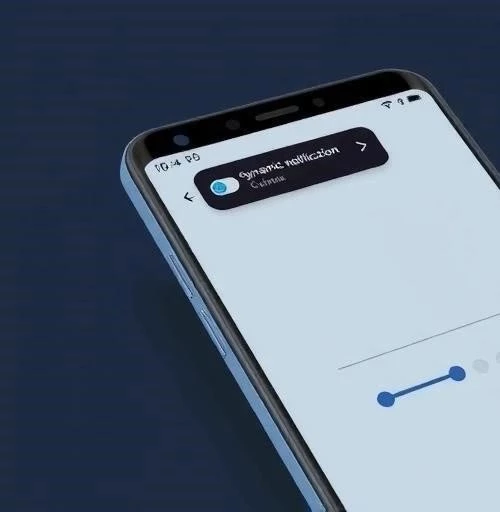
Want an iPhone-style pill at the top of your Xiaomi screen for music, timers, calls, and notifications? The feature is often called Dynamic Island, but Xiaomi does not provide one universal switch with that name on every phone. What you can enable depends on your model, region, and MIUI or HyperOS version. Some Xiaomi phones offer system-level live notifications; on others, a third-party app is the practical option.
First, check for a built-in feature
Before installing anything, look through your phone’s settings. Menu names and available options vary, so use the Settings search field and try terms such as island, live notifications, floating notifications, or status bar.
- Open Settings.
- Tap Notifications & status bar, Notifications, or a similarly named section.
- Check for a live-activity, island, or notification-animation option. If it appears, turn it on and choose which apps may use it.
- Also check Settings > Notifications & status bar > Floating notifications. Enable floating notifications for the apps whose alerts you want to see.
If there is no island setting, that does not necessarily mean your phone is faulty. Xiaomi features can differ across devices and software builds, and an update may change the available options. Install official system updates from Settings > About phone, then search the settings again. Avoid assuming that a video showing an option on one Xiaomi model means it exists on every Redmi, POCO, or Xiaomi phone.
Use an app to get an island-style display
If your system does not include the feature, a reputable app such as dynamicSpot can display a small interactive notification area near the front camera. Similar apps may use different names and permissions; Install only from Google Play or another source you trust, and check the app’s developer, reviews, privacy information, and requested access before continuing.
- Install the app and open it. Follow its setup screen rather than granting every permission automatically.
- Allow the notification access it needs if you want it to show alerts. Android will open a system permission page; select the app and confirm. Without notification access, it may not be able to display incoming notifications.
- If requested, allow display over other apps. This lets the pill appear above the current screen. Grant this only to an app you trust.
- Select the apps you want included, such as your music player, phone, timer, or messaging app. Start with a few apps to keep the display useful.
- Adjust the island’s position, width, height, corner shape, animation, and tap actions. Move it so it does not cover the camera, status icons, or important controls.
- Enable the app’s service and test it by playing music or starting a timer. Lock and unlock the phone once to check that the display behaves as expected.
On Xiaomi software, also open Settings > Apps > Manage apps, find the island app, and check its battery and background settings. Where available, set battery use to No restrictions or allow background activity. If the service keeps stopping, check Security or Battery settings for an option to lock the app in recent apps or permit auto-start. Menu labels differ by software version, and unrestricted background use can consume more battery;
If it does not appear or keeps closing
- No notifications: Confirm notification access is enabled, notifications are allowed for the source apps, and those apps are selected inside the island app.
- The pill disappears: Allow background activity, review battery optimization, and update the app. Restart the phone after changing permissions.
- It overlaps the camera or status bar: Open the app’s layout controls and adjust its position and size. Display cutouts vary between Xiaomi models.
- It appears twice: Turn off duplicate floating notifications or notification effects for the affected app, if those controls are available.
- It never shows on the lock screen: Review lock-screen notification settings. Android may hide sensitive content until the phone is unlocked.
For a clean test, temporarily disable other notification-overlay apps, then send yourself a test message or start a timer. Some apps show only supported activities, and not every notification can become a live island. A regular alert may still appear in the notification shade even when it does not animate at the top of the screen.
Privacy, battery, and compatibility
Notification access can let an app read notification text, including information from messages. Overlay access lets it draw on top of other apps. Grant only the permissions needed for the features you intend to use, and revoke them in Settings if you uninstall the app or stop using it. Avoid downloading modified APKs advertised as “official Xiaomi Dynamic Island” software.
An overlay can use extra battery, and animations may be less smooth on some devices. If battery life or privacy matters more than the visual effect, use Xiaomi’s built-in notification options instead. Also note that a software update can reset permissions or change menu names, so check the settings again after updating.
Quick answer
Search Settings for an island or live-notification feature first. If your Xiaomi phone has no built-in option, install a trusted island-style notification app, grant only the permissions it needs, select compatible apps, and allow background activity if Xiaomi’s battery controls keep stopping it. The exact steps depend on your model and HyperOS or MIUI version—there is no single “Enable Dynamic Island” switch that works on every Xiaomi phone.
5 Comments. Оставить новый
Helpful guide. I appreciate the reminder that Xiaomi settings vary by model and software version, so a missing option does not necessarily indicate a problem.
The advice to check built-in settings before installing an app is sensible. The suggested search terms should make it easier to find relevant options.
This clearly explains why instructions for one Xiaomi phone may not apply to another. I would have liked a little more detail on the app setup, but the guidance is useful.
Good overview of the built-in and third-party approaches. The privacy and permissions cautions are especially useful when considering notification apps.
A practical, easy-to-follow explanation. Checking for system updates and searching Settings first are good steps before trying a third-party solution.