
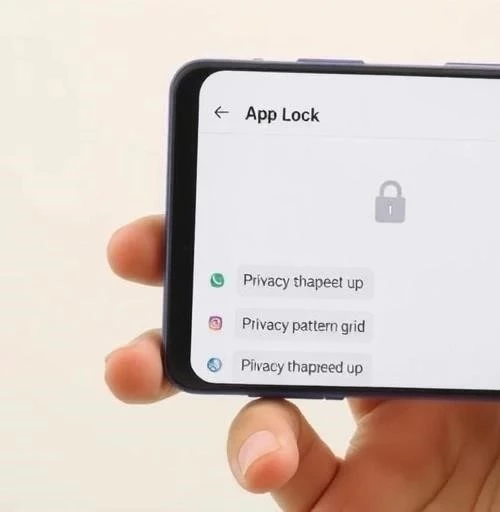
You can protect individual apps on a Xiaomi Redmi Note 8 with MIUI’s built-in App lock feature. It asks for a password‚ pattern‚ or other supported authentication before a protected app opens. This is useful if you share your phone or want an extra layer of privacy for messaging‚ photos‚ banking‚ or social media apps. The exact menu names can vary slightly depending on your MIUI version and region‚ but the feature is usually included in the phone’s security settings.
Set up App lock
- Open Settings on your Redmi Note 8.
- Scroll down and tap Apps‚ then choose App lock. On some versions‚ App lock appears directly in Settings. You can also open the Security app and look for App lock there.
- Tap Turn on or Set password. If prompted‚ sign in to your Xiaomi account. This can help you recover access if you forget the App lock password.
- Choose a lock method‚ such as a pattern or password‚ and enter it again to confirm. Follow the prompts to set up fingerprint or face unlock if those options are offered.
- When the list of apps appears‚ switch on the lock for each app you want to protect. Tap the back button when finished; your choices are normally saved automatically.
To check that it works‚ return to the Home screen and open one of the selected apps. The App lock screen should appear before the app’s contents are shown. Test it with an app that is safe to close first‚ and make sure you remember the chosen pattern or password.
Change which apps are protected
Open Settings > Apps > App lock again and enter your App lock credentials. Use the switches beside the apps to add or remove protection; If you no longer want to lock an app‚ turn its switch off. You can also change the lock method from the settings or gear icon on the App lock page‚ although the available options depend on your MIUI release.
Fingerprint‚ notifications‚ and timing
If your phone offers fingerprint authentication‚ enable it from the App lock settings after setting a password or pattern. Biometrics are convenient‚ but keep the backup credential somewhere memorable: the phone may request it after a restart or when fingerprint access is unavailable. App lock settings may also let you choose when the lock is applied—for example‚ immediately after leaving an app or after the screen is locked. Select the stricter option if other people might use your phone.
For greater privacy‚ look for an option such as Hide notification content in App lock settings. Locking an app does not always hide message previews on the lock screen or in notifications‚ so review Settings > Notifications as well. This distinction matters: an app can require a password to open while its notifications still reveal part of a message.
If App lock is missing or does not work
- Search Settings for “App lock” or check the Security app. Menu placement differs between MIUI versions.
- Install available system updates‚ restart the phone‚ and check again. Do not install an unknown “app locker” just because the menu is hard to find; third-party tools may request broad access and may be less reliable.
- If an app still opens without a prompt‚ confirm its switch is enabled and test after leaving it or locking the screen. Some MIUI versions include options that control when App lock activates.
- If you forget the credential‚ use the recovery option shown on the App lock screen‚ if available‚ and follow its instructions. A linked Xiaomi account may be required. Avoid repeatedly guessing‚ and do not reset the phone unless you understand that a reset can erase data.
App lock is not the same as screen lock
Your phone’s screen lock protects access to the device; App lock adds protection to selected apps after the phone has been unlocked. For the best everyday security‚ use both: set a strong screen-lock password or PIN in Settings > Passwords & security‚ then enable App lock for sensitive apps. This layered approach is more useful than relying on an app password alone‚ especially when you lend your unlocked phone to someone.
4 Comments. Оставить новый
This guide gives clear, practical steps for setting up App lock on a Redmi Note 8. Mentioning that menu locations vary by MIUI version is especially helpful, since it prevents readers from assuming their phone is missing the feature.
The instructions are easy to follow, and the suggestion to test App lock with a noncritical app is sensible. It helps users confirm the feature works before relying on it to protect more sensitive information.
I appreciate that the article explains both how to enable App lock and how to change which apps are protected later. The reminder about linking a Xiaomi account also gives readers a useful recovery option if they forget their credentials.
This is a useful privacy overview for people who share their phones or want extra protection for personal apps. The explanation of fingerprint and face unlock is appropriately qualified, since those options depend on the MIUI version and device settings.