
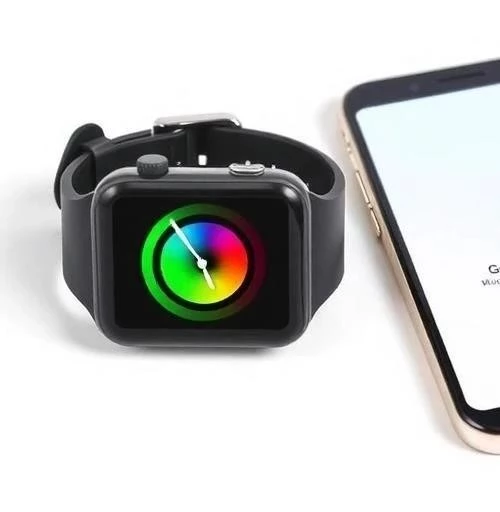
The Xiaomi Mi Watch Lite connects to a smartphone through Xiaomi’s companion app. Pairing lets you sync activity and health data, receive notifications, and adjust watch settings. The exact app name and screen layout may vary by country or software version; follow the instructions shown on your phone and watch.
Before you start
- Charge the watch and keep it close to your phone during setup.
- Turn on Bluetooth on the phone. Allow location access if the app requests it; some Android versions use this permission when searching for Bluetooth devices.
- Connect the phone to the internet and install the official Mi Fitness app, previously called Xiaomi Wear in some regions. Use the App Store or Google Play, and check that the app is compatible with your phone.
- If the watch was paired with another phone, unpair it there first. If that phone is unavailable, you may need to reset the watch before pairing.
Pair the watch
- Open Mi Fitness and sign in or create an account if prompted. Grant the requested Bluetooth and notification permissions. You can review app permissions later in your phone’s settings.
- Switch on the Mi Watch Lite. If the setup screen displays a QR code, scan it with the app when prompted. Otherwise, open the app’s device section and choose the option to add a device or watch.
- Select Mi Watch Lite from the list. Keep the watch and phone nearby while the app searches. If more than one device appears, check the model name shown on the watch.
- When a pairing request appears on both screens, confirm that the code or prompt matches, then approve it on the phone and watch. Wait while setup finishes and the watch synchronizes.
Do not try to complete the initial pairing only from the phone’s Bluetooth settings; The companion app manages the connection and setup. If the watch is already listed in Bluetooth settings, remove or forget that entry, then restart pairing from Mi Fitness.
Enable useful features
After pairing, open the device page in Mi Fitness to choose which app notifications appear on the watch; On some phones, notification access must also be enabled in system settings. Allow background activity for Mi Fitness if synchronization or alerts stop when the app is closed. Settings names differ across Android and iOS; enable only the permissions needed for the features you use.
To sync activity, keep Bluetooth on and open Mi Fitness occasionally. Data may take a short time to transfer. GPS routes and other recorded information can require location permission. The watch does not need to remain connected to the internet itself; the phone handles app connectivity and synchronization.
If pairing does not work
- Move the devices closer together, charge the watch, and toggle Bluetooth off and on.
- Close and reopen Mi Fitness, then restart both devices. Check for app and phone system updates.
- Make sure the watch is not actively connected to a different phone. Remove an old pairing in that phone’s app or Bluetooth list.
- If the app cannot find the watch, use its on-screen instructions to reset the watch, then try adding it again. A reset may erase data stored on the watch, so sync first if possible.
If these steps fail, verify that the app supports your phone and watch in your region, and consult Xiaomi support. Once setup is complete, the Mi Watch Lite should reconnect automatically when it is nearby and Bluetooth is enabled.
1 Comment. Оставить новый
The guide gives clear pairing steps and useful troubleshooting advice, though the final section appears to be cut off.