
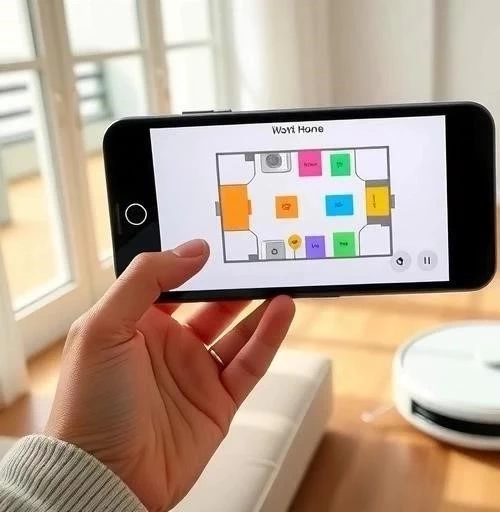
A saved map helps a Xiaomi robot vacuum clean selected rooms, follow a chosen order and avoid areas where it should not go․ The exact menus and available features depend on the model and the version of Mi Home or Xiaomi Home․ Check the vacuum’s manual to confirm which app it supports; names and controls may differ slightly․
Prepare the vacuum and app
Place the charging dock against a clear section of wall on a level floor․ Leave open space around it as directed in the manual, and make sure the robot can leave and return to the dock without obstacles․ Remove packaging, open curtains that reach the floor, and clear loose cables, toys and other items that could interfere with mapping․ Keep interior doors open to rooms you want included․
Install Mi Home or Xiaomi Home from your phone’s app store, sign in or create an account, and select the appropriate region․ The region setting can affect which devices appear in the app, so use the region recommended for your model․ Connect the phone to your home Wi-Fi․ Many models require a 2․4 GHz network during setup; check the manual if connection fails․
Add the robot
- Turn on the robot and put it on its dock․ Ensure the dock has power․
- In the app, tap the plus sign to add a device․ Select the vacuum from the list, or use the search function․ Some phones may also offer automatic device discovery․
- Follow the on-screen instructions, choose the home Wi-Fi network and enter its password․ Grant permissions requested by the app, such as access to nearby devices, if needed for pairing․
- Wait for setup to finish, then open the vacuum’s control screen․ If pairing does not work, check the network details and the model’s instructions for how to reset its Wi-Fi connection before trying again․
Create the first map
Charge the robot and start a mapping run from the app․ Depending on the model, mapping may be offered as a separate function or created during the first full cleaning․ Let the robot explore without carrying it or interrupting it․ Keep doors open to all rooms you want mapped, and make sure it can reach thresholds and navigate around furniture safely․ A low battery, closed doors or objects blocking a passage can leave the map incomplete․
When exploration is finished, the robot may return to its dock and save the map automatically․ Some models support more than one map or multiple floors; enable that option only if it is available in your app․ If the result looks incomplete, remove the obstruction, reopen the route and run mapping or cleaning again․ Avoid moving the dock after the map has been created, as its position helps the robot locate itself․
Edit rooms and boundaries
Open the map or map-editing menu․ Depending on the model, it may be labelled Map, Edit map or Room editing․ Review the room outlines before setting up schedules․ Available tools commonly include:
- Divide or merge rooms: Split a large area along the correct boundary, or combine sections that the robot has identified as one room․
- Rename rooms: Use clear names such as “Kitchen” or “Bedroom” to make room selection easier․
- Set cleaning zones: Draw a temporary or recurring area for targeted cleaning, if supported․
- Add restricted areas: Place a no-go zone or virtual wall around cables, pet bowls, delicate furniture or other places the robot should avoid․
Use the app’s controls to adjust each boundary, then tap the confirmation or save button․ Check that restricted zones do not block the dock or cut off a route to another room․ Map editing and the number of saved maps vary by model․
Set cleaning preferences
After saving the map, select rooms or zones for a cleaning task and choose the available suction, water-flow or pass settings․ If the app offers room order, arrange the sequence to suit the home․ Schedules can usually be configured to clean selected rooms at set times, but the options differ across devices․ Review the map after moving furniture or changing the dock location; if the robot becomes disoriented, use the model’s map recovery or remapping options․
Troubleshooting
If the map is distorted or rooms are missing, clear the robot’s route, open the relevant doors and run another uninterrupted session․ Clean the sensors and wheels according to the manual․ If the map disappears, check whether map saving is enabled and whether the robot has been carried or reset․ For Wi-Fi problems, confirm the password, signal strength and supported network band, then restart the router and robot if appropriate․ Resetting Wi-Fi or deleting a map can remove saved settings, so use those steps only when necessary․
Once the map is accurate, test a short room clean and verify that the robot returns to its dock․ A few adjustments to room boundaries and restricted areas can make everyday cleaning more predictable․

1 Comment. Оставить новый
The setup guidance is clear and practical, especially the reminders to check model-specific instructions and Wi-Fi requirements. Including troubleshooting tips makes the process easier to follow.