
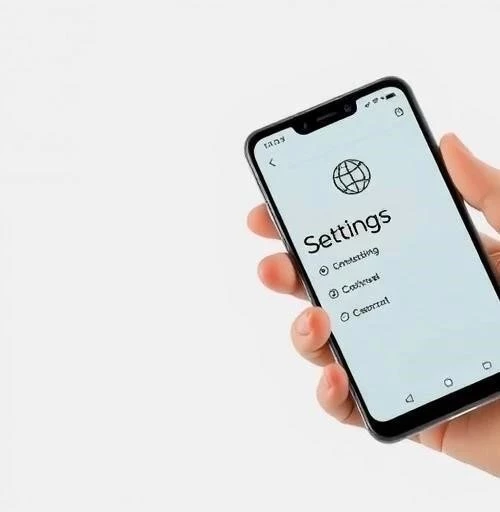
Your Mi A1 may greet you in a language you don’t understand‚ but there’s no need to guess your way through its menus forever. The Mi A1 runs Google’s clean Android One software‚ so its language settings are found in Android—not in Xiaomi’s MIUI menus. Follow the steps below and give your phone a familiar voice.
Change the phone’s display language
- Open Settings. If you can’t read the labels‚ swipe down from the top of the screen and tap the gear icon.
- Scroll down and tap System.
- Choose Languages & input‚ then tap Languages. On some Android versions‚ the route may appear as System > Language & input > Languages.
- Tap Add a language (or the plus sign)‚ then select the language you want. If asked‚ choose the appropriate region‚ such as English (United States) or English (United Kingdom).
- When the language list appears‚ press and hold the handle beside your chosen language and drag it to the top. On some versions‚ tap the language and select Set as default.
The language at the top becomes the system language. Menus and supported apps should switch automatically; the change usually takes effect right away‚ so a restart is not normally needed. Your photos‚ messages‚ and other personal data stay untouched.
If the current language is impossible to read
Use the icons as landmarks: swipe down‚ tap the gear‚ scroll toward the bottom for the section marked System (often shown with a circle containing an “i”)‚ then look for a globe‚ keyboard‚ or language symbol. If you get lost‚ press Back once and retrace the route. Avoid tapping unfamiliar options in other settings—language changes need no reset‚ special app‚ or factory wipe.
Change the keyboard language too
The display language and typing language are separate switches. To add a keyboard layout‚ go to Settings > System > Languages & input > Virtual keyboard > Gboard > Languages. Tap Add keyboard‚ choose a language and layout‚ then save it. While typing‚ switch between enabled layouts using the globe key or by holding the space bar. The exact controls can vary slightly with the installed Gboard version.
Quick fixes
- Your language isn’t listed? Check that you’re in the system’s Languages menu‚ not only Gboard’s keyboard list. Try another regional variant if available.
- One app remains in another language? Some apps use their own language setting or don’t offer a translation. Check that app’s settings and update it if appropriate.
- The menu names differ? Android updates can rearrange labels. In Settings‚ use the search icon and search for “Languages.”
In short: Settings → System → Languages & input → Languages; add your choice and move it to the top. A few taps‚ and your Mi A1 is speaking your language again.
5 Comments. Оставить новый
The best kind of tech help: it anticipates the moment when every menu label looks like an alien alphabet. I also appreciate the calm assurance that personal data stays put.
I like the “follow the icons” approach: it turns an unreadable settings screen into a tiny navigation puzzle instead of a crisis. Clear, reassuring advice, with no dramatic factory-reset detour.
A useful pocket compass for changing language settings. The step-by-step route is easy to follow, and the separate keyboard instructions catch a common surprise before it becomes a second problem.
This guide gives the Mi A1 a voice makeover without making the reader feel lost in translation. The distinction between Android One and MIUI is a small detail that saves a lot of wandering.
A practical little rescue map for anyone whose phone has turned into a pocket-sized mystery. The reminder that display language and keyboard language are separate is especially useful—two switches, one much calmer user.