
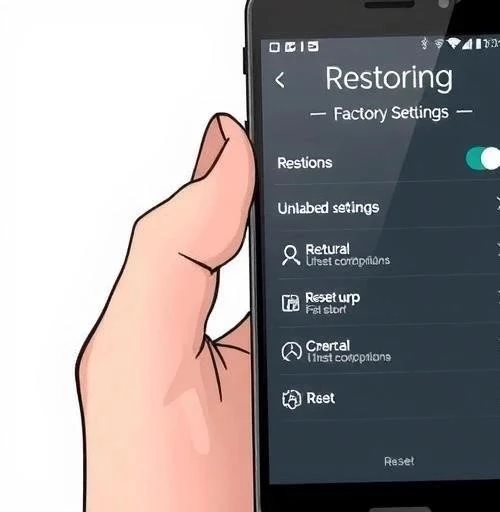
A Xiaomi, Redmi, or POCO phone can feel like a crowded desk: old apps, tangled settings, and little mysteries hiding in every corner. A factory reset clears that desk. It returns the phone to its initial software state, but it also erases personal data stored on the device. Think of it as a clean beginning—not a harmless restart. Follow the steps below, and prepare before you press the final button.
Before you reset: protect what matters
- Back up your files. Save photos, videos, contacts, messages, and documents to a trusted cloud service or computer. Check that the backup finished and that important files are actually accessible.
- Remember your account passwords. After a reset, Android may ask for the Google account previously used on the phone. Xiaomi may also request the Mi Account password. If you cannot sign in, pause and recover your credentials first.
- Charge the phone. Aim for at least 50% battery, or keep it connected to a reliable charger. An interruption during a reset is an avoidable plot twist.
- Consider your SIM and eSIM. A standard factory reset normally does not cancel your mobile plan, but eSIM handling varies by model and reset screen. Read the options carefully and contact your carrier if unsure.
- If you are selling the phone, sign out of Xiaomi and Google accounts and remove screen locks before handing it over. Do not share your passwords with the next owner.
A reset generally removes apps, accounts, settings, and files saved in the phone’s internal storage. It does not necessarily erase a microSD card or information already stored in cloud accounts. Back up first; do not assume that “factory” means every copy everywhere disappears.
Method 1: Reset from Settings
This is the easiest route when the phone starts normally and you can unlock it. Menu names differ slightly between MIUI, HyperOS, and software versions, so follow the closest matching labels.
- Open Settings.
- Tap About phone. On some versions, go to Additional settings or System and updates instead.
- Choose Factory reset, Reset settings, or Erase all data.
- Review the list of items to be removed. Select Erase all data or the equivalent confirmation button.
- Enter your screen-lock code or account password if requested, then confirm.
The phone may restart and show a progress screen. Leave it alone while it works; do not force it off. When the welcome screen appears, set it up as new or restore a backup. The first boot can take longer than an ordinary restart, so give it a few minutes.
Method 2: Reset with Recovery mode
Use Recovery when Android will not load properly or Settings is inaccessible. This route is more direct, but it still erases data and does not remove account verification.
- Switch the phone off. If it is frozen, hold the Power button until it shuts down or restarts, then try again.
- Press and hold Volume Up + Power together. Release the buttons when the Xiaomi logo or Recovery menu appears. Button timing can vary by model.
- In the menu, use the volume buttons to move and the Power button to select. Choose Wipe Data, then Wipe All Data.
- Confirm the choice. When the wipe finishes, select Back to Main Menu, then Reboot and Reboot to System.
If the menu is touchscreen-enabled, tap the options instead. If the phone returns to Recovery repeatedly, or the wipe fails, stop rather than trying random menu items; consult Xiaomi support or an authorized repair service.
What happens after the wipe?
At startup, choose a language and connect to Wi-Fi or mobile data. Sign in with the Google account that was previously on the phone if Android asks for it; this is an anti-theft protection called Factory Reset Protection. You may also need the associated Xiaomi account. A reset is not a way to bypass either lock. If the device is yours but you are stuck, recover the account through its official service or ask the previous owner to remove the device from their account before setup.
Restore only the backup you want. If you reset because of crashes or suspicious apps, reinstalling everything immediately may bring the original trouble back. Set up essential apps first, update the system, and add other apps gradually.
Quick troubleshooting
- Can’t find the reset option? Search Settings for “factory reset” or “erase all data”; labels shift between versions.
- Forgot the screen PIN? Recovery may let you erase the phone, but it will not unlock protected data or defeat account checks.
- Phone is slow but usable? Try restarting, updating software, and removing unused apps before choosing a full wipe.
- Reset button does nothing? Check battery level, wait for the process, and avoid repeated forced shutdowns. Persistent failure may indicate a software or hardware fault.
The safest rule: back up, verify your passwords, then reset. With those three small preparations, a Xiaomi factory reset becomes less like wiping out a whole story and more like opening a clean notebook—ready for the next chapter.

7 Comments. Оставить новый
“An interruption during a reset is an avoidable plot twist” made me smile—and remember to charge my phone. A rare guide that sneaks good advice past the reader with a clever line.
The practical warnings give this guide a seatbelt-and-map feeling: reassuring without making the process sound frightening. I’ll be checking my backup before I touch anything.
A helpful reminder that “factory reset” is not a universal eraser for every copy of every file. The account and handoff advice makes this useful for both troubleshooting and selling a phone.
Clear, calm, and refreshingly free of tech wizardry. The eSIM note is a useful little lighthouse in a sea of settings menus.
I like that this treats a factory reset as a serious fresh start, not a magic undo. The distinction between what lives on the phone and what lives in the cloud is especially valuable.
A reset guide that remembers passwords and battery charge deserves a tiny medal. Those are exactly the details people forget while staring at the big red “erase” button.
The “crowded desk” image makes a factory reset feel less like a button and more like a careful spring cleaning. I especially appreciate the reminder that cloud copies and memory cards may still be around after the phone is wiped.