
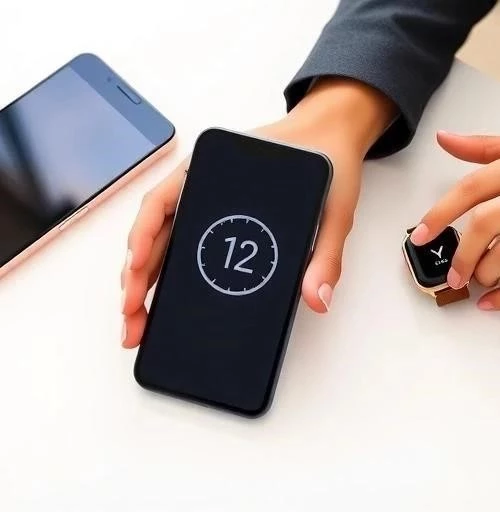
A new smartwatch is a tiny stage waiting for its first performance: the time, a message, a heartbeat, perhaps a weather forecast before you step outside. Setting it up is usually simple, but a few thoughtful choices make the difference between a useful companion and a wrist that buzzes at every passing thought. Follow this guide to get yours ready, whether it is an Apple Watch, a Wear OS model, or another brand.
Check compatibility before you begin
Most watches pair with a phone through a companion app, and not every watch works with every phone. Apple Watch models generally require an iPhone; many Wear OS watches work with compatible Android phones, while some also support iPhone with fewer features. Other brands, including fitness-focused makers, may support both systems through their own apps.
Find the watch’s model name on its box, receipt, or settings screen, then check the maker’s official compatibility information. Look for the required phone operating-system version, app, and Bluetooth support. If the watch is second-hand, ask the previous owner to remove it from their account. A device still linked to someone else may refuse to pair, however shiny it looks.
Charge the watch and prepare the phone
Place the watch on its charger and give it enough power for setup; an update or restore can take longer than expected. Turn on the phone’s Bluetooth and Wi-Fi, connect it to the internet, and install the watch maker’s official companion app from the Apple App Store or Google Play. Avoid look-alike apps and links from unfamiliar messages.
Keep the devices close together and make sure the phone is unlocked. If the watch has already been used, look for a reset option in its settings. A factory reset erases the watch’s stored data, so check for anything important first. Do not reset a watch that is still registered to another person without asking them to unlink it.
Pair the two devices
- Turn on the watch. Choose a language and region if prompted.
- Open the companion app on your phone and select the option to add or set up a device.
- Follow the on-screen instructions. Many watches show an animation or code; use the phone to scan or confirm it.
- Accept the pairing request on both screens. If a code appears, check that the numbers match before approving.
- Allow the app to finish connecting. Keep the watch nearby and do not close the app during setup.
If the phone asks to pair in its Bluetooth menu, follow the watch app’s instructions rather than starting in a different place. Some brands require pairing inside their app first. A watch may restart, install an update, or ask you to sign in to an account. That is normal; keep it charging and connected until the process is complete.
Make the watch yours
Choose a watch face that is readable at a glance. A busy face can look like a miniature dashboard, but the best one puts the information you actually use—time, date, activity, or weather—where your eyes naturally land. You can usually change it later by pressing and holding the face or browsing the companion app.
Set the correct time, units, language, and wrist orientation. Confirm your height, weight, age, and activity preferences if you want health estimates; these values influence calculations, so enter them accurately and update them when they change. Choose a comfortable band fit: secure enough for the sensors to touch your skin, but not so tight that it pinches or leaves deep marks.
Decide what is allowed to interrupt you
During setup, the app may request access to notifications, contacts, location, calendars, or health data. Permission is a choice, not a test you must pass. Enable only the features you want. For example, location access may help with route tracking or weather, while notification access lets selected phone alerts appear on your wrist.
Start with a short list of essential alerts—perhaps calls, messages from family, calendar reminders, or a delivery update. You can usually manage these in the watch app or the phone’s notification settings. If every shopping offer gets a wrist-sized announcement, trim the list. Use Do Not Disturb, sleep, or focus schedules for quiet hours; a helpful watch should respect bedtime.
Set up useful features, safely
If your watch supports payments, add a card through its official wallet app and complete the bank’s verification steps. Set a screen lock if the watch stores payment cards or private information. For emergency features, add accurate emergency contacts and medical details if you choose to use them. Learn how to trigger an emergency call before you need one, and check local service availability.
For health tracking, enable only the measurements you understand and want. A smartwatch can offer useful trends, but its readings are not a medical diagnosis and may be affected by fit, movement, or skin contact. If a measurement worries you, consult a qualified health professional rather than relying on the watch alone.
Finish updates and test the connection
Install any available system or app updates using the manufacturer’s instructions. Updates can improve reliability and security, though they may take several minutes and use battery power. When everything is finished, check that the time is correct, open the companion app, and send a harmless test notification. Try a feature you plan to use, such as starting a timer or recording a short walk.
If pairing gets stuck
- Make sure Bluetooth is on, the watch has charge, and both devices are close together.
- Close and reopen the companion app, then restart both the phone and watch.
- Check for app or phone-system updates and confirm that the app has the permissions it needs.
- If the watch appears in the phone’s Bluetooth list but will not connect, remove the old pairing and try again through the companion app.
- Reset the watch only as a last resort, and first check whether your data is backed up and the device is no longer linked to someone else’s account.
One last check
Wear the watch for a day before changing everything. Notice whether the display is easy to read, whether the band feels comfortable, and which alerts genuinely help. Then adjust brightness, vibration, shortcuts, and battery-saving settings to suit your routine. Your smartwatch is ready when it disappears into the rhythm of the day—quietly useful, easy to reach, and no longer a mysterious box on your desk.
1 Comment. Оставить новый
The best advice here may be the least glamorous: check that a second-hand watch has been unlinked before falling for its polished screen. It’s a tiny reminder that technology carries its previous owner’s paperwork along with its pixels. Clear, practical guidance—and a welcome nudge to begin with trust, not just Bluetooth.