
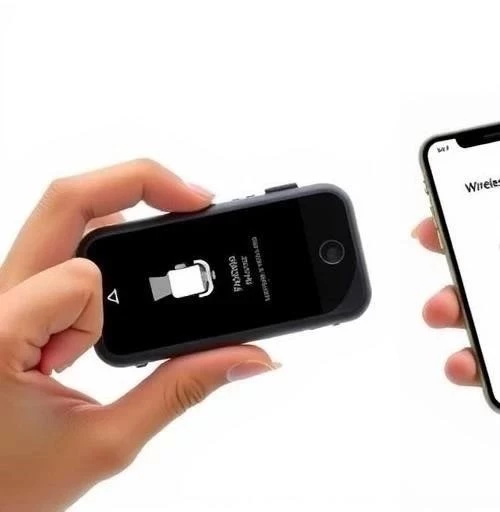
Pairing an Apple Watch connects it to your iPhone so you can set it up‚ install apps‚ receive notifications and sync health data. Before you begin‚ make sure your iPhone is updated to a recent version of iOS and that Bluetooth and Wi-Fi are turned on. Keep both devices close together and charge them if their batteries are low.
Pair your watch for the first time
- Turn on the Apple Watch. Press and hold the side button until the Apple logo appears. If the watch is already on‚ open its Settings app and choose General > Reset only if you need to erase it before setting it up again;
- Open the Watch app on your iPhone. Tap All Watches‚ then Add Watch‚ or follow the pairing prompt that appears automatically. Choose Set Up for Myself if you are configuring your own watch.
- Position the devices. When the pairing animation appears on the watch‚ hold it in the iPhone camera’s viewfinder. If the camera cannot read it‚ tap Pair Apple Watch Manually and follow the on-screen directions.
- Choose a setup option. Select Set Up as New Apple Watch for a fresh setup‚ or restore from a backup if one is offered and you want to bring back previous settings and data. Sign in with your Apple Account if prompted.
- Complete the setup. Review the terms‚ create a passcode‚ and choose settings for features such as Location Services‚ Siri‚ and automatic updates. Follow the prompts to configure health details‚ activity goals‚ notifications‚ and apps. If your model supports cellular‚ you can set up a plan with your carrier now or later.
Keep the iPhone and watch near each other while setup finishes. The watch may show a progress ring and restart. When the watch face appears‚ pairing is complete. You can manage watch faces‚ notifications‚ apps‚ and other options in the iPhone’s Watch app.
If the watch is paired to another iPhone
An Apple Watch can be paired with only one iPhone at a time. If you have the old iPhone‚ open the Watch app‚ tap All Watches‚ tap the information button beside the watch‚ and choose Unpair Apple Watch. This normally erases the watch and creates a backup on the iPhone. Then pair it with the new iPhone and restore the backup if offered. If you do not have the old iPhone‚ erase the watch from its Settings app and start setup again. Activation Lock may require the Apple Account previously used with the watch.
Pairing trouble: quick checks
- Keep the devices close‚ unlock the iPhone‚ and confirm Bluetooth and Wi-Fi are on. Turn off Airplane Mode on both devices.
- Restart both devices‚ then reopen the Watch app and try again. Make sure the iPhone software is compatible with the watch and install available updates.
- If pairing is stuck‚ reset the watch only when necessary‚ then repeat setup. An already configured watch may need to be erased before it can pair as new.
- If the camera animation fails‚ use manual pairing. If an error persists‚ check Apple Support or your carrier for account‚ compatibility‚ or cellular-plan issues.
For a family member: Some cellular Apple Watch models can be set up using Family Setup from an iPhone. Availability and features depend on the model‚ software‚ carrier‚ and region. Choose this option in the Watch app rather than pairing the watch as your own.

9 Comments. Оставить новый
This guide lays out the process clearly and mentions the settings people may need to review along the way.
Helpful overview of the setup choices, including restoring a backup and configuring cellular service later.
Clear, practical instructions. I especially appreciate the reminder to keep the devices close while setup finishes.
The steps are organized in a sensible order and are easy to follow. This would be useful to keep nearby during setup.
This makes first-time pairing feel straightforward, even for someone who has never set up an Apple Watch before.
The manual pairing option is a useful detail. It is good to know what to try if the camera does not recognize the animation.
I like that the article covers preparation as well as the actual pairing steps. The battery and connectivity reminders are easy to overlook.
A concise guide with useful explanations of what happens after pairing. The note about the progress ring is reassuring.
Good beginner-friendly instructions, especially the distinction between setting up a new watch and restoring a backup.