
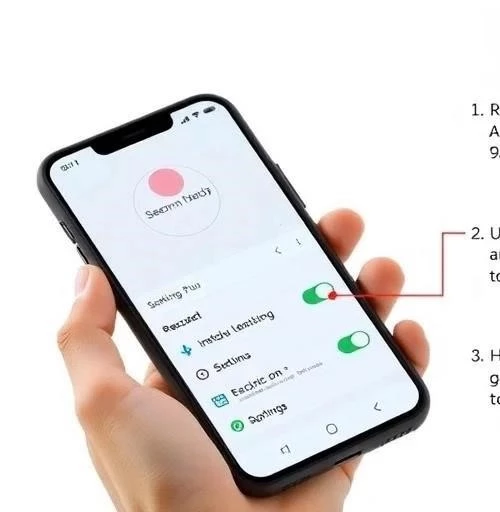
A factory reset erases personal data and returns the Redmi 9A to its initial setup state. It can help resolve persistent software problems‚ but it is not a routine fix: photos‚ messages‚ apps‚ downloaded files and locally stored settings may be deleted. Back up anything important before you begin. Menu names can differ slightly by MIUI version.
Before you reset
- Copy photos and files to a computer or trusted cloud service‚ and check that the backup has finished.
- Sync contacts and other important information with your Google or Xiaomi account. Back up chat histories separately if the app requires it.
- Make sure you know the Google and Mi Account passwords previously used on the phone. After erasure‚ Android may ask for the old account details to verify ownership.
- Charge the phone to at least 50%‚ or keep it connected to a reliable charger. Do not interrupt the reset.
Method 1: Reset from Settings
Use this method if the phone starts and you can unlock it.
- Open Settings.
- Choose About phone‚ then Factory reset. On some MIUI versions‚ look under Additional settings > Backup & reset.
- Review what will be erased. Select the option to erase all data‚ then confirm. Enter your screen lock or account password if requested.
- Wait while the Redmi 9A restarts and completes the wipe. When the welcome screen appears‚ set up the device again or restore a backup.
If you are preparing to sell or give away the phone‚ remove your Google and Mi accounts first when possible‚ then reset it. This helps avoid account-verification problems for the next owner. Never hand over a device while your accounts or private data remain on it.
Method 2: Reset using Recovery mode
Use Recovery if Settings cannot be opened. This also erases data; it does not bypass account verification or remove a forgotten account password.
- Switch the phone off. If it is frozen‚ hold the Power button until it shuts down or restarts‚ then try again.
- Press and hold Volume Up and Power together. Release the buttons when the Mi logo or Recovery screen appears.
- Use the volume buttons to move through the menu and the Power button to select. Choose Wipe Data‚ then Wipe All Data‚ and confirm. Menu wording may vary.
- When the wipe finishes‚ choose Reboot or Reboot to System. The first startup can take several minutes; do not force the phone off.
If the reset does not work
Repeat the button sequence with the phone fully powered off. If Recovery will not open‚ the device repeatedly restarts‚ or an error appears‚ stop rather than trying unofficial flashing tools: installing the wrong firmware can make the phone unusable. Contact Xiaomi support or an authorised service centre. A reset cannot repair damaged hardware.
Important: After setup‚ connect to Wi-Fi and sign in with the Google or Mi Account previously linked to the phone if requested. If you have forgotten those credentials‚ recover them through the official account-recovery service before wiping the device. A factory reset deletes data; it does not unlock a phone or guarantee that performance issues will be fixed.
5 Comments. Оставить новый
The advice is clear and appropriately cautious about charging and not interrupting the wipe. Since menu labels vary by MIUI version, the alternative Settings path is a useful addition.
This is a practical overview, particularly the reminder to back up chat histories separately and confirm that backups have finished. Those details can prevent the loss of information that a general backup might not cover.
The account-verification explanation is important for anyone selling or giving away a phone. Removing personal accounts before resetting can reduce problems for the next owner while helping protect the previous owner’s privacy.
The warnings about backups and account verification are especially useful. They make clear that a factory reset is a last-resort troubleshooting step, not a harmless routine action.
The two methods are clearly separated by whether the phone can be unlocked, which makes the guidance easy to follow. It would be helpful if the Recovery mode instructions continued beyond the initial button combination.