
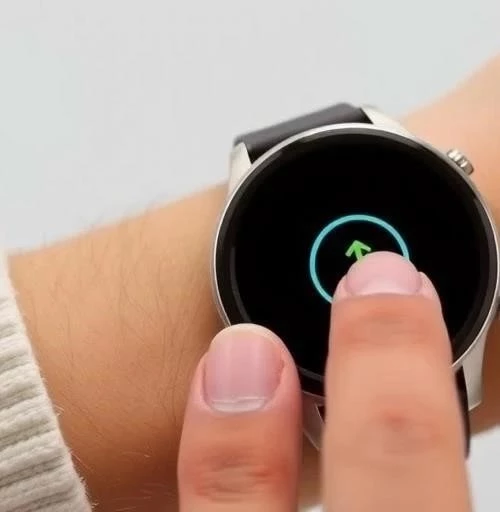
Restarting a Galaxy Watch 4 is a useful first step when the screen or an app freezes, the watch responds slowly, or a connection behaves unexpectedly․ A normal restart closes and reloads the watch’s software without deleting your settings or personal data․ It is therefore worth trying before considering a reset; The steps below cover both a regular restart and a forced restart for an unresponsive watch․
Restart the watch normally
- Swipe down from the top of the watch face to open the Quick panel․
- Tap the Power icon․ Depending on your software version, you may need to swipe through the Quick panel to find it․
- Choose Restart and confirm if prompted․
- Wait for the screen to go dark and the Samsung logo to appear․ Give the watch time to finish starting before using it․
This is the best option when the watch still responds to touch․ A controlled restart lets the system close running processes before it starts again, so it is preferable to forcing a reboot when both methods are available․ If you cannot find a Restart option, use the Power menu to turn the watch off, then press and hold the Home/Power button until the Samsung logo appears․
Force-restart a frozen Galaxy Watch 4
If the display is stuck or touch controls do not work, press and hold the two physical buttons together: Home/Power (the upper button) and Back (the lower button)․ Keep holding them for about seven seconds, or until the screen goes black and the Samsung logo appears, then release․ The watch should reboot automatically․
A forced restart is not the same as a factory reset: it does not intentionally erase your watch data․ However, avoid repeatedly forcing a reboot while the watch is installing an update․ Interrupting an update can cause additional problems․ If an update appears to be progressing, leave the watch connected to its charger and allow it time to complete․
If the watch does not restart
- Check the charge․ Place the watch on its compatible charger and leave it there for at least 15–30 minutes before trying again․ A very low battery can prevent startup․
- Try the button combination once more․ Press both buttons firmly at the same time and hold them long enough for the logo to appear․ A brief press may not trigger a forced reboot․
- Allow startup time․ After the logo appears, the watch may take a few minutes to load․ Do not assume it is stuck immediately․
- Look for a recurring cause․ If the watch starts but freezes again, update its software and apps when possible, and consider whether the issue began after installing a particular app․
Menu wording and panel layout can vary slightly with software updates, but the two-button forced-restart method is generally the practical fallback when the screen is unresponsive․ If the watch repeatedly restarts, remains on the logo, becomes unusually hot, or will not charge, contact Samsung Support or an authorized service provider․ A restart cannot fix a damaged battery or other hardware fault․
Restart or reset?
Choose Restart for temporary glitches because it preserves your data․ A factory reset is a separate, more drastic troubleshooting step that removes data and settings, so it should not be used simply as another name for rebooting․ Only consider resetting after backing up information you need and following Samsung’s guidance․ In most everyday cases, a normal restart—or the button-based forced restart when necessary—is the safer first response․
7 Comments. Оставить новый
This is a focused troubleshooting guide that avoids confusing a forced restart with a factory reset. That distinction is especially reassuring for anyone concerned about losing saved settings or data.
The steps are concise while still explaining when each method is appropriate. The charging reminder is also a practical addition, since a low battery could otherwise be mistaken for a more serious problem.
The wording about software-version differences is helpful because menu layouts can vary. Mentioning the alternative of powering the watch off and then turning it back on gives readers another path if they cannot find Restart.
It is sensible to recommend a regular restart before a forced reboot. The article explains why a controlled shutdown is preferable when the controls still work, rather than presenting the two methods as interchangeable.
The instructions are organized around whether the watch responds to touch, which makes them easy to follow in a stressful moment. The reminder to wait for the Samsung logo also helps clarify when to release the buttons.
The warning about not interrupting an update is an important safety note. It adds practical context beyond the button instructions and may prevent readers from making a software issue worse.
The distinction between a normal restart and a forced restart is clear and useful. Explaining that neither option is intended to erase personal data helps readers choose an appropriate first troubleshooting step.