
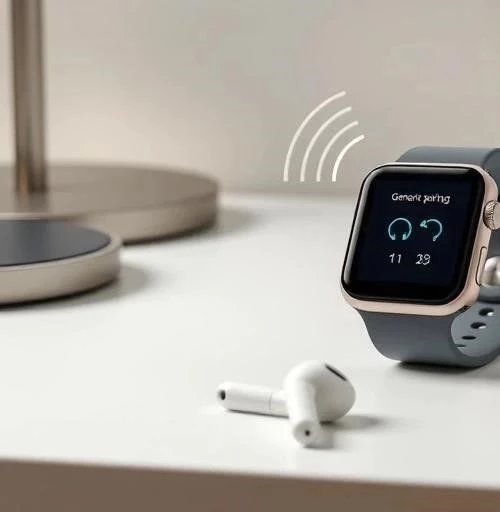
Apple Watch can connect to compatible Bluetooth headphones and speakers for listening to music, podcasts, and other audio. AirPods and many third-party Bluetooth devices work with the watch. The steps below apply to current Apple Watch models, although menu names may vary slightly by software version.
Pair Bluetooth headphones or a speaker
- Charge the headphones or speaker and place it near your Apple Watch.
- Put the audio device into pairing or discovery mode. Follow its instructions; this often involves holding a button until a light flashes.
- On the watch, press the Digital Crown to open the app list, then open Settings.
- Tap Bluetooth. Wait for the accessory to appear under available devices.
- Tap its name. If prompted, enter a PIN or confirm the pairing request.
When the device is connected, it should appear as connected in the Bluetooth settings. Keep it within Bluetooth range while listening. Walls, interference, or distance can interrupt the connection.
Connect AirPods
If AirPods are already paired with an iPhone signed in to the same Apple Account, they may be available to the Apple Watch automatically. Put them in your ears, open the watch’s audio controls or the playback screen, and choose AirPods as the output if they are not selected. For AirPods that are not paired with your account, open their case near the watch and use the Bluetooth settings to pair them, following any on-screen instructions.
Play audio through the connected device
Pairing alone does not start playback. Open Music, Podcasts, or another supported audio app on the watch, select content, and press play. Depending on the app and content, you may be able to stream over Wi-Fi or cellular, or play downloaded items without the iPhone nearby. A cellular plan, internet access, and app permissions may be required for streaming. To change the output during playback, open the playback controls and tap the audio-output or AirPlay icon, then select the connected headphones or speaker.
Apple Watch’s built-in speaker is intended for features such as alerts and calls; it generally is not an alternative for playing music or podcasts. Use compatible Bluetooth audio equipment for that purpose.
If the accessory will not connect
- Make sure the accessory is charged, switched on, and in pairing mode.
- Check that it is not connected to another nearby phone, tablet, or computer. Disconnect it from that device if needed.
- On the watch, open Settings > Bluetooth. If the accessory is listed but fails to connect, tap its information button and choose Forget Device; then pair it again.
- Restart both devices, keep them close together, and try once more. Also check for available software updates.
If the device still does not appear, consult its manufacturer’s pairing instructions and confirm that it supports Bluetooth audio. Some accessories use Bluetooth for a different purpose and cannot play sound.
Useful tips
Bluetooth headphones can help you listen privately during a workout, but keep the volume at a comfortable level and remain aware of your surroundings. Audio playback can reduce battery life, especially when streaming or using cellular data. Downloading playlists or episodes to the watch in advance may help when you want to listen without a network connection. To disconnect, turn off the accessory or select another output in the playback controls; to remove the pairing, use the Bluetooth settings.

3 Comments. Оставить новый
The instructions are organized by task and cover both general Bluetooth accessories and AirPods. Mentioning that menu names can vary by software version helps set expectations.
The article provides clear steps for pairing Bluetooth headphones or speakers with an Apple Watch and explains how to begin playback afterward.
The distinction between pairing an audio device and starting playback is useful. The notes about streaming requirements and Bluetooth range add relevant context.