
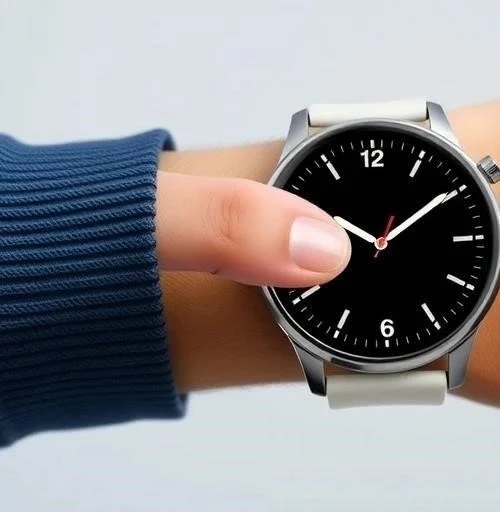
If everything on your Apple Watch looks unusually large, the Zoom accessibility feature may be turned on. You can reduce the magnification with a gesture, or switch Zoom off entirely; These steps work on Apple Watch models that support the feature; menu wording can vary slightly by watchOS version.
Quickest way to zoom out
When the display is magnified, double-tap the screen with two fingers. This toggles Zoom off or returns the view to its normal magnification. Use two fingers, rather than tapping twice with one finger: the standard one-finger double-tap may open an item instead.
If the screen is still magnified but you want a smaller view rather than turning the feature off, double-tap with two fingers and keep the second tap held. Without lifting your fingers, drag them up or down to adjust magnification. Drag upward to zoom in and downward to zoom out. Lift your fingers when the display is at a comfortable size.
Turn Zoom off in Settings
- Press the Digital Crown to open the app list or app grid.
- Open Settings.
- Tap Accessibility, then tap Zoom.
- Switch Zoom off.
This disables magnification, so the screen returns to its ordinary view. If you cannot easily reach Settings because the display is enlarged, use the two-finger double-tap gesture first, then follow the menu steps.
Change the setting using your iPhone
You can also manage the feature from the paired iPhone. Open the Watch app, tap My Watch, choose Accessibility, and tap Zoom. Turn Zoom off, or leave it enabled and adjust the maximum zoom level if that option is available. The change should sync to your watch when the devices are connected.
Move around a magnified screen
Zoom can make parts of the interface extend beyond the visible display. To view another area, drag with two fingers. To adjust the magnification without switching it off, double-tap and hold with two fingers, then slide up or down. These gestures are useful if you want to keep Zoom available for small text but need to navigate or reduce the view temporarily.
Keep Zoom from turning on accidentally
If magnification keeps appearing, check whether Zoom is assigned to the Accessibility Shortcut. On your watch, open Settings > Accessibility > Accessibility Shortcut and review the selected features. If Zoom is listed and you do not use it, remove its check mark. Depending on your settings and watchOS version, the shortcut can be activated by pressing the Digital Crown three times.
If the screen still looks too large
- Check Display Zoom: Some Apple Watch models offer a separate display-size setting. Look in Settings > Display & Brightness for Display Zoom, if available, and choose the standard view.
- Check text size: Larger text can make menus and labels feel crowded, but it is different from Zoom. Open Settings > Display & Brightness > Text Size and reduce the size, or adjust it with the Digital Crown where offered.
- Restart the watch: If the setting seems stuck, restart normally: hold the side button, tap the power button, and move the power-off slider. Turn the watch on again by holding the side button.
- Check the gesture: Make sure you tap twice with two fingers together. A slow, deliberate double-tap often works better than quick taps.
Force restart only if the watch is unresponsive and a normal restart is not possible. Hold the side button and Digital Crown together for at least 10 seconds, then release when the Apple logo appears. This does not normally erase your data, but it should not be the first troubleshooting step.
Zoom is not the same as browser zoom
Apple Watch Zoom magnifies the watch interface; it does not work like zooming a webpage with a computer mouse. If only the writing looks too big, change Text Size instead. If icons and controls are enlarged across screens, turn off Zoom or check Display Zoom. After changing the setting, open a few screens to confirm that the view is comfortable.
In short: double-tap the display with two fingers to return to normal size, or switch off Zoom under Accessibility on the watch or in the iPhone Watch app.

4 Comments. Оставить новый
A useful guide for anyone who accidentally enabled Zoom. The distinction between turning it off and simply reducing magnification is clear.
I appreciate that this covers both the watch and the paired iPhone. The step-by-step instructions make the Zoom setting easy to find.
The two-finger gestures are especially helpful to know, since they make it possible to fix an enlarged display without navigating through menus.
The practical tip about using two fingers instead of one is great. It should help readers avoid opening an item when trying to zoom out.