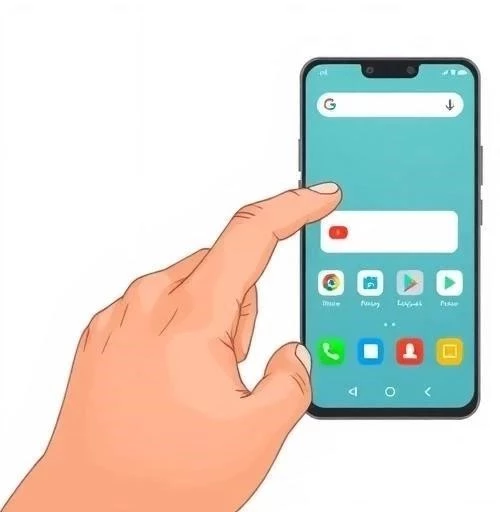
A floating window is a small app view that stays above other content, so you can use an app without leaving the screen you are on․ On Xiaomi phones, it may appear after tapping a notification, opening an app from the sidebar, or choosing a floating-window option in Recent apps․ The exact controls vary between MIUI and HyperOS versions, but you can usually close the current window in seconds․ If you want to stop floating windows from appearing again, change the relevant app or system settings as well․
Close a floating window that is open now
- Look for a handle or title bar․ Tap the small bar at the top of the window, or touch and hold the window, to reveal its controls․
- Drag it to the close area․ Move the window toward the bottom of the screen․ On many Xiaomi versions, a trash-can or “Close” target appears; release the window over it․ If the target appears at the top instead, drag it there;
- Use the close button if available․ Some versions show an X or close icon when you tap the window’s handle․ Tap it to dismiss the window․
- Try Recent apps․ Swipe up from the bottom and pause, or tap the Recent apps button․ Find the floating app card and swipe it away․ You can also tap and hold the card and choose the close option, if shown․
Closing the window normally dismisses its mini-view; it does not uninstall the app or delete its data․ If the app is still running in the background, that is separate from the floating-window display․
Stop a notification from opening as a floating window
If a messaging or other app repeatedly pops up over the screen, its notification may be configured to appear in a floating format․ Open Settings > Notifications & status bar (the name can differ by version), select App notifications or the specific app, and look for Floating notifications․ Turn that option off for the app․ This should prevent its alerts from appearing as banners or floating notifications, while other notification types may remain enabled․
You can also press and hold a notification when it appears and open its settings, if your software offers that shortcut․ Check that you are changing the setting for the correct app․ Disabling all notifications is a broader step and may hide important alerts, so use it only if that is what you intend․
Turn off access to floating windows
On some MIUI or HyperOS releases, apps have a separate permission to display over other apps․ Go to Settings > Apps > Permissions, or open Settings > Privacy protection, and look for Other permissions, Display pop-up windows, or Display over other apps․ Select the app and deny the permission if you do not want it to create overlays․
Menu wording and location vary by phone model, region, and software version․ If you cannot find the setting, use the search box at the top of Settings and try terms such as floating window, pop-up window, or display over other apps․ Be selective: removing this permission may affect legitimate features such as video overlays, call controls, or other app tools․
Disable the sidebar or shortcut that launches windows
If you open floating windows accidentally from a side handle, turn off or customize the sidebar․ Search Settings for Sidebar or Video toolbox, then open the matching feature and disable it, hide its handle, or remove apps from its list․ Depending on the software, the option may be under Special features․ The sidebar itself is only a launch shortcut; disabling it may not change notification behavior or an app’s overlay permission․
If the window will not go away
- Close the app from Recent apps, then reopen it․ If it returns immediately, check whether a notification or sidebar shortcut is launching it again․
- Restart the phone․ This can clear a temporary interface glitch, but it will not change the underlying settings․
- Install available system and app updates․ Menu names and floating-window behavior can change between MIUI and HyperOS releases․
- If only one app causes the problem, review that app’s notification and overlay permissions before changing system-wide settings․
Quick guide
To dismiss one window, drag it to the close target or close its card in Recent apps․ To prevent pop-up alerts, disable floating notifications for the relevant app․ To block an app from drawing over other content, revoke its overlay permission․ To avoid launching windows from the edge of the screen, disable or adjust the sidebar․ Choose the fix that matches how the window appears; these controls are related, but they are not always the same setting․