
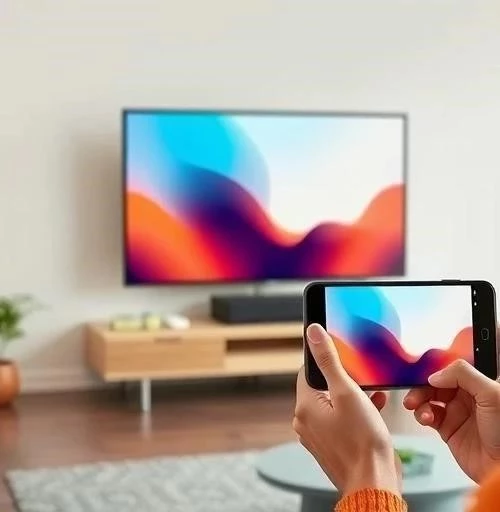
A wireless display turns your television into a large, cable-free window for a phone, tablet, or computer․ Photos can fill the room, a presentation can escape the laptop screen, and a video can be watched from the sofa instead of huddled around a handset․ On Xiaomi TVs, the exact menu names depend on the model and software version, but the basic idea is simple: prepare the TV, connect a compatible device, and choose what to share․
Before you begin: check the connection
First, connect the Xiaomi TV and the device you want to mirror to the same Wi-Fi network․ If your router has separate 2․4 GHz and 5 GHz network names, either band may work, but both devices should be on the same local network․ A guest network, VPN, or router setting that isolates wireless devices can prevent them from seeing one another․
Wireless display is not one single technology․ Android phones may offer Cast, Screen Cast, Wireless display, or Miracast․ Xiaomi phones can also show a casting shortcut in Control Center or Settings․ Many Xiaomi TVs running Google TV or Android TV support Chromecast-style casting, while some models or regions provide a separate wireless-display app․ Menu labels and supported methods vary, so do not worry if your screen looks a little different from a guide for another model․
Prepare the Xiaomi TV
- Turn on the TV and make sure it is connected to Wi-Fi․
- Press the Home button on the remote․ Open Apps, Inputs, or the app list, depending on the interface․
- Look for an app or feature named Wireless Display, Screen Mirroring, Miracast, or Cast․ Open it if available․ Some televisions wait for a sender automatically; others display a screen saying they are ready to connect․
- If you cannot find the feature, check the TV’s Settings and search under Network, Connection, or Device preferences․ You can also search the installed apps․ The location differs across Xiaomi models and software updates․
Keep the TV on the receiving screen while pairing․ Think of it as opening the door before calling from the street: some devices discover the television more reliably when its mirroring app is already active․
Connect an Android phone or tablet
- Unlock the phone and open Quick Settings by swiping down from the top of the screen․ On some Xiaomi phones, swipe down from the upper-right corner to open Control Center․
- Tap Cast, Screen Cast, or Wireless display․ If the button is hidden, edit the Quick Settings tiles or open Settings and search for “cast” or “wireless display․”
- Wait for the available-device list, then tap your Xiaomi TV’s name․ Confirm a prompt on the TV or phone if one appears․
- To stop mirroring, open the same casting control and choose Disconnect or Stop casting․
Some Android phones offer two different choices: mirroring the entire screen and casting a video from a compatible app․ If the TV appears inside a video app’s Cast button, that may send the video directly to the television․ It is often smoother and lets the phone remain available for other tasks․ Full-screen mirroring, by contrast, shows notifications and everything else visible on the phone․
Cast from an iPhone, Windows PC, or Mac
An iPhone uses Apple AirPlay for native screen mirroring․ A Xiaomi TV supports AirPlay only if that feature is built into the particular model or added through a compatible receiver app or device․ Open Control Center on the iPhone, tap Screen Mirroring, and look for the TV․ If it is absent, the phone and TV may not share a compatible protocol; ordinary Chromecast support does not automatically mean AirPlay support․
On a Windows laptop, press Windows + K to open the wireless-display panel and select the TV if it appears․ This requires a compatible receiver, commonly Miracast․ For a Mac, use the Screen Mirroring control in macOS only when the TV or an attached device supports AirPlay․ When built-in options do not match, a certified streaming device connected to the TV’s HDMI port can provide the missing protocol․
Make the picture smoother
- Move the router or TV away from crowded corners and large metal objects․ A stable signal matters more than a theoretical top speed․
- Pause large downloads and disconnect from a VPN while testing․ Some VPNs or guest Wi-Fi networks block local discovery․
- For films, use the video app’s own Cast button when available; mirroring can add delay and may reduce picture quality․
- Keep the phone awake during full-screen mirroring, and rotate it sideways for widescreen video․
If the TV does not appear
Check that both devices are on the same Wi-Fi network, then close and reopen the TV’s receiving app and the phone’s casting menu․ Restarting both devices can refresh discovery․ Confirm that the TV has installed available system updates and that the phone’s software is current․ If a device connects but the screen stays blank, test a different app: protected video services may block screen capture, even when ordinary photos and menus mirror correctly․
If the TV remains missing, verify which protocol your exact model supports in its settings or user manual․ A “Cast” button in an app, Miracast screen mirroring, and Apple AirPlay are related in purpose, but they are not interchangeable․ Choose a receiver that supports the sender’s technology rather than repeatedly changing Wi-Fi settings at random․
A good first test
Start with a harmless photo or the phone’s home screen, not a crucial meeting or a live match․ Confirm the image, sound, and delay; then open the content you actually want to share․ With the right protocol and a steady network, your Xiaomi TV becomes less like a screen on the wall and more like a wide-open canvas—ready for the next thing worth seeing together․
1 Comment. Оставить новый
The same-network tip is the quiet hero here: wireless mirroring feels like magic, but it still needs the router to play matchmaker. I also appreciate the reminder that Xiaomi menus change by model—less treasure hunt, more informed expedition.