
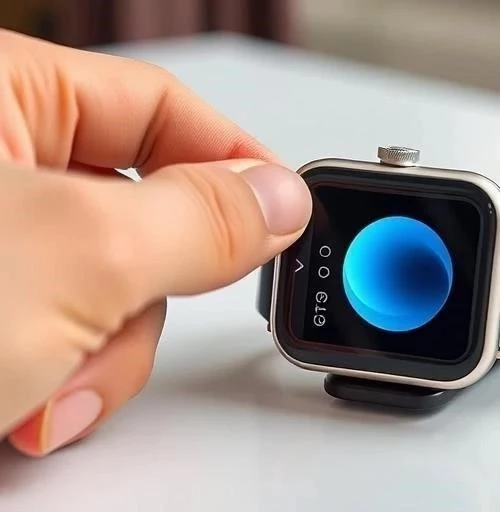
To turn on a new Apple Watch Series 7, press and hold its side button until the Apple logo appears. The first start may take a little longer than usual. Once the watch is on, bring it close to a compatible iPhone and follow the setup prompts to pair the devices.
Before you begin
Unpack the watch and remove any protective film that could interfere with the display or sensors. You will need a compatible iPhone with Wi-Fi and Bluetooth enabled, your Apple Account details if you plan to use them, and the Apple Watch magnetic charging cable. Keep the iPhone and watch close together during setup.
Turn on the watch
- Put the watch on your wrist, or place it face up on a clean surface.
- Press and hold the side button on the right edge of the case. Do not press the Digital Crown as the power-on button.
- Release the side button when the Apple logo appears. Wait for the welcome screen.
If nothing happens, the battery may be completely drained. Connect the included magnetic charger to a USB power adapter or another suitable power source. Place the back of the watch against the charger so the magnets align, then leave it charging for at least 30 minutes before trying again. A charging symbol should appear on the screen. Check that the cable and power source work if it does not.
Pair Apple Watch with your iPhone
- Unlock your iPhone, turn on Wi-Fi and Bluetooth, and keep it next to the watch.
- When the pairing notification appears on the iPhone, tap Continue. If it does not appear, open the Watch app, choose All Watches, then tap Add Watch.
- Tap Set Up for Myself. Point the iPhone camera at the animation on the watch when prompted, keeping the animation inside the viewfinder.
- If the camera cannot read it, choose the option to pair manually and follow the instructions on both screens.
After pairing, select Set Up as New Apple Watch if this is your first watch or you want a fresh setup. If you have a previous Apple Watch backup, you may be offered the option to restore it. Read each prompt and allow the devices to remain near each other while settings and apps sync. Setup can take several minutes.
Finish the setup
Choose which wrist you wear the watch on and the Digital Crown’s position. Create a passcode if requested; it helps protect information on the watch and is needed for features such as Apple Pay. Sign in to your Apple Account when prompted, review the terms and privacy settings, and decide whether to enable optional features such as Location Services, Siri, and cellular service. Cellular setup is only relevant to a cellular model and may require a carrier plan.
You can install available apps during setup or let the watch sync apps from your iPhone. Keep both devices nearby and, if the watch has little charge, leave it on the charger. When the watch face appears, setup is complete. Swipe, tap, and turn the Digital Crown to explore the screen and controls.
If the watch will not turn on
- Charge it first. Make sure the charger is connected firmly and the watch is centered on the magnetic puck. Try a different power adapter or outlet if needed.
- Wait for the charging screen. A deeply discharged battery may need several minutes before anything appears. Try holding the side button again after charging.
- Check for a frozen screen. If the watch is on but unresponsive, press and hold the side button and Digital Crown together until the Apple logo appears. This force-restarts the watch; use it only when necessary, and never while a software update is in progress.
- Allow updates to finish. During an update, the Apple logo or progress indicator may remain on screen. Keep the watch on its charger and do not force-restart it.
Pairing problems and Activation Lock
If pairing fails, keep the iPhone and watch close together, confirm that Bluetooth and Wi-Fi are on, and restart the iPhone before trying again. Make sure the iPhone’s software is up to date and compatible with the watch. If the watch was previously set up by someone else and asks for that person’s Apple Account, Activation Lock is enabled. The previous owner must remove the watch from their account before you can set it up; resetting the watch alone does not remove this protection.
Quick answer
Hold the Apple Watch Series 7 side button until the Apple logo appears. If the battery is empty, charge the watch first. Then use the iPhone Watch app or the on-screen pairing prompt to complete setup.


2 Comments. Оставить новый
The step-by-step instructions are clear and helpful, especially the distinction between the side button and the Digital Crown. The troubleshooting advice for a drained battery is useful too.
This is an easy-to-follow guide for turning on and pairing an Apple Watch Series 7. The article seems to end mid-sentence, so completing the setup section would make it more useful.