
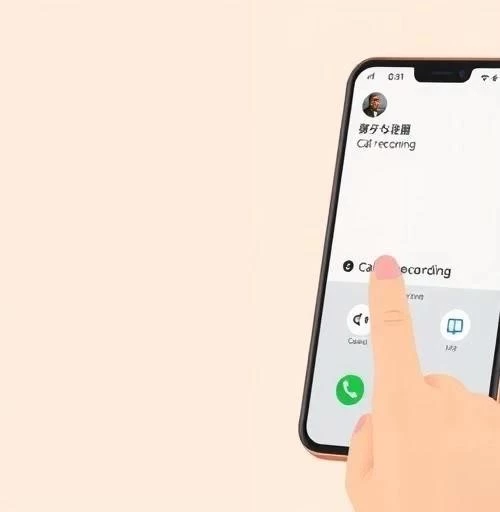
A phone call can be a useful little time capsule: a delivery address‚ a doctor’s instructions‚ a brilliant idea you had while walking the dog. Xiaomi phones may be able to save those moments‚ but the exact route depends on your model‚ region‚ software version‚ and dialer app. There is no single switch that works on every Redmi‚ POCO‚ or Xiaomi device. Use the guide below to find the option your phone actually supports—and to check that it works before an important call.
First‚ identify your dialer
Open the Phone app you use to make calls. Xiaomi devices may have Xiaomi’s own dialer or Google Phone‚ and their recording controls are different. You can often recognize Google Phone by its simple blue handset icon‚ though icons can vary. If you are unsure‚ open Settings > Apps > Manage apps and look for the phone app. Menu names also shift between MIUI and HyperOS versions‚ so use the Settings search bar if a label does not match exactly.
If your phone has Xiaomi’s dialer
- Open the Phone app.
- Tap the menu icon‚ usually three lines or three dots‚ then open Settings.
- Look for Call recording‚ Record calls‚ or a similarly named option.
- Turn on recording‚ then choose the available mode: record all calls‚ record calls from selected numbers‚ or start recording manually during a call.
- If offered‚ review the list of selected numbers and any storage or retention settings.
On some versions‚ the recording option appears only after you open the in-call screen or tap a contact. If you cannot find it‚ search Settings for record and check for system or app updates. Do not assume that a missing menu means you overlooked a secret switch: the feature may simply be unavailable for your device’s software or region.
If your phone uses Google Phone
Open Phone > menu > Settings and look for Call recording. If the item is present‚ open it and follow the on-screen choices. Depending on availability‚ you may be able to record unknown numbers automatically‚ record selected contacts‚ or tap Record while a call is in progress. During a call‚ the recording control may sit among the other call buttons or under a menu.
Google Phone availability is controlled by regional rules‚ app version‚ device support‚ and sometimes the phone’s carrier. It may announce to both participants that recording has started. That announcement is part of the feature‚ not a fault to work around. If the setting is absent‚ updating the app may help‚ but changing the app’s language or installing a dialer from an unofficial website does not guarantee support and can create security or privacy risks.
Make a short test before relying on it
After enabling the option‚ place a brief test call to someone who knows you are testing. Try both an outgoing and incoming call if you need to record both types. Start recording using the method you selected‚ end the call‚ then open the call history or the recording list in the Phone app. Play the file and check that both voices are clear. A button that appears on screen is not proof that a usable recording was saved.
Recordings may be kept inside the Phone app rather than in a familiar Music or Recorder folder. Look in the call’s details‚ the app’s recording section‚ or your file manager. The exact folder and filename vary by software version. If you cannot find a recording‚ check that the phone had free storage‚ that the call was supported‚ and that the recording was not automatically deleted by a retention setting.
When the option is missing or recordings fail
- Check the software: install official system and Phone app updates‚ then restart the device.
- Search Settings: try “call recording” and “record calls”; menu placement can change after updates.
- Check the app: confirm which dialer is set as default under Settings > Apps > Default apps. Switching dialers may not add recording support.
- Check the call type: some services‚ conference calls‚ or calls made through messaging apps may not be recordable by the built-in feature.
- Check permissions and space: if the app requests relevant permissions‚ review them in Settings‚ and make sure storage is not full.
Avoid “call recorder” apps that promise to bypass restrictions. Newer Android versions limit how third-party apps can capture call audio‚ so these tools may save silence‚ one side of a conversation‚ or nothing at all. Apps that request broad access to contacts‚ microphone‚ and files also deserve careful scrutiny. Prefer the phone’s built-in feature when it is available; if it is not‚ ask your carrier or Xiaomi support about legitimate options for your exact model and region.
A small but important privacy rule
Before recording‚ check the laws where you and the other caller are located. Some places require everyone on the call to consent; others have different rules. Even where recording is permitted‚ telling the other person is the clearest and most respectful choice. Keep files private‚ share them only when necessary‚ and delete them when they are no longer useful. A recording is not just a phone feature—it is someone else’s voice‚ saved.
Quick checklist
Open the dialer settings. Find the recording control. Enable the mode you want. Make a consent-based test call. Play back the file and confirm where it is stored. If the control is not there‚ your Xiaomi may not support native call recording in its current region or software configuration. The right answer is to check the exact model and official support—not to chase a mysterious universal toggle.

7 Comments. Оставить новый
This turns a fiddly settings hunt into a sensible little checklist. I especially appreciate the note that menus can move between software versions.
The article balances convenience with caution without making the reader feel scolded. Call recording is a tool, and the guide remembers that people are involved.
A compact guide with a helpful compass: identify the app, check what your version supports, then verify it works. No mythical universal switch required.
A useful reminder that “not available” is sometimes the real answer—not a puzzle with a hidden menu at the end. Clear, grounded guidance.
I like that this guide treats Xiaomi as a family of phones rather than one phone wearing seven different hats. That distinction saves readers from chasing settings that may not exist.
The dialer-first approach is refreshingly practical. It’s like checking which map you’re holding before asking it for directions.
The best advice here may be the least glamorous: test the feature before you need it. A tiny practice call can spare a much larger headache later.