
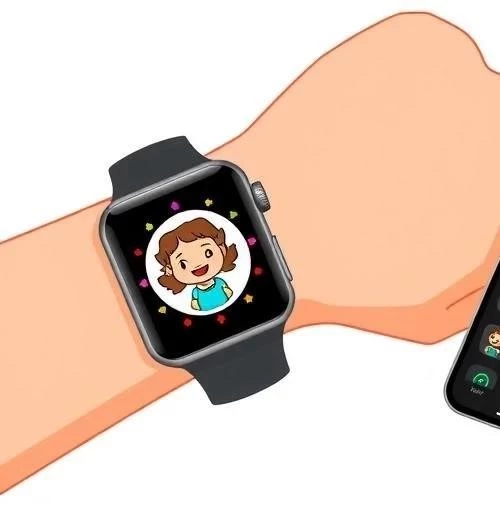
A Memoji watch face turns a familiar character into a small, animated detail you can see throughout the day. It is also practical: the face is easy to personalize and can display different expressions when you tap it. The setup is straightforward, but the options are easiest to manage from the paired iPhone.
Before you begin
Make sure your Apple Watch and iPhone are paired, updated, and running software that supports the Memoji face. The exact menus may vary slightly by watchOS version. If you do not see Memoji in the Face Gallery, check for an available update and confirm your watch model supports the feature.
Add the face using your iPhone
- Open the Watch app on your iPhone.
- Tap Face Gallery at the bottom of the screen.
- Scroll to the Memoji category and open it.
- Choose a character. Select an existing Memoji, or create one if the gallery offers that option. You can customize details such as skin tone, hairstyle, and accessories.
- Adjust the available face options, such as the background color, then tap Add.
The new face should appear under My Faces in the Watch app and become the active face. If it does not switch automatically, open the face on the watch by swiping across the screen, or select it from My Faces and choose Set as current Watch Face.
Choose or create a Memoji
You can make a character in Messages on your iPhone: open a conversation, tap the plus button or Memoji option, and follow the prompts to create or edit one. Menu labels can differ between iOS versions. Once saved, return to the Watch app and select it for the face. You can also use an Animoji character if it appears among the available choices.
Customize it on the watch
Press and hold the current watch face, tap Edit, and swipe through the settings. Depending on your software, you can change the character or appearance and adjust available complications. Tap the screen or turn the Digital Crown to finish. A tap on the Memoji typically changes its expression; this makes the face more interactive than a static photo.
If Memoji is missing
- Update iOS and watchOS, then reopen the Watch app.
- Confirm the watch is connected to the iPhone and that the Memoji is saved.
- Restart both devices if the gallery still fails to refresh.
In short, use Watch app → Face Gallery → Memoji → Add. This route is generally more reliable than searching through watch settings, while the watch itself is useful for quick edits. If the face remains unavailable after updating, your model or software may not support it;

3 Comments. Оставить новый
The instructions are organized in a helpful order, from adding the face on an iPhone to making adjustments on the watch. I also appreciate the troubleshooting advice for when the face does not appear. The article appropriately avoids implying that every model or software version has identical options.
This is a clear, practical guide, especially for readers who are new to managing watch faces. The reminder that menu labels can vary by software version helps set realistic expectations. It would be even more useful with a brief note about which watchOS versions introduced the Memoji face.
This article balances personalization with useful setup details and explains why the paired iPhone may be the easiest place to manage the face. The steps are easy to follow without being overly technical. A small screenshot or a note about where to find the face after adding it could make the guide even more accessible.