
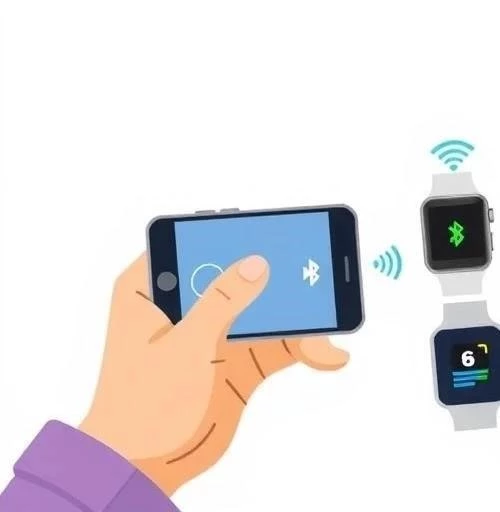
Pairing a Smart Watch 9 with your phone lets you receive notifications‚ sync health and activity data‚ and use other connected features. The exact setup can vary because “Smart Watch 9” is used for different watch models. Check the manual‚ box‚ or QR code for the correct companion app before you begin.
Before you start
- Charge the watch and keep it close to your phone.
- Turn on Bluetooth on the phone. Connect to Wi-Fi or mobile data if the app needs to download or sign in.
- Install the app named in the watch’s instructions. If there is a QR code on the watch or in its manual‚ scan it with your phone’s camera and follow the official download link.
- Allow the app to use Bluetooth and‚ when requested‚ notifications and other permissions needed for the features you want.
Pair the watch
- Power on the watch. Press and hold its side button until the screen lights up. Choose a language or region if prompted.
- Open the companion app. Sign in or create an account if required. Look for an option such as Add device‚ Pair new watch‚ or a plus sign.
- Select your watch. Choose “Smart Watch 9” or the matching model from the list. If it does not appear‚ use the app’s scan or search option and keep the watch awake nearby.
- Confirm the pairing request; A code may appear on both screens. Check that the codes match‚ then tap Pair or Confirm on the phone and watch. Accept any setup prompts in the app.
- Finish setup. Choose which notifications and permissions to enable‚ then allow time for the first data sync. Keep the app open and the devices close together during this step.
Some watches also show up in the phone’s Bluetooth settings. If the companion app instructs you to pair there‚ select the watch and confirm the request. Otherwise‚ start pairing from the app: connecting in Bluetooth settings alone may not complete setup or enable syncing. If the watch asks to install a separate calling connection‚ follow its on-screen instructions.
If pairing does not work
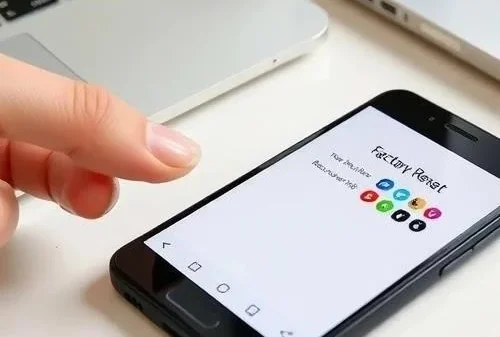
- Make sure the watch is not already connected to another phone. If it is‚ disconnect it there or use the watch’s reset/unpair option. A factory reset can erase data‚ so check the manual first.
- Turn Bluetooth off and on‚ restart both devices‚ and try again with the watch close to the phone.
- In Bluetooth settings‚ remove an old entry for the watch using Forget or Unpair. Then reopen the companion app and start a fresh pairing.
- Check that the app is compatible with your phone’s operating system and that Bluetooth permissions are enabled. Update the app and phone software if needed.
- If the watch still does not appear‚ charge it‚ wake its screen‚ and consult the model’s manual or the manufacturer’s support page. Avoid installing apps from unfamiliar links.
After connection
Open the companion app and check that the watch shows as connected. Enable notification access in the phone’s settings if messages or calls do not appear‚ and allow background activity if syncing stops when the app closes. Menu names differ between Android and iPhone‚ and some features may not work on every phone. Keep Bluetooth on for ongoing sync‚ and use the app to change watch settings or update its firmware.

4 Comments. Оставить новый
Helpful overview with sensible reminders to charge the watch and keep it nearby during syncing. The final sentence appears cut off, so the troubleshooting section feels incomplete.
This is a clear, practical guide, especially the reminder to use the companion app specified in the watch’s manual. That should help prevent confusion with similarly named models.
I like that the article explains why pairing through Bluetooth settings alone may not finish setup. The step-by-step format makes the instructions easy to follow.
The permission and QR-code guidance is useful for first-time smartwatch users. The article could use a little more detail about what to try if the watch still does not appear.