
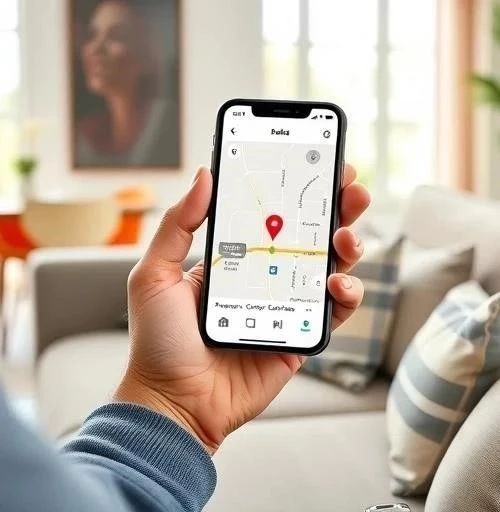
If your Apple Watch is misplaced, an iPhone or another phone can help you locate it, play a sound, or protect your information. The main tool is Apple’s Find My service. The steps work best when Find My was enabled on the watch before it went missing and the watch is associated with your Apple Account.
Find your watch in the Find My app
- Open the Find My app on your iPhone. If it is not installed, download it from the App Store. You can also use the Find My app on a supported Apple device signed in to your account.
- Tap Devices at the bottom of the screen;
- Select your Apple Watch from the list. If you have more than one watch, check the name or model shown beneath the device.
- Review its location on the map and choose an available action, such as Play Sound or Directions.
The map may show the watch’s current location or its last reported location. Tap the location card for more information. If the watch is nearby, use the map as a guide, then play a sound and listen carefully. Check common places such as pockets, bags, bedding, the car, and the area around a charger.
Make the Apple Watch play a sound
In Find My, select the watch and tap Play Sound. The watch will make an audible alert when it can receive the request. This can help you find it under clothing or furniture, even if you do not remember where you left it. Follow the sound and repeat the alert if needed.
If the watch is offline, the sound may not play immediately. Find My can show that the request is pending and may send it when the watch reconnects. Keep the watch selected in the app and check its status later; A silent setting does not necessarily prevent a Find My sound from being heard.
Use the map and directions
If Find My displays a location, tap Directions to open a route in Maps or another available navigation app. A location is a useful clue, not always an exact indoor position. GPS reception, nearby devices, network access, and the watch’s battery can affect how recently or precisely its position is reported.
When the map shows an unfamiliar or public place, do not enter a private property or confront anyone. If you believe the watch was stolen, consider contacting local authorities and provide its identifying details rather than trying to recover it yourself;
Turn on Lost Mode
If you cannot find the watch soon, use Mark As Lost or Lost Mode on its Find My screen. Follow the prompts to lock the watch with its passcode and, if offered, display a message and contact number. You can ask whoever finds it to contact you without sharing more personal information than necessary.
Find My may also offer Notify When Found. Turn this on if it is available. You will receive a notification if the watch is detected again. Lost Mode can help protect personal information, but it does not guarantee that the device can be tracked while it is powered off or unable to connect.
What if the watch is offline or missing from the list?
An offline watch may have a depleted battery, be out of network range, or be powered off. Find My may show its last known location, but that location can be out of date. Depending on the watch model, settings, and conditions, the Find My network may help report a location through nearby Apple devices. If no location appears, check again later and keep Lost Mode enabled.
If the watch does not appear under Devices, make sure you are signed in to the Apple Account used to set it up. A family member may be able to see a watch through Family Sharing if the relevant family and location-sharing features were configured. If Find My was not enabled before the watch went missing, it generally cannot be switched on remotely to locate it.
Find it from a non-Apple phone
On an Android phone or another device with a web browser, visit iCloud.com/find and sign in with the Apple Account associated with the watch. Select the device if it appears, then review the available location and security options. Website features and sign-in requirements can vary. If two-factor authentication is requested and you cannot access a trusted device, follow Apple’s account recovery or verification instructions.
Protect your account and data
If recovery seems unlikely, you can consider erasing the watch remotely from Find My. Erasing removes data from the device when it receives the command, but may make further location updates unavailable. Treat it as a last resort and review the on-screen warning before confirming. If Find My was enabled, Activation Lock is designed to prevent another person from setting up the watch without the associated Apple Account.
Do not remove the watch from your Apple Account or Find My simply because it is missing: doing so can remove an important security safeguard. Change your Apple Account password if you suspect that someone has accessed your account, and never share a verification code or passcode with a person claiming they can return the watch. A genuine recovery process does not require you to reveal those codes.
Prepare for the future
To improve the chances of finding a watch next time, open Settings on the paired iPhone, tap your name, then Find My, and check that Find My iPhone and the Find My network options are enabled. Menu labels can differ slightly by software version. Keep the watch paired with your account, use a passcode, and check that location services and network settings are available. Find My cannot guarantee recovery, but setting it up in advance makes sound, location, and Lost Mode features available when you need them.
7 Comments. Оставить новый
The explanation of what can happen when the watch is offline helps set realistic expectations about the Play Sound feature.
This guide provides a concise overview of the main ways to locate a missing watch, including sound alerts and directions.
The reminder that a location is not always exact indoors is a helpful qualification for readers using the map.
The distinction between a current location and a last reported location is useful, since a map result may not reflect where the watch is now.
The practical suggestions for checking bags, bedding, and other common places complement the app instructions.
The article clearly outlines how to use Find My to locate an Apple Watch and explains that the service needs to have been enabled beforehand.
The steps are presented in a straightforward order, from opening Find My to checking the map and available actions.