
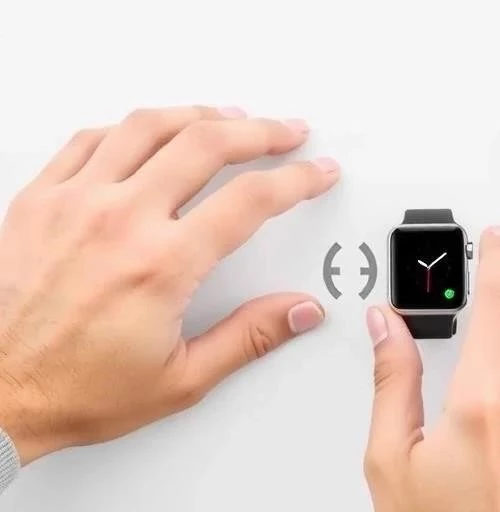
An Apple Watch may be small, but it carries a surprising amount of personal history: activity records, settings, apps, and the daily rhythm of your notifications. Before selling it, giving it away, or pairing it with a different iPhone, unpair it properly. Think of the process as returning a borrowed key: the watch is erased, your iPhone keeps a backup, and Activation Lock can be released for its next owner.
The best method: use the paired iPhone
- Keep your Apple Watch and iPhone close together, with Bluetooth and Wi-Fi enabled. Make sure both devices have enough battery power; keeping them on chargers is a good idea.
- Open the Watch app on the iPhone that is currently paired with the watch.
- Tap My Watch, then tap All Watches at the top of the screen.
- Find the watch you want to disconnect and tap the small ⓘ information button beside its name.
- Choose Unpair Apple Watch, then confirm. If you have a cellular model, you may be asked whether to keep or remove its cellular plan.
- If prompted, enter your Apple Account password. This helps turn off Activation Lock so another person can set up the watch.
The iPhone and watch will begin their farewell dance. Keep them near each other until the process finishes; interrupting it is rarely useful and can leave you wondering whether the devices actually parted ways. The watch is erased, and the iPhone usually creates a fresh backup of its contents during unpairing. That backup can help restore your settings and data if you pair the watch again later.
What should you do about the cellular plan?
If you plan to use the same Apple Watch again, or move it to another compatible iPhone under your account, choose the option to keep the plan when it is offered. If you are selling or giving away the watch, choose to remove the plan. Removing it from the watch does not necessarily cancel your carrier subscription: contact your carrier if you want the service itself to end. A GPS-only watch has no cellular plan to manage.
No paired iPhone? Erase the watch itself
If the iPhone is lost, unavailable, or no longer yours, you can erase the watch from its own screen:
- On the Apple Watch, open Settings.
- Tap General, then Reset.
- Choose Erase All Content and Settings.
- Enter the watch passcode if asked, then confirm the erase. On a cellular model, select whether to keep or remove the plan.
This erases personal content, but it does not necessarily remove Activation Lock. If you still have access to the Apple Account used to set up the watch, remove it from your account through Find My or your Apple Account device list. On another Apple device, open Find My, select the watch, and use the option to remove it from the account after it has been erased. Menu wording can vary slightly by software version.
Selling, gifting, or handing it down?
For a smooth handoff, use the iPhone method whenever possible. Confirm that the watch no longer appears as paired in the Watch app, erase it, and make sure Activation Lock is removed. Then leave the watch at its welcome/setup screen. Do not give the next owner your passcode or Apple Account password; they should pair the watch with their own iPhone and account. If the watch was set up for a family member, the family organizer may need to manage its plan or account settings.
Already handed it over before unpairing? You can erase it remotely in Find My, but an erase alone may leave Activation Lock in place. Remove the watch from your account only when you are ready to let the new owner activate it. Never remove a device just because a stranger asks you to “help with setup”—that request can be a sign the watch is still linked to you.
If something goes wrong
- The watch is not listed in the Watch app: Check that you opened the app on the iPhone it was paired with and that you are signed in to the right Apple Account.
- Unpairing will not complete: Bring the devices closer, keep them powered, and try again. A restart of both devices can help if the connection appears stuck.
- You do not know the Apple Account password: Recover access through Apple’s account-recovery process before transferring the watch. Erasing it does not bypass Activation Lock.
- You want to pair it again: Bring the watch near the iPhone and follow the pairing prompts. When offered, restore from the backup created during unpairing.
The quick rule
Have the paired iPhone? Unpair through the Watch app. No iPhone? Erase from the watch, then remove it from Find My or your account if it is changing owners. The first route is the neatest because it backs up the watch and helps release Activation Lock in one guided process. A few deliberate taps now can save the next person—and your future self—from an awkward digital reunion.
7 Comments. Оставить новый
The advice to keep both devices close and powered is refreshingly practical. In the small opera of gadgets saying goodbye, nobody needs a dramatic interruption halfway through.
This turns a fiddly settings task into a tidy checklist. I’d never thought of the backup as a little time capsule waiting for the next pairing.
The “borrowed key” image makes a technical reset feel almost ceremonial. A useful reminder that unpairing is about handing over a clean beginning, not just tapping a button.
A thoughtful guide for a hand-me-down world: it covers the owner, the next owner, and even the carrier lurking in the background. The watch gets a proper farewell.
Clear, calm, and mercifully free of tech-support fog. The Activation Lock explanation is especially helpful for anyone passing a watch along to its next wrist.
I appreciate the distinction between removing a cellular plan from the watch and canceling the carrier subscription. That tiny detail could save someone an unexpectedly persistent bill.
The “farewell dance” is a charming touch, and the instructions stay grounded where it matters. I’d happily hand this to a friend before they sell their watch.