
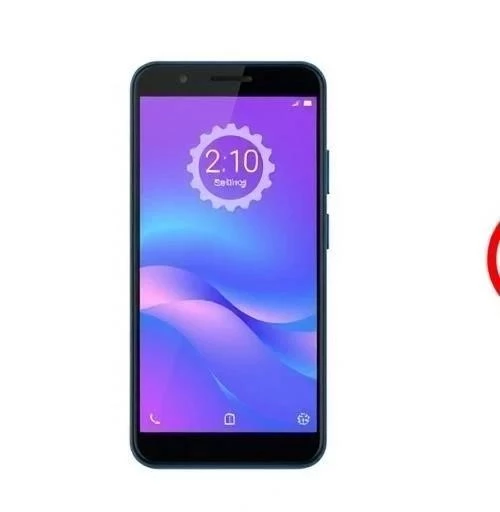
First, check that your phone actually has NFC. Redmi 9C was sold in different regional versions, and NFC availability depends on the exact model. A version called Redmi 9C NFC includes the feature; a regular Redmi 9C may not. Settings cannot add NFC to a phone without the required hardware, so verify the model name on the box or in Settings > About phone. You can also look for an NFC option in Settings or search the settings screen for “NFC.” If no option appears, check the specifications for your exact regional model before troubleshooting.
Turn on NFC
- Open Settings.
- Tap Connection & sharing, More connection options, or a similarly named menu. The wording can vary with MIUI version and region.
- Switch on NFC. If available, open Contactless payments and choose your preferred payment app as the default.
You may also be able to switch NFC on from the Control Center: swipe down from the top of the screen and tap the NFC icon. If it is missing, edit the quick-setting tiles or use Settings instead. Keep NFC on only when you need it if you want to reduce unnecessary background connections; ordinary NFC use is short-range, but enabling it is not required for everyday phone operation.
Set up contactless payments
Install a wallet or banking app supported in your country, add a payment card, and complete the bank’s verification steps. Then check that the app is selected under the phone’s contactless-payment settings. Your phone may need a screen lock, such as a PIN, pattern, or password. Payment availability depends on your country, bank, card, app, and Android software—not just on NFC hardware. If the payment option is absent, check those requirements with your bank or wallet provider.
To pay, unlock the phone and hold its back near the terminal’s contactless symbol for a moment. The NFC antenna is usually around the upper-middle area of the phone’s rear, but its exact position can vary. Move the phone slightly if the terminal does not respond. Remove thick cases or metal accessories that could interfere, and follow the wallet’s instructions about whether the display must be awake.
Using NFC tags and troubleshooting
For a tag or other NFC device, switch on NFC and bring the relevant part of the phone close to the tag. Some tags need a compatible app; not every tag can be read or written by every phone.
- No NFC setting: confirm the exact model and regional specifications; If the hardware is absent, there is no software setting that can enable it.
- Payment fails: check the default wallet, card status, screen lock, internet connection during setup, and bank support.
- Connection is unreliable: remove the case, reposition the phone, restart it, and install available system updates.
In short: verify that yours is the NFC-equipped Redmi 9C version, enable NFC in Settings, and configure a supported payment app if you want tap-to-pay. Menu names and services vary by region and software version.
4 Comments. Оставить новый
The troubleshooting tip to move the phone slightly near the terminal is helpful, especially because antenna placement can vary. Mentioning a screen lock is also relevant, since many payment services require one for security.
This is a practical guide because it accounts for menu names changing between MIUI versions. Suggesting both Settings and the Control Center gives readers another way to find the NFC toggle if their interface differs.
The distinction between the regular Redmi 9C and the Redmi 9C NFC is important. Checking the exact model before following the setup steps can save time, since a software update cannot provide NFC hardware that the phone does not have.
The payment section appropriately notes that NFC alone does not guarantee contactless payments. Bank, card, country, and wallet support can all affect availability, so checking with the provider is useful advice.