
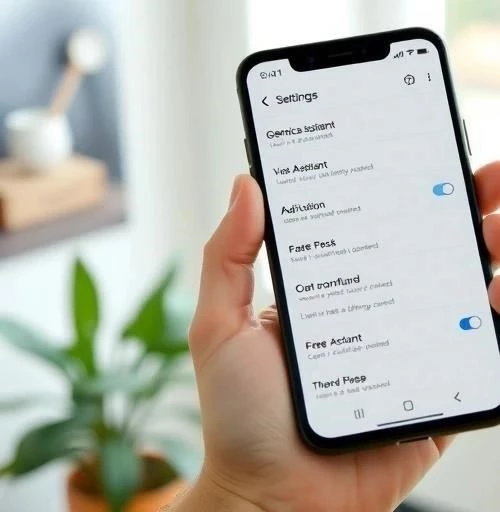
On Xiaomi, Redmi, and POCO phones, “the voice assistant” usually means Google Assistant or Gemini. It may start after you say “Hey Google,” press and hold the power button, use a gesture, or tap a headset control. These are separate activation methods, so disabling only voice recognition may not stop the assistant from opening another way. For a reliable result, turn off the triggers you do not use and, if you want, remove the assistant as the phone’s default digital assistant.
Menu names vary between MIUI and HyperOS versions, and Google may change its settings. If a path below does not match your screen, use Settings search and look for Digital assistant, Default apps, or Hey Google.
Remove the assistant as the default app
This is usually the best option if you want the power-button shortcut and other system gestures to stop opening an assistant. It does not uninstall Google or Gemini; it tells Android not to assign either one the assistant role.
- Open Settings.
- Go to Apps > Default apps. On some versions, open Manage apps, tap the three-dot menu, then choose Default apps.
- Tap Digital assistant app, Assist app, or a similarly named option;
- Choose None and confirm if prompted.
On some Xiaomi versions the option is under Settings > Additional settings > Languages & input > Manage keyboards or Assistant & voice input. If you cannot find it, search Settings for “assistant.” When None is selected, pressing the assigned shortcut should no longer launch Google Assistant or Gemini.
Turn off voice activation
If you still want to open the assistant manually but do not want it listening for a wake phrase, disable voice activation separately:
- Open the Google app, tap your profile picture, then choose Settings.
- Open Google Assistant > Hey Google & Voice Match.
- Switch off Hey Google and follow any confirmation prompt.
On newer phones, Gemini may be the active assistant. Open the Gemini app, tap your profile picture, and check Settings for voice activation or “Hey Google” controls. The exact labels depend on the app version and account. Turning off the wake phrase prevents voice-triggered launches, but it does not necessarily disable the power-button shortcut or the assistant’s default-app role. Apply both changes if you want to stop both.
Stop the power button from launching it
If the assistant appears when you try to switch off or restart the phone, the long-press action is probably assigned to it. Go to Settings > Additional settings > Gesture shortcuts or Button shortcuts, then open the power-button or “press and hold” setting. Select the power menu, or turn off the assistant shortcut. Names and available choices vary by model and software release.
Some devices show power controls after pressing the power and volume-up buttons together, even when a long press is assigned to the assistant. Treat that as a temporary workaround, not a substitute for changing the shortcut. If the relevant option is missing, setting the default digital assistant to None may be enough to prevent the assistant from opening.
Disable Gemini or switch assistants
Removing Gemini from the default-assistant role does not always uninstall the app. If you want it unavailable for ordinary use, open Settings > Apps > Manage apps, select Gemini, and choose Disable or Uninstall if your phone offers that option. You can also check Settings > Apps > Default apps and choose Google Assistant instead of Gemini, or choose None. Availability depends on your Android version and whether Gemini is installed as an app or provided through Google services.
Disabling an app is more extensive than turning off its wake phrase: it may also prevent features that rely on Gemini from working. If your goal is simply to avoid accidental activation, removing its default role and disabling voice activation is usually the less disruptive choice.
Check other triggers and test
If the assistant still appears, check accessibility shortcuts, navigation gestures, headphones, and third-party launchers. Look in Settings > Accessibility for any shortcut assigned to an assistant. A headset button may launch Google’s voice service independently of the power-button setting; test with the headset disconnected. Also check whether a home-screen search widget or app icon is opening the assistant manually.
After changing settings, lock the phone and test each trigger separately: say the wake phrase, hold the power button, and try any gesture you previously used. Restarting is not normally required. If the menus differ, update the Google or Gemini app and search Settings again; avoid disabling unrelated Google system components, because that can break search, voice typing, or other services.
Which method should you choose?
- Only stop “Hey Google”: switch off voice activation in Google Assistant or Gemini settings.
- Stop the power-button launch: change the power-button shortcut and, if needed, set the digital assistant to None.
- Prevent assistant access as much as possible: remove the default-assistant role, disable voice activation, and disable or uninstall Gemini if the option is available;
The key is to distinguish the assistant itself from the ways it is launched. Changing the default app, wake phrase, and button shortcut addresses different settings; choosing only the one relevant to your problem avoids unnecessary changes while giving you control over your Xiaomi phone.
For background on the changing MIUI and HyperOS menus, see this Xiaomi guide to Assistant and Gemini settings and this guide for MIUI.


5 Comments. Оставить новый
The mention of both Google Assistant and Gemini is timely, since the active assistant can vary by device and software version. Checking which app is assigned as the default should help readers troubleshoot more accurately.
This is a practical guide because it acknowledges that MIUI and HyperOS menus can differ. Suggesting Settings search gives readers a reasonable alternative when the listed paths do not match their phone.
I appreciate the clarification that choosing “None” does not uninstall Google or Gemini. That helps readers understand the effect of the setting and choose it without worrying that they will remove other Google features.
The distinction between voice activation and other launch methods is useful. Turning off “Hey Google” alone may not prevent a button shortcut from opening the assistant, so explaining how to change the default assistant makes the guidance more complete.
The article usefully separates the options for people who want to stop all assistant shortcuts from those who only want to disable wake-word listening. That makes the instructions adaptable to different preferences.