
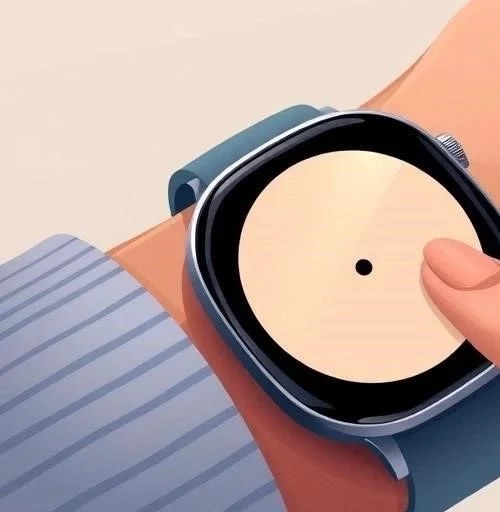
On an Apple Watch, the small i inside a circle is an information button. “Tap the i icon” simply means touch that symbol on the watch’s screen once. It is not a physical button on the side of the case, and it does not mean entering the letter i. The symbol opens information or setup options related to the screen you are viewing.
Most commonly: pairing your watch
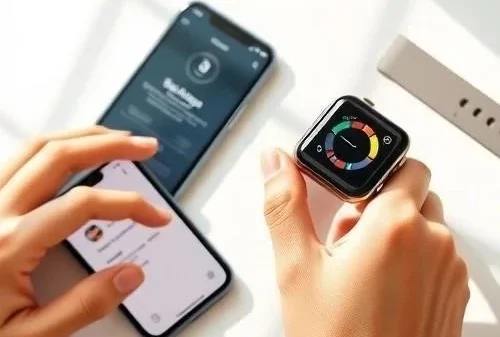
You are most likely to see the icon when setting up or pairing an Apple Watch with an iPhone. The usual setup uses the iPhone camera to scan the animation shown on the watch. If automatic pairing does not work, tapping the i on the watch can reveal identifying details, such as the watch’s name, and help you choose it from the list on your iPhone. Depending on the setup screen and software version, you may also be offered a manual pairing option or instructions for continuing setup.
This is useful when the camera cannot focus, the animation will not scan, or you are pairing in a difficult environment. It does not, by itself, connect the devices or erase your data: it gives you information or an alternative route. Keep the watch and iPhone close together, make sure Bluetooth is on, and follow the instructions shown on both screens.
What to do if you cannot find it
- Wake the watch and look at the current setup or pairing screen. The icon may appear near the lower corner.
- Tap the circled i once. If nothing happens, check that you are touching the display rather than the case.
- Read the information displayed, then select the matching watch or follow the on-screen steps on your iPhone.
If the icon is not visible, you may be on a different screen, or the watch may already be paired. Do not reset the watch just because you cannot see the symbol. First open the Watch app on your iPhone and check whether the watch appears there. If setup is stuck, restart both devices and try again; resetting should be a later troubleshooting step because it can remove settings and require setup again.
Other screens and the iPhone Watch app
The meaning depends on where the icon appears. In an app or settings screen, an i usually opens details, help, or options for that particular feature. In the Watch app on iPhone, an information button beside a watch can lead to device-specific actions. Read the labels carefully: viewing details is different from unpairing or erasing a watch, which are consequential actions that require confirmation.
In short
The i icon means information. Tap it when Apple’s setup instructions ask you to, especially if automatic pairing fails, and use the details it provides to continue safely. It is a contextual help or information control—not a universal command, a fault warning, or a button that should be pressed at random. If the screen shows a specific choice, follow that wording rather than assuming every i icon behaves identically.

8 Comments. Оставить новый
The pairing example makes the article practical. It explains when the icon is useful and, just as importantly, what tapping it does not do.
The explanation clearly distinguishes the on-screen information icon from the watch’s physical buttons. That clarification should help readers who are unsure what “tap the i icon” means.
The article appropriately notes that the exact options can vary by screen and software version. That qualification keeps the guidance useful without promising that every watch will show the same prompts.
I appreciate the measured troubleshooting advice. Recommending a check in the Watch app before resetting the device can help readers avoid unnecessary data loss and setup work.
The numbered steps are easy to follow, especially the reminder to tap the display rather than the case. This makes the instructions accessible to someone setting up a watch for the first time.
The distinction between viewing information and actually connecting the devices is especially helpful. It sets realistic expectations and makes the setup process seem less confusing.
This is a focused and reassuring explanation. It answers the likely question directly and avoids suggesting a reset as the first solution when the icon is missing.
The advice to keep the iPhone and watch close and check Bluetooth adds helpful context to the pairing instructions. These are simple checks that can address common setup problems.