The Apple Watch Series 3 is an older model, so check its identity, condition, battery and ability to pair before you rely on it. If you are buying one used, inspect it in person and do not pay until you have tested the basic functions.
Confirm the model
On the watch, open Settings > General > About. Check the model name, capacity and serial number. You can also find the model number in the same screen; tap it to reveal an “A” number. Compare that number with Apple’s official model-identification page. The case size and markings can provide clues, but they are not proof by themselves.
Ask the seller to show the original purchase information if available. A serial number can help identify the device, but it does not guarantee that the watch is genuine, unlocked or in good condition.
Check Activation Lock and pairing
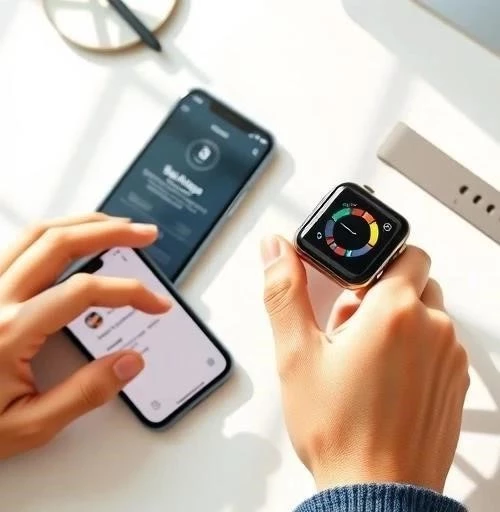
This is essential for a second-hand watch. The previous owner must unpair it from their iPhone and remove it from their Apple Account. Have them do this in front of you, then try pairing the watch with your own compatible iPhone using the Watch app. If setup asks for someone else’s Apple Account password, Activation Lock is still on. Do not buy the watch until the owner removes it.
Make sure your iPhone’s iOS version supports the watch. Series 3 is limited to older watchOS software and may not work with every newer iPhone or app. Check Apple’s current compatibility guidance before purchasing.
Inspect the hardware
- Screen: Look for cracks, deep scratches, dead pixels, flicker and uneven brightness. Test touch across the entire display.
- Case and back: Check for dents, gaps, corrosion or signs that the watch has been opened. Damage can affect sensors and water resistance.
- Buttons and crown: Turn the Digital Crown and press the side button. They should move smoothly and respond reliably.
- Band and charger: Check that the band locks securely and the charger connects and charges consistently.
Do not test water resistance by submerging an older watch. Seals can deteriorate with age, and liquid damage may not be covered.
Test battery, sensors and connections
Open Settings > Battery > Battery Health, if that option is available. Review maximum capacity and watch for service warnings. A battery that drains rapidly, shuts down unexpectedly or becomes unusually warm may need service. Run a short test with the screen on and normal functions enabled; a quick glance at the battery percentage alone is not conclusive.
Try a workout to check heart-rate readings, then test the speaker, microphone, vibration, Wi-Fi and Bluetooth. Make a call or send a message if the model and plan support it. GPS and Cellular versions differ, so verify the exact configuration rather than assuming cellular service is included.
Check software and reset safely
In Settings > General > Software Update, check whether the watch can install the latest version available for Series 3. Updates may require substantial free storage and time. This model has limited storage and does not support every recent feature, so confirm that it meets your needs before buying.
After testing, erase the watch only with the owner’s permission. A proper handover means it is erased, removed from the seller’s account and ready to pair with your iPhone. If any of those steps cannot be completed, walk away or contact Apple Support.
Quick checklist
- Model and serial details are consistent.
- No visible damage; controls, screen and charging work.
- Battery behaves normally and sensors respond.
- It pairs with your iPhone without another person’s credentials.
- You have checked software limits and the return policy.
Bottom line: Test the watch yourself, prioritize successful pairing and a clean account handoff, and remember that Series 3 is an aging device with limited compatibility.