
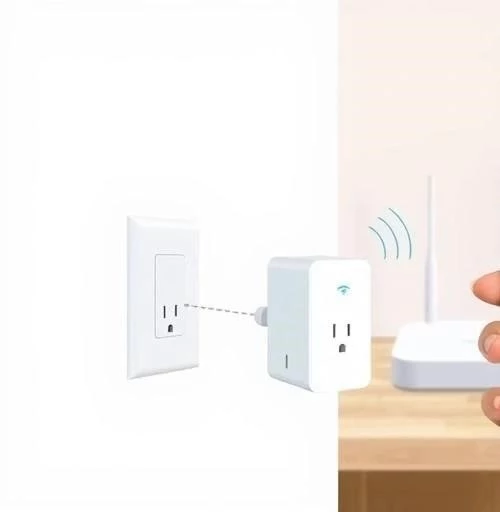
A Xiaomi Wi-Fi repeater can extend your wireless network into rooms where the router’s signal is weak. Most Xiaomi range extenders are configured through the Mi Home or Xiaomi Home app, although names and screens may differ by model and app version. The steps below cover common models, including the Mi Wi-Fi Range Extender Pro. For best results, follow any model-specific instructions shown in the app.
Before you begin
- Check that your router’s Wi-Fi is working and that you know its network name and password.
- Install the Mi Home or Xiaomi Home app from Google Play or Apple’s App Store. Use the official app and sign in if prompted.
- Place the repeater near the router for initial setup. You can move it to a better location afterward.
- Check your model’s supported bands. Some older Xiaomi extenders support only 2.4 GHz, while newer models may support both 2.4 and 5 GHz.
Set up the repeater in the app
- Power on the device. Plug the repeater into a wall outlet close to your router. Wait for it to start. If it has been used before, reset it according to the model’s instructions; on many models, this involves holding the reset button until the indicator changes.
- Prepare your phone. Connect the phone to the Wi-Fi network you want the repeater to extend. Turn on Bluetooth and location access if the app requests them, and allow the necessary permissions.
- Add the device. Open Mi Home/Xiaomi Home and tap the plus sign or “Add device.” Choose your repeater from the list. If it is not displayed, search for the model name or select it manually from the Wi-Fi or network-device category.
- Select the region if asked. Choose the region required by the app and device. Availability and menus can vary by region, so use the region recommended for your model rather than changing it at random.
- Choose the router’s network. When prompted, select your home Wi-Fi and enter its password carefully. Confirm the details and start pairing. Keep the phone close to the extender and do not unplug it during setup.
- Wait for confirmation. The app should report that setup is complete. On many Xiaomi extenders, a steady blue indicator means the connection is successful. Check your model’s manual, because light colors and meanings may differ.
Find the best place for it
After pairing, unplug the extender and place it roughly halfway between the router and the area with poor reception. It must still receive a usable signal from the router; putting it inside a dead zone will not make the connection better. Avoid hiding it behind furniture, inside a cabinet, or beside large metal objects and appliances. Give it a moment to reconnect after moving it, then check the indicator and test Wi-Fi where you need coverage.
Some models create a network name based on the original Wi-Fi name, while others use the same name and password as the router. Follow the app’s instructions and check its device page for connection details. If your model supports both bands, the app may ask which band to extend. A 5 GHz connection can offer higher speeds nearby, while 2.4 GHz often reaches farther and passes through obstacles more effectively.
If setup does not work
- The app cannot find the extender: Move your phone closer, check that the device is powered on, and enable requested Bluetooth and location permissions. Try adding it manually from the device list.
- Pairing fails: Confirm the Wi-Fi password, reconnect the phone to the router’s network, and restart the app and extender. Reset the repeater and try again if it was previously configured.
- The indicator stays red or connection drops: Move the repeater closer to the router, check that the router is online, and repeat setup. A weak signal at the extender’s location is a common cause.
- It will not connect to the router: Check the model’s supported Wi-Fi bands and security settings. Older extenders may not work with 5 GHz-only networks or certain router configurations. Consult the router and repeater manuals before changing settings.
Tips for reliable coverage
Keep the router and repeater updated where updates are available, and avoid placing multiple extenders in a chain unless the manuals support it. A repeater can improve coverage, but devices connected through it may have lower speeds than devices near the router. Test the connection in the rooms you actually use, and move the extender in small steps if performance is poor.
If you need to change networks later, open the repeater’s page in Mi Home/Xiaomi Home and look for network or Wi-Fi settings. The exact options depend on the model. When the app cannot recover the connection, reset the device and repeat the pairing process using the new router details.
Quick checklist
Install the official app, plug in the extender near the router, add it in the app, select the correct home network, enter its password, and wait for the success indicator. Then move the repeater to a halfway point where it still receives a solid signal. These steps work for many Xiaomi models, but the device’s manual and on-screen prompts take priority if they differ.

4 Comments. Оставить новый
The troubleshooting advice to reset a previously used device and check app permissions is useful. It makes the setup steps easier to follow.
I appreciate the notes about model differences and supported Wi-Fi bands. Those details can prevent confusion when following app instructions.
This is a clear, practical guide for setting up a Xiaomi repeater. The reminder to start near the router should help avoid pairing problems.
Helpful and well organized. It would also be useful to explain how to choose the repeater’s final location after pairing.