
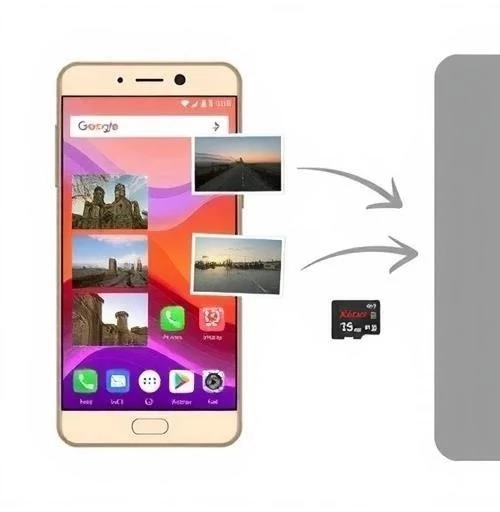
Moving files to a microSD card can free space on a Xiaomi phone, but the card only helps if your model has an SD slot and the phone recognizes it. Many Xiaomi, Redmi, and POCO models do not support expandable storage, so check the specifications or SIM-tray markings first. Do not force a card into the tray.
Insert and prepare the card
Back up anything already on the card. Switch off the phone, insert the microSD card in the correct tray position, then turn the phone on. If prompted to format it, remember that formatting erases its contents. Use the phone’s suggested format unless you have a specific compatibility need. If the card is not detected, remove and reseat it, then check it in another device.
Move existing files
- Open File Manager and choose a category, such as Images, Videos, or Documents, or browse Internal storage.
- Long-press a file or folder, select other items if needed, and tap Move (or Copy).
- Choose the SD card, open or create a destination folder, and confirm. Wait until the transfer finishes before deleting any original copies.
Menu names differ between MIUI, HyperOS, and Android versions. If the card is missing as a destination, check Settings > About phone > Storage or Storage settings. A copy-and-check approach is safer for important files: open the copied files from the card before removing the originals.
Save new photos to the card
Open the Camera app and go to its settings. If available, enable Save to SD card or choose the SD card as the storage location. This setting is not offered on every model or software version. Take a test photo, then confirm it appears on the card in File Manager.
What about apps?
Moving apps is different from moving photos. Xiaomi phones often do not let users move apps to an SD card; the option depends on the model, Android version, and app. Do not assume that transferring an app’s visible folder will move the app itself. For more space, remove unused apps or clear downloaded media within the app;
Important precautions
- Keep the card inserted while using files stored on it; removing it can make them unavailable.
- Use a reliable card and keep a separate backup of valuable photos and documents.
- Never interrupt a transfer or remove the card while files are being written.
In short: use File Manager for existing files and Camera settings for future photos. These methods are safer and more dependable than trying to force all phone data or apps onto external storage.
7 Comments. Оставить новый
The article sensibly emphasizes backing up the card before formatting it. That warning helps prevent accidental loss of files when setting up a new or previously used card.
It is useful that the article notes menu names can vary across MIUI, HyperOS, and Android versions. Readers are less likely to get stuck if the labels on their phones differ.
The camera-storage section appropriately recommends taking a test photo after changing the setting. Confirming the destination is a simple way to catch a configuration that did not take effect.
The step-by-step instructions for moving files are clear, especially the advice to verify copied files before deleting the originals. That is a practical safeguard for important photos and documents.
The reminder to check whether a Xiaomi model has a microSD slot is important. Storage advice can otherwise lead people to buy a card that their phone cannot use.
The distinction between moving files and moving apps is valuable. Copying an app folder to a card does not generally relocate the installed app, so this clarification can prevent confusion.
This is a useful overview for freeing internal storage while avoiding common mistakes. The advice to check compatibility first and keep original files until transfers are verified makes the process safer.