
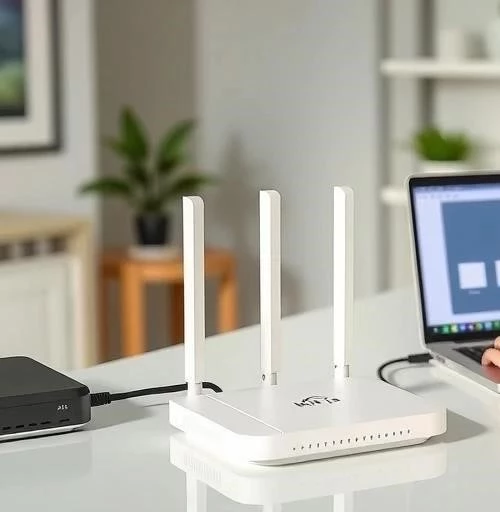
Think of your router as a tiny border crossing: every device in your home arrives with a request, and the router decides how it gets onto the internet. The Xiaomi Mi Wi-Fi Router 4 can make that journey straightforward—once you give it the right connection details and secure its wireless network. Follow this guide for a careful first setup, whether the menus appear in English or Chinese.
Before you begin
- Have your internet provider’s connection type and any required username or password ready. These details may be in your service agreement or available from your provider.
- Keep the router’s power adapter and an Ethernet cable nearby. If you have a modem or an Ethernet outlet, use the cable to connect it to the router’s WAN/Internet port.
- Find the factory Wi-Fi name and setup information on the router’s label. Names and default details can vary by region and firmware.
Do not confuse the Wi-Fi password with your provider’s account password: they serve different gates.
Connect and power up
Place the router in an open, central spot, away from thick walls and enclosed cabinets. Connect the provider’s Ethernet cable to the WAN/Internet port, then plug in the router and wait for it to start. A light may blink or change color during startup; check the label or the model’s documentation if you are unsure what its status means.
On a phone or computer, open the Wi-Fi list and join the network printed on the router. If the device asks you to sign in or finish setup, follow the prompt. You can also connect a computer to a LAN port with Ethernet, which is useful if wireless setup is being stubborn.
Open the setup page
Open a browser and try http://192.168.31.1. If that does not load, try http://miwifi.com, or use Xiaomi’s Mi Wi-Fi app if it is available for your region and model. Stay connected to the router’s network while doing this. The page may take a moment to appear.
If the interface is in Chinese, use your browser’s translation feature as a guide. Translation can be imperfect, so check labels carefully before saving changes. Avoid random “unlocking” tools or unofficial firmware just to change the language; they can introduce security risks or make the router unusable.
Choose the internet connection
The setup wizard may offer a router mode and ask how your internet service is delivered. Choose the option that matches your provider:
- Automatic IP (DHCP): Common with cable modems and many building Ethernet connections. The router receives its network settings automatically.
- PPPoE: Enter the username and password supplied by your provider. These are not necessarily the credentials you use to access the provider’s website.
- Static IP or another connection type: Enter the exact values supplied by your provider. Some providers use L2TP or PPTP, but availability depends on the router’s firmware and configuration options.
Do not guess these settings. If the internet does not come online, contact your provider and ask which connection type the service requires and whether the modem needs to be restarted or registered with the new router.
Name and protect your Wi-Fi
Set a network name (SSID) that you can recognize, then create a strong, unique Wi-Fi password. A memorable phrase with several unrelated words is easier to type than a short, predictable password. If the wizard offers separate names for 2.4 GHz and 5 GHz, you may keep them distinct for easier troubleshooting, or use a shared name if the router offers automatic band selection. Nearby devices generally benefit from 5 GHz; 2.4 GHz can be more useful farther away or through obstacles.
If prompted, set a separate administrator password for the router’s settings. Never reuse the Wi-Fi password for administration. Save the changes; your phone may disconnect because the old network name or password has disappeared. Rejoin using the new details.
Check the result
Connect one device and open a familiar website. If it works, test another device and a room farther from the router. Keep the router’s firmware updated through its official interface or app, and change settings only when you understand what they do.
If something goes wrong
- The setup page will not open: Confirm that you are connected to the Xiaomi router, turn off mobile data or VPN temporarily, and try the address again. A computer connected by Ethernet can help.
- Wi-Fi works, but there is no internet: Check the WAN cable and connection type. Re-enter provider credentials carefully, then restart the modem and router if your provider recommends it.
- You cannot join the new network: Forget the saved network on your device and connect again with the new password.
- You are locked out: A factory reset may restore access, but it erases your settings. Use the reset control only according to the router’s instructions, then repeat setup.
Once the connection is stable, write down the Wi-Fi name, Wi-Fi password, and administrator password and store them somewhere private. A few minutes of careful setup turns the Mi Wi-Fi Router 4 from a blinking white box into a dependable traffic director for your home.



2 Comments. Оставить новый
The “tiny border crossing” image makes router setup feel less like wrestling a mystery box and more like a sequence of manageable steps. The bilingual-interface tip is especially thoughtful—translation can be a useful compass, even when it is not a perfect map.
A refreshingly practical guide: the reminder that Wi-Fi credentials and provider credentials are different keys could save a lot of head-scratching. I also appreciate the advice to check the router label instead of treating every model’s lights and defaults as universal.