
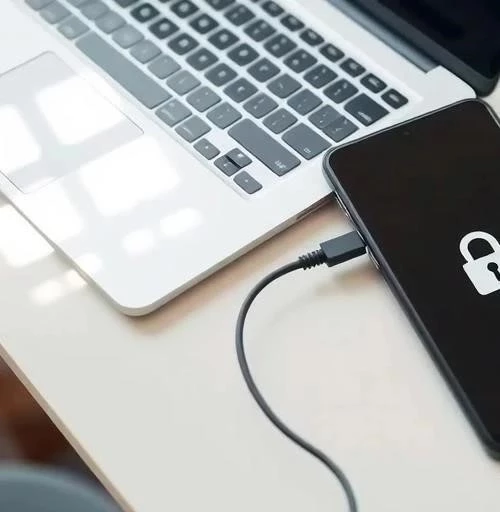
The Redmi Note 8 Pro is a capable older phone, and unlocking its bootloader can open the door to custom ROMs, recovery tools, and deeper system modifications. It is also the point of no return for your data: Xiaomi’s official unlock process normally erases the phone. Think of it as changing the lock on a house while everything inside is being cleared out. Back up first, read each screen, and use Xiaomi’s official method rather than an unofficial “instant unlock” service.
Before you begin
- Back up everything. Copy photos, messages, and files somewhere safe; confirm that your cloud backup is complete. Do not assume a backup can be restored if it was made with a different Android version.
- Check the phone and account. You need a working Mi/Xiaomi account, internet access, and a SIM card. The account used on the phone must be the same one used in Xiaomi’s unlocking tool.
- Use a Windows PC and a reliable cable. Charge the phone well, install the official Mi Unlock tool and its included drivers, and avoid hubs or loose USB ports.
- Understand the risks. Unlocking reduces some security protections, may affect warranty or support depending on your region, and can prevent certain banking, streaming, or payment apps from working. A mistake while flashing later can make the phone unusable.
Important: Xiaomi changes eligibility rules, waiting periods, and account requirements over time and by region. Redmi Note 8 Pro runs on MediaTek hardware, so do not follow instructions meant for another Redmi model or assume that a Qualcomm fastboot procedure applies. If Xiaomi’s official tool or current support pages say your account or device is not eligible, stop there; do not try to bypass the restriction.
Step 1: Prepare the phone
- Sign in to the phone with the Xiaomi account you intend to use for unlocking. Keep the SIM associated with that account in the phone, and make sure mobile data and location services are available if requested.
- Open Settings > About phone. Tap MIUI version repeatedly until the phone confirms that you are a developer.
- Go to Settings > Additional settings > Developer options. Turn on OEM unlocking and USB debugging. The wording or location can differ slightly between MIUI versions.
- In Developer options, open Mi Unlock status (sometimes called Mi Unlock or Device unlock status). Accept the notice, then tap Add account and device. Follow the on-screen instructions. If it fails, check mobile data, account sign-in, SIM status, and Xiaomi’s eligibility requirements; repeatedly resetting the phone is not a fix.
Step 2: Use Xiaomi’s official unlock tool
- On a Windows computer, download Mi Unlock only from Xiaomi’s official site or support channel. Extract and run the program, install its offered drivers if needed, and sign in with the same Xiaomi account linked on the phone.
- Turn the phone off. Hold Volume Down + Power until the Fastboot screen appears, then connect it directly to the computer with the USB cable.
- In Mi Unlock, let the tool detect the phone and follow its prompts. Read the warning carefully. Confirm only if you accept that user data will be erased.
- If the tool displays a waiting period, let it run to completion. The wait can be several days—often 168 hours, but the time shown by the tool is what matters. Keep the same account on the phone; do not remove it, factory-reset the device, or switch accounts during the wait unless Xiaomi’s instructions specifically tell you to.
- After the waiting period, return to Fastboot mode and repeat the official tool’s unlock process. When it reports success, the phone will usually wipe and restart. Initial setup may take longer than a normal boot.
Step 3: Confirm the result
Complete Android setup, connect to the internet, and check the bootloader status in the phone’s Mi Unlock status screen or in Mi Unlock on the PC. Menus and confirmation methods vary by software version. Do not treat a boot warning by itself as proof that the process succeeded. If the official tool still reports a locked state, follow its exact message or contact Xiaomi support before trying anything else.
Common problems
- “Couldn’t verify” or account/device binding fails: Confirm that the phone and PC tool use the same account. Check that the SIM is active, mobile data works, and the device was added in Mi Unlock status. Xiaomi may impose regional, account-age, or device-specific limits.
- The PC does not detect Fastboot: Try another data-capable cable and USB port, reinstall the official drivers, and restart the tool. Make sure the screen actually shows Fastboot before connecting.
- A timer appears: This is a Xiaomi authorization wait, not a fault. Wait the full time displayed. Repeated attempts, account changes, or resets may not shorten it and could complicate eligibility.
- The phone bootloops after unlocking: Do not flash random files. Use firmware made specifically for the Redmi Note 8 Pro variant and region, and seek reliable device-specific guidance. Unlocking alone does not install a custom ROM or root the phone.
After unlocking
Keep a copy of the correct stock firmware and a recovery plan before modifying partitions. Install only files built for the Redmi Note 8 Pro (often identified by the codename begonia), and verify the exact variant and instructions. A bootloader can sometimes be relocked, but relocking with mismatched or modified firmware can brick the device. Do not relock casually.
In short: back up, bind the correct Xiaomi account on the phone, use Xiaomi’s official Mi Unlock tool, respect any waiting period, and verify the result. If the official route is unavailable for your account or region, there is no safe universal shortcut. The patient route is less exciting than a hack—but much kinder to your phone.



6 Comments. Оставить новый
I appreciate that the warning reaches beyond the phone itself. Mentioning that banking, payment, or streaming apps may be affected helps readers see the wider ripple effects of changing a device’s security state.
The checklist gives the process a welcome sense of order: account, backup, cable, risks. It turns a potentially nerve-racking technical task into something readers can pause and think through before acting.
This is refreshingly grounded advice: use the official route, verify current eligibility, and stop if the rules say no. It may not be flashy, but it respects both the reader’s data and their device.
This guide treats a bootloader unlock less like a button press and more like a serious decision—which is exactly the right mood. The “changing the lock while everything inside is cleared out” image makes the data-loss warning stick.
A useful detail is the reminder that the Redmi Note 8 Pro’s MediaTek hardware makes copy-pasted instructions from another model a risky shortcut. That small distinction could save readers from following the wrong map.
The article’s best feature is its refusal to promise an easy workaround. In a corner of the internet full of “instant unlock” claims, this reads like a calm lighthouse instead of another siren.