
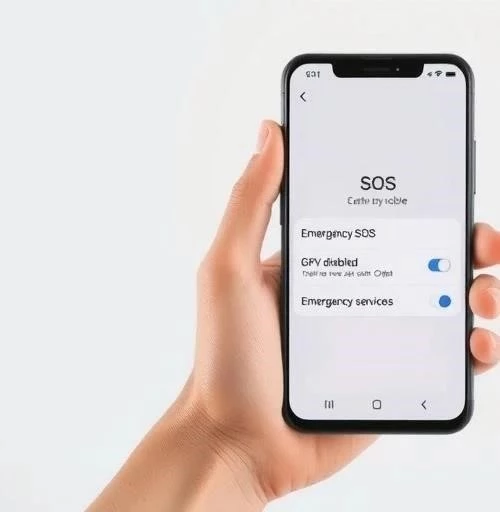
The Emergency SOS feature is meant to be a safety net: a quick press sequence can call for help when you cannot unlock your phone. But a phone rattling in a pocket may trigger it by accident. If your Xiaomi keeps starting a countdown, sounding an alarm, or preparing an emergency call, you can usually switch the feature off—or make it harder to activate. Menu names vary between MIUI, HyperOS, Android versions, and regions, so try the paths below.
Turn off Emergency SOS in Settings
- Open Settings.
- Look for Safety & emergency, then tap Emergency SOS. On some Xiaomi phones, the route is Passwords & security > Emergency SOS.
- Switch off Use Emergency SOS or the similarly named option.
- If a confirmation appears, read it and confirm that you want to disable the feature.
Some models show separate controls instead of one master switch. You may be able to turn off automatic calls, the alarm, emergency-contact messages, or location sharing individually. Disable the actions you do not want, then check that the SOS feature itself is off if your phone provides that switch.
If you cannot find the setting
Use the search field at the top of Settings. Search for SOS, Emergency SOS, or emergency. Xiaomi changes the shelves and labels between software versions, but Settings search often finds the right door faster than exploring every menu. You can also check Settings > About phone to see whether your device uses MIUI or HyperOS, then look for the matching menu names.
If search finds nothing, your region or software version may place the option elsewhere—or may not offer a way to disable it. Check for a system update and consult the phone’s built-in help. Avoid installing an unknown “SOS disabler” app: a tool asking for broad access to calls, messages, or Accessibility features can create a bigger problem than an accidental button press.
Stop accidental activation without disabling SOS
On many Android phones, Emergency SOS starts after pressing the power button several times quickly—often five. If you prefer to keep emergency help available, open the SOS settings and look for controls such as Countdown, Play alarm, or Call emergency services automatically. Turning off an alarm or automatic action may reduce surprises, while leaving the feature ready when needed. The exact choices depend on your model.
Also check whether a tight case presses the power button, whether the button sticks, or whether a shortcut is being triggered while the phone is in a bag. A different case or adjusting how you carry the device may solve the problem without removing a useful safety feature.
Already triggered an SOS?
If a countdown is on screen, use its Cancel or Stop control immediately. If the phone has already placed an emergency call, do not simply assume it ended: explain to the operator that it was accidental and that nobody needs help. If your phone sent an alert to emergency contacts, message them too. This small follow-up prevents a false alarm from turning into a search for you.
Important: SOS is not the lock-screen emergency button
Disabling Emergency SOS may not remove the Emergency call button from the lock screen. That button lets someone contact emergency services without unlocking the phone; on many Android devices it cannot be removed through normal settings. It is separate from the power-button SOS shortcut, so seeing it does not necessarily mean SOS is still enabled.
Likewise, emergency alerts—such as severe-weather or public-safety warnings—are not the same thing as Emergency SOS. If you want to manage those notifications, look for Wireless emergency alerts in Settings; changing them will not switch off the SOS shortcut.
Quick checklist
- Search Settings for “Emergency SOS” and turn off its main switch, if available.
- Review automatic calls, alarms, and contact messages separately.
- Test the power button and case to rule out accidental presses.
- Remember that lock-screen emergency calling may remain available.
Think of SOS as a fire exit: useful to have, but worth knowing how its alarm works. Before disabling it completely, consider keeping the emergency call function and changing only the shortcut or automatic actions that are causing trouble.
4 Comments. Оставить новый
The strongest advice here may be the quietest: search Settings before installing a mystery fix. It turns a frustrating hunt into a quick lookup and avoids trading one accidental SOS for an app with far too many permissions.
This handles the safety trade-off thoughtfully. Rather than treating SOS as simply good or bad, it points out that users may be able to keep the emergency call while silencing other actions—a sensible middle path.
A useful little map through Xiaomi’s shifting settings maze. I especially like the reminder that menu names change by software version—the same feature can feel as if it has moved house without leaving a forwarding address.
Clear, practical guidance for a feature that can be alarming when it activates unexpectedly. The regional and version caveats are important, and the article wisely encourages readers to check their own phone instead of assuming every Xiaomi has the same switches.