
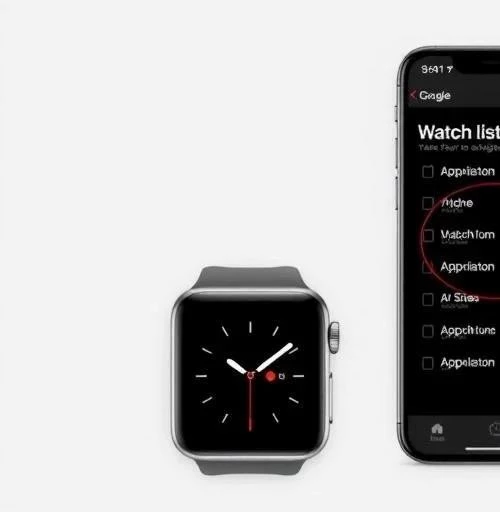
The little “i” on an Apple Watch can feel like a secret door: it is small, easy to overlook, and only appears when you need it. If you are pairing an Apple Watch Series 7, the icon is on the watch’s display—not on the case. Look at the pairing screen and check the lower-right corner for a small circled letter i.
Tap it to see information that helps connect your watch, including its name. The icon is especially useful when the automatic pairing animation refuses to appear or your iPhone cannot scan it. It is not a separate button, and you do not need to press the Digital Crown or side button to find it.
Finding it while pairing
- Put the Apple Watch on your wrist, or keep it close to your iPhone, and turn it on by holding the side button until the Apple logo appears.
- Bring the iPhone near the watch. When prompted, open the Watch app and choose Start Pairing (or the option to add a watch).
- Wait for the pairing screen to appear on the Apple Watch. Look near the bottom-right edge of its display for the circled i.
- Tap the icon if you need the watch’s name or want to pair manually. On the iPhone, choose the manual-pairing option and select the matching watch when it appears.
The animated pattern on the watch is designed to be scanned by the iPhone camera. In a smooth setup, you may never need the “i” at all. It becomes useful when the camera cannot read the animation, the screen is difficult to scan, or you simply want to identify the watch before continuing.
What if the “i” is not visible?
First, check that the watch is actually on its setup or pairing screen. The icon is not a permanent feature of the watch face, so it will not sit there all day like a tiny information signpost; If the watch is already set up and showing a normal face, you will not usually find the pairing-screen “i” by swiping around.
- Still starting up? Give the watch a moment to finish booting. The pairing screen appears after startup.
- Already paired? Open the Watch app on the iPhone and look under My Watch or All Watches. The information button beside a watch’s name is another “i” icon; tap it for watch details and management options.
- Screen hard to read? Wake the display, clean it, and increase the brightness if needed. The icon can be easy to miss along the edge of the setup screen.
- Pairing is stuck? Keep the iPhone and watch close together, make sure Bluetooth is enabled, and follow the prompts in the Watch app. Restarting both devices can help if the setup process has frozen.
Two “i” icons, two different jobs
There is a small but important distinction. The “i” on the watch’s pairing screen helps you identify the watch or switch to manual pairing. The “i” in the iPhone’s Watch app, shown beside a watch in the device list, opens information and management settings for a watch that is already associated with that iPhone. They look alike, but they belong to different stages of the journey.
If you are searching for the icon because you want to remove or reconnect a watch, check the iPhone app first. Open Watch, go to My Watch, tap All Watches if that option is shown, and look for the information button next to the watch’s name. The available choices depend on the watch’s connection and software state.
A few pairing tips
Keep the watch and iPhone near each other throughout setup. Make sure the iPhone is signed in and connected, and follow any instructions to update software. If you have more than one Apple Watch nearby, use the name displayed after tapping the watch’s “i” to choose the right one. That can save you from pairing the wrong device and having to retrace your steps.
Do not confuse the circled “i” with the Digital Crown—the round dial on the side—or the long side button beneath it. Those are physical controls; the information symbol is a touch target on the screen. Tap it gently rather than holding it down.
Quick answer
On Apple Watch Series 7, the “i” icon is usually in the lower-right corner of the watch’s pairing screen. Tap it during setup to view identifying information or pair manually. If the watch is already set up, find the other information icon beside its name in the iPhone’s Watch app. Once you know which screen you are looking at, the little “i” stops being a mystery and becomes a useful shortcut.

6 Comments. Оставить новый
“Not a separate button” is a small clarification with outsized value. It keeps the Digital Crown and side button out of the mystery, leaving the reader with one precise place to look: the display.
The manual-pairing tip feels like finding a side entrance when the front door’s camera refuses to recognize you. Clear, calm guidance for a moment when devices can otherwise turn a simple hello into a staring contest.
That tiny circled “i” is a pocket-sized plot twist: the watch’s most useful clue appears only when the usual pairing magic fails. A helpful reminder that even sleek technology keeps a little paper map tucked away.
The article treats troubleshooting like turning on a lamp rather than sounding an alarm: wait for startup, confirm the pairing screen, then look again. That unhurried sequence is exactly the kind of tech advice people need.
A circled letter becomes a tiny lighthouse in the pairing fog. The explanation makes it clear that the icon is useful precisely because it is not always there—and that knowing when not to search is part of the fix.
I like the distinction between the pairing screen and the everyday watch face. It saves readers from hunting across menus for an icon that is more like a guest at setup than a permanent resident.