
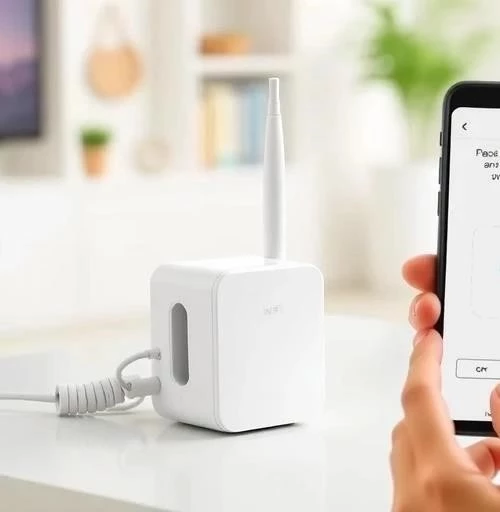
A Xiaomi repeater (also called a range extender or amplifier) can improve Wi-Fi coverage in rooms where your router’s signal is weak. Most models are configured through the Mi Home or Xiaomi Home app. Menu names and indicator lights can vary by model, so use the instructions shown in the app or the device manual if they differ from this guide.
Before you begin
- Check that your router is online and that you know the Wi-Fi password.
- Install or update Mi Home/Xiaomi Home from the official app store. Sign in, and select the correct region in the app if prompted; available devices and features may vary by region.
- For setup, connect your phone to the router’s 2.4 GHz Wi-Fi network if your model requires it. Many Xiaomi repeaters, including older models, do not support 5 GHz. Check your model’s specifications.
- Plug the repeater into an outlet near the router. Keep your phone connected to the home Wi-Fi, and enable Bluetooth and location access if the app requests them.
Set it up in the app
- Open Mi Home/Xiaomi Home and tap the + button to add a device. Allow any requested permissions.
- If the repeater appears in the device list, select the exact model. Otherwise, use search or choose the appropriate Wi-Fi repeater category and follow the on-screen prompts.
- Select your router’s 2.4 GHz network and enter its password carefully. Make sure you choose the intended network if your router broadcasts separate names for 2.4 and 5 GHz.
- Wait while the app sends the network details and the repeater connects. Keep the phone close to the device and do not unplug it during setup. The indicator should change to the connected state; check the manual for what its color or blinking pattern means on your model.
- When setup completes, give the device a name or room location in the app. Some models use the same Wi-Fi name and password as the router; others may offer a separate network name. Follow the options displayed for your device.
Choose the right location
After pairing, unplug the repeater and place it roughly halfway between the router and the area with poor reception. It needs a usable signal from the router to extend coverage, so placing it in a dead zone usually will not help. Avoid hiding it behind furniture, inside cabinets, or beside large appliances. Check the app or indicator, if available, and move it closer to the router if the connection is unstable. Test Wi-Fi in the rooms you want to cover.
If setup fails
- Confirm the router’s 2.4 GHz network is enabled and the password is correct. Temporarily simplify the setup by using a clearly identifiable network name if several networks look alike.
- Move the repeater and phone close to the router, restart the app, and try adding the device again. Check that the app is set to a region supported by the product.
- If the repeater was previously paired or will not appear, reset it using its reset button or pinhole as described in the model’s manual. Usually you hold the button until the indicator changes, then wait for reboot and repeat setup. Resetting erases its existing configuration.
- If the app still cannot find it, select the model manually from the device list and follow the prompts. Restarting the router may also help.
Once connected, check the repeater’s status in the app and update its firmware if an update is offered. If you change your router or Wi-Fi password, you may need to reset and configure the repeater again. For persistent problems, consult Xiaomi’s support page or the manual for your exact model.


9 Comments. Оставить новый
The reminder to check whether the model supports 5 GHz is helpful. It could prevent a lot of confusion during setup.
The troubleshooting details in the setup instructions are reassuring, and the explanation of Wi-Fi band compatibility is clear.
This is easy to understand without assuming the reader already knows much about Wi-Fi repeaters.
I appreciate the clear steps and the note that app menus and indicator lights can differ between models.
Good advice to consult the manual when indicator meanings vary. That makes the instructions more reliable across different models.
This guide makes the setup process easy to follow, especially for someone using a Xiaomi repeater for the first time.
A practical, well-organized guide. The advice to place the repeater near the router during setup is especially useful.
Helpful and straightforward. I especially liked the reminder to keep the phone close and avoid unplugging the repeater during setup.
The article covers the key preparations before setup, including the app, Wi-Fi password, and phone permissions.