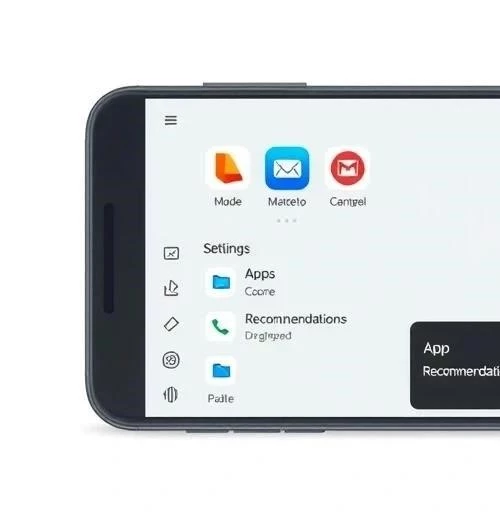
Xiaomi’s MIUI and HyperOS launchers may show suggested or “promoted” apps inside home-screen folders. These suggestions can make folders busier and may encourage you to install apps you do not need. In most cases, you can hide them with a switch in the folder itself—without deleting the folder or changing your installed apps. The exact labels and menus vary by phone and software version, so try the main method first and use the alternatives below if your screen looks different.
Turn off promoted apps from the folder
- Go to the home screen and tap the folder that displays recommendations.
- Look for the folder’s name near the top. Tap the name, or tap the small edit or pencil icon beside it. On some versions, you may need to tap the name again to open the folder’s editing options.
- Find a switch labelled Promoted apps, Recommendations, or similar.
- Turn the switch off, then close the folder. Open it again to check that the suggested apps have disappeared.
This is usually the simplest and most targeted fix: it affects recommendations in that folder while leaving your other home-screen settings alone. If the option appears only while editing the folder name, you do not need to change the name. Leave the existing text as it is and switch off the recommendation setting.
If the switch is not visible
Folder controls differ across MIUI and HyperOS releases, and some versions show the option in a different place. Try these alternatives:
- Open the folder and inspect its menu. Look for a three-dot menu, a settings icon, or an edit control. The recommendation switch may be inside that menu rather than beside the folder name.
- Press and hold the folder on the home screen. If a menu appears, choose Edit, Settings, or a similarly named option. Then look for promoted apps or recommendations.
- Check the system launcher’s settings. Press and hold an empty area of the home screen, open Settings or Home screen settings, and review the available home-screen options. Some launcher versions place suggestion controls there, although a global suggestions switch may affect more than folders.
- Check for a launcher update. If you have followed the steps but the control seems missing, an update may change the layout or wording. Use the normal system update options and check the folder again afterward.
Do not assume that every Xiaomi phone has the same menu. The launcher version, region, and device model can affect which controls are available. If you cannot find a relevant switch, your version may not offer a separate folder-recommendation setting.
Make sure you are changing the right setting
Xiaomi has several places where suggestions or promotional content can appear. A switch for folder recommendations may not control ads in GetApps, the App Vault, the Browser, or other system apps. Likewise, turning off recommendations in one of those apps will not necessarily remove promoted icons from a home-screen folder. First identify where the content appears, then change the setting in that location.
Also distinguish suggestions from apps already in the folder. Turning off recommendations hides automatically promoted content; it should not uninstall apps or remove shortcuts that you added yourself. If an unwanted icon remains, press and hold it and check whether it is a normal shortcut. Remove it only if you no longer want it on the home screen.
If recommendations return
Reopen the folder and confirm that its recommendation switch is still off. A launcher update, a reset of home-screen settings, or switching to another launcher can change how folders behave. After a system or launcher update, check the setting again rather than repeatedly deleting the suggested icons: manual removal may not disable the feature, and the suggestions could reappear.
If the option is absent or does not stay disabled, restart the phone and check the folder once more. You can also note your MIUI or HyperOS version under Settings > About phone and consult the support information for your device. Avoid clearing system data or disabling launcher components just to remove suggestions; those steps can reset your layout or cause other home-screen problems.
What to expect
For most users, opening the folder and switching off Promoted apps is enough. It is a narrow change that keeps the folder usable while removing unwanted suggestions. Because Xiaomi’s interface changes between versions, the option may be labelled differently or placed in an edit menu. If you do not see it, check the folder controls and launcher settings, and remember that unrelated recommendation settings govern other Xiaomi apps—not necessarily the folder itself.