
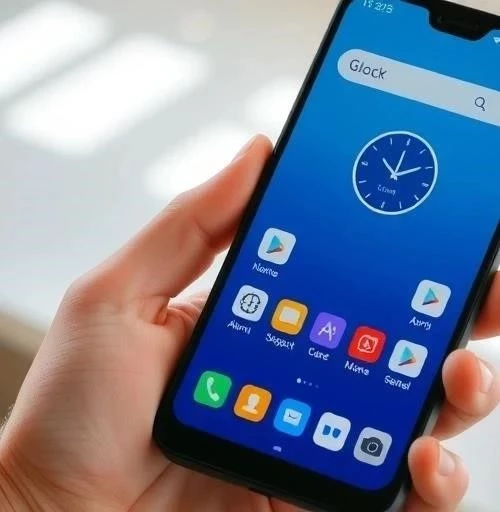
On most Xiaomi phones, the alarm is part of the built-in Clock app. The app may be called Clock, Mi Clock, or simply appear as a clock-face icon, depending on the phone model, software version, and region. It is usually available from the home screen or the app drawer.
Open the Clock app
- Wake and unlock the phone.
- Look for a clock-face icon on the home screen. Check folders such as “Tools” if the icon is not visible.
- Tap the icon to open Clock.
- Select the Alarm tab, commonly shown at the bottom or top of the screen.
To set an alarm, tap the plus button, choose the required time, and confirm. Depending on the version, you can also select which days it repeats, add a label, and adjust its sound or vibration. Check that the switch beside the new alarm is enabled.
Find it with search
If you cannot see the app, swipe up from the home screen to open the app drawer, then use its search field and enter Clock or Alarm. On some Xiaomi launchers, swipe down on the home screen to display search and type “Clock.” Search results may include both the built-in app and other installed clock applications, so check the app name and icon before opening one.
You can also open Settings and use the search field there to search for “alarm.” This may show related options, but the actual alarms are normally managed in the Clock app rather than in the main Settings menu.
If the icon is missing
- Check folders and other home-screen pages. The app may have been moved rather than removed.
- Look in the app drawer. If Clock appears there, press and hold its icon and add it to the home screen if that option is offered.
- Check whether the app is disabled. In Settings, open Apps or Manage apps, find Clock, and use Enable if it is available. Menu names can differ between MIUI and HyperOS versions.
- Restart the phone. A restart can refresh the launcher if an app icon is not displaying correctly.
- Check for system updates. If Clock is unavailable or keeps closing, install available updates and restart the device.
Avoid deleting system components or installing an unknown replacement solely to restore the alarm. If the built-in Clock app is absent, consult Xiaomi support or the official app store available for your region. App availability and update methods can vary by device and country.
Alternative ways to set an alarm
Some Xiaomi phones support voice commands through Google Assistant. If the assistant is configured, you can ask it to set an alarm for a particular time. You can also add a Clock widget to the home screen for quick access; available widget designs differ by launcher and software version. A widget may show the time or provide a shortcut, but confirm the alarm itself in the Clock app.
Make sure the alarm will ring
After setting an alarm, check its time, repeat schedule, and enabled switch. Set the alarm sound to an audible tone and keep the phone sufficiently charged. If the alarm does not sound, check the phone’s volume, Do Not Disturb settings, and Clock app notifications or permissions; Names and locations of these controls vary across Xiaomi models. A test alarm set a few minutes ahead can help confirm that the sound and settings work as expected.
In brief
On a Xiaomi phone, open the Clock app and choose Alarm. If you cannot find its icon, search the app drawer or the home screen, then check whether the app is disabled. The exact appearance of menus may differ between MIUI, HyperOS, and individual device models, but the alarm is generally managed in Clock.

2 Comments. Оставить новый
The instructions clearly explain how to locate the Clock app and set an alarm, while noting that menu names can vary across Xiaomi software versions.
The troubleshooting suggestions are practical, particularly checking the app drawer and confirming that Clock has not been disabled.