
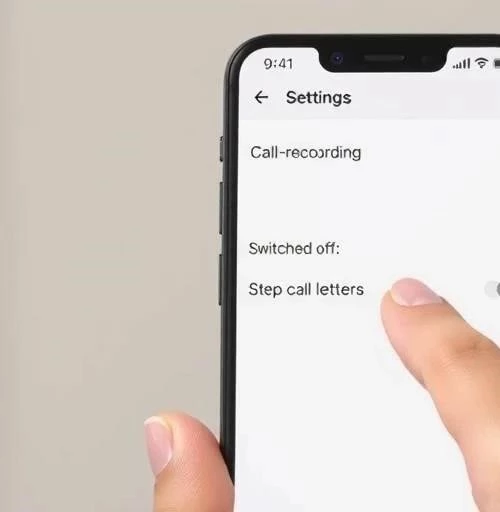
Call recording controls vary by Xiaomi model, region, and dialer app. Many newer phones use Google Phone, while some devices or software versions have Xiaomi’s own Phone app. The menu names may differ slightly in MIUI and HyperOS, but the key setting is usually called Call recording or Record calls.
Turn off automatic recording
- Open the Phone app that you use to make calls.
- Tap the menu icon, usually the three dots, and choose Settings.
- Open Call recording. On some versions, first tap Calling accounts or Call settings.
- Switch off Automatically record calls or Auto record. If the app offers separate choices for unknown numbers and selected contacts, disable each option that is enabled.
After changing the setting, place a short test call and check that recording does not start automatically. If you cannot find the option, use Settings search for “call recording,” update the Phone app, and check again. The feature may be unavailable in your region or on your software version.
Stop a recording during a call
If a call is already being recorded manually, return to the call screen and tap Stop recording or the recording button. The exact label depends on the dialer. Turning off automatic recording prevents future automatic recordings; it may not stop a recording that is currently in progress.
Recording notice is a separate setting
A spoken message such as “This call is being recorded” is not the recording itself. Disabling a notice, where the app permits it, does not turn off recording. To prevent calls from being saved, disable automatic recording and do not start it manually. Avoid unofficial apps or system modifications that claim to remove notices: they can create privacy, security, or reliability risks.
Check saved recordings
Existing files are generally not deleted when recording is disabled. Review the Phone app’s recordings list or the file manager, then remove any files you no longer need. Handle recordings carefully: laws and consent requirements differ by location, so tell participants and obtain consent when required.


6 Comments. Оставить новый
The distinction between disabling automatic recording and stopping an active recording is useful. The steps also acknowledge that menus can vary across devices.
This provides a practical overview without assuming every Xiaomi phone has the same settings. The suggestion to verify the change with a test call is sensible.
The guidance on existing recordings is helpful because turning off automatic recording does not necessarily remove files already saved.
This guide gives clear steps for checking the recording settings and testing the change. The note about regional availability adds helpful context.
The explanation that a recording notice is separate from the recording feature is an important clarification. The privacy caution is relevant as well.
The article is organized around common tasks, making it easy to follow. It appropriately notes that labels and options may differ between phone apps.