
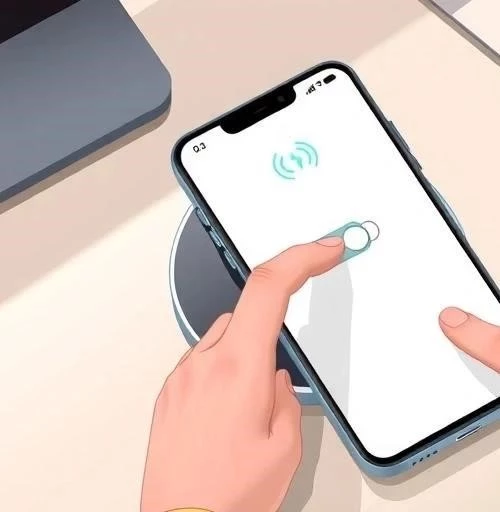
Wireless charging sounds like a hidden switch: tap a setting‚ watch a battery icon bloom‚ and let the phone drink power through the air․ On most Xiaomi phones‚ however‚ the trick is less mysterious․ If your model supports wireless charging‚ you usually do not need to enable it in Settings․ Put the phone on a compatible charging pad‚ and charging should begin automatically․
First‚ check whether your Xiaomi supports it
Wireless charging is a hardware feature‚ not an app that can be downloaded later․ Xiaomi offers it on selected models‚ while many Redmi and POCO phones—and some Xiaomi-branded phones—charge only through a cable․ Features also differ between models and regional versions‚ so do not rely on a family resemblance or a similar-looking name․
- Find the exact model name in Settings → About phone․
- Check the specifications for that precise model and region․ Look for “wireless charging” and‚ if relevant‚ its charging standard or wattage․
- If the manual or official specifications list only wired charging‚ there is no software switch that can add built-in wireless charging․
A quick clue is the phone’s charging coil‚ which sits inside the back of the device․ A standard Qi-compatible pad needs that coil to transfer power․ An ordinary USB-C-to-wireless receiver can sometimes add basic wireless charging to a phone without a built-in coil‚ but it is an accessory—not an official feature—and may charge slowly‚ fit awkwardly under a case‚ or block the USB-C port․
Start charging: the simple method
- Connect the wireless pad to a suitable wall adapter and a working power outlet․ Some pads need a particular adapter to reach their advertised speed․
- Place the pad on a flat‚ stable surface‚ then set your Xiaomi on it with its back facing the pad․
- Move the phone slightly until the charging animation‚ battery symbol‚ or charging notification appears․
That is usually all․ There is no universal Xiaomi menu called “Enable wireless charging․” The phone detects the powered pad and begins charging on its own․ If nothing happens‚ do not hunt through every menu first: check the model‚ pad‚ power supply‚ case‚ and alignment․
What about reverse wireless charging?
Some Xiaomi flagships support reverse wireless charging‚ which lets the phone act like a tiny charging mat for compatible earbuds or another phone․ This is a separate feature from charging the Xiaomi itself‚ and it is not available on every model․
On a supported device‚ open Settings and search for reverse wireless charging or wireless reverse charging․ Depending on the model and software version‚ the control may appear under Battery‚ Additional features‚ or a similarly named section․ Turn it on‚ then place the device you want to charge on the back of the Xiaomi‚ lining up the coils․ Keep an eye on the battery: sharing power can drain it quickly‚ and the feature may switch itself off when the phone’s charge is low․
If the search returns nothing‚ that does not mean you missed a secret gesture․ Your model may not support reverse charging‚ or its software may use a different menu layout․ Check the model’s official specifications before troubleshooting a feature that may not exist․
If the phone will not charge
- Re-center it․ Wireless coils have to line up․ Lift the phone and try a few positions rather than sliding it around indefinitely․
- Remove the case temporarily․ Thick cases‚ metal plates‚ magnetic rings‚ and card holders can interfere with charging․ Test with the phone bare․
- Check the pad’s power․ Confirm its cable and adapter are connected securely․ A pad may light up yet still fail to deliver enough power․
- Look for heat or an alert․ Charging can pause if the phone or pad gets too warm․ Move them to a cool‚ ventilated surface and try again later․
- Restart and retest․ A restart can clear a temporary software glitch․ Then test with a known-compatible charger‚ if available․
- Inspect for damage․ If wired charging also behaves oddly‚ or the phone was dropped or exposed to liquid‚ contact Xiaomi support or a reputable repair service․
Speed‚ safety‚ and everyday expectations
Wireless charging is convenient‚ but advertised maximum speeds depend on the exact phone‚ pad‚ adapter‚ temperature‚ and charging conditions․ A third-party pad may work while delivering less power than Xiaomi’s recommended equipment․ For reliable results‚ use a compatible‚ reputable charger and the power adapter specified for it․ Avoid placing coins‚ keys‚ or other metal objects between the phone and pad․
Some warmth is normal; excessive heat is not a goal or a sign of “faster” charging․ Keep the setup uncovered and away from soft bedding‚ and remove anything that makes the phone unusually hot․ If charging repeatedly stops‚ the device displays a temperature warning‚ or the back appears swollen‚ disconnect it and seek professional help․
The short answer
For built-in wireless charging‚ first confirm that your exact Xiaomi model supports it‚ connect a compatible pad‚ and place the phone correctly․ There is usually no setting to switch on․ For reverse wireless charging‚ look for its own control in Settings—but only if your model includes that feature․ The real magic is not a hidden button: it is the right hardware‚ a powered pad‚ and two coils meeting in just the right place․
7 Comments. Оставить новый
A useful little myth-buster: wireless charging is less a hidden setting than a handshake between the phone and the pad. The hardware-first explanation makes that clear without turning the reader’s desk into a repair bench.
A clear reminder that a charging feature begins in the phone’s anatomy, not in an app store. That distinction could save readers from hunting for a software switch that does not exist.
Concise, reassuring, and refreshingly free of gadget mysticism. I’d happily use this as a checklist before buying a pad or blaming a perfectly innocent phone.
The step-by-step instructions have a pleasingly practical rhythm: power the pad, place the phone, nudge it into position. No secret menu, no ceremonial chanting.
I like the advice to check the exact model and region. Phone names can feel like a hall of mirrors, and this article hands readers a reliable thread to follow.
This is the rare tech guide that makes compatibility feel understandable rather than intimidating. The charging coil becomes a tiny, invisible bridge—and the explanation stays grounded.
The USB-C receiver caveat is especially helpful. It opens a door for older phones while being honest that the doorway may be slow, awkward, and a little crowded.