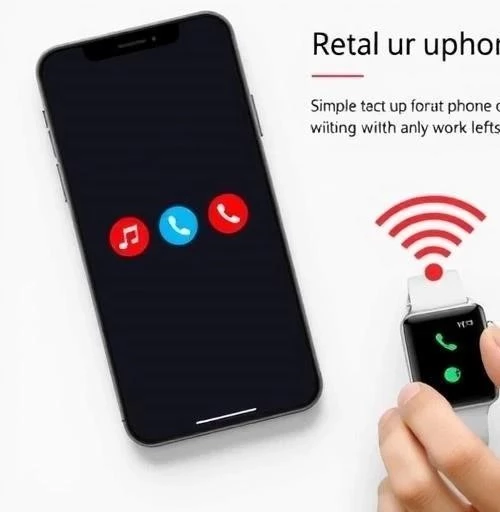
Making and managing phone calls from your wrist is convenient when your phone is in a bag, across the room, or temporarily out of reach․ The exact calling features depend on the Watch Fit model: some versions support two-way Bluetooth calling through a built-in microphone and speaker, while others can only show call alerts and let you answer or reject a call on your phone․ Check your model’s specifications before troubleshooting; a watch cannot gain voice-call support through a software setting if its hardware does not include it․
Before you start
- Confirm that your Watch Fit supports Bluetooth calling․ Look up the full model name and regional variant in its specifications or in the Huawei Health app․ Do not assume that every watch carrying the Watch Fit name has the same features․
- Charge and turn on the watch․ Keep it close to your phone during setup․
- Enable Bluetooth on the phone and install or update Huawei Health from an official source available for your device․
- Pair the watch through Huawei Health․ Avoid pairing it only from the phone’s Bluetooth menu: the app is needed to complete setup and manage the connection․
Pair the watch with your phone
- Open Huawei Health and sign in if prompted․ Allow the app to use Bluetooth and display notifications․ On Android, the names and locations of permissions vary by manufacturer and operating-system version․
- Open Devices, tap Add or the plus icon, and choose your Watch Fit from the list․ If it is not shown, select the option to add a device manually and follow the instructions․
- Check that the code displayed on the phone matches the one on the watch, then approve pairing on both screens․ Keep the devices close until setup finishes․
- Accept any prompts to enable notifications, contacts, or call-related access․ These permissions may be requested during setup or the first time you use a feature․
If the watch was previously connected to another phone, disconnect or unpair it there first․ If it still does not appear, restart both devices, switch Bluetooth off and on, and try again in Huawei Health․
Enable Bluetooth calling
On a calling-capable Watch Fit, open Huawei Health, select the watch under Devices, and look for settings named Bluetooth calling, Calls, or Frequently used contacts․ Names and menu locations can differ between models, app releases, and regions․ Turn on the calling option if it is shown, and follow the prompts to connect or authorize the watch for calls․ Some phones display a separate Bluetooth pairing request for an audio device; approve it so call sound can use the watch’s speaker and microphone․
You can also check the watch itself․ Swipe through its apps or open Settings and look for Bluetooth, Connectivity, or call settings․ If the interface offers a phone or call icon, open it and follow the pairing instructions․ Keep the watch connected to the phone’s Bluetooth; normal Bluetooth calling uses the phone’s mobile connection and is not the same as a standalone cellular watch․
Add contacts and make a call
If your model supports it, use Huawei Health’s device settings to add or synchronize frequently used contacts․ Grant contact access when asked, select the people you want available on the watch, and wait for synchronization to complete․ Depending on the model, you may be able to call a synchronized contact, return a recent call, or use the call keypad․ Open the watch’s Phone or Calls app, choose the contact or number, and tap the call icon․ Speak toward the watch’s microphone and keep its speaker unobstructed․
When an incoming call arrives, the watch can display the caller and offer controls such as answer, reject, or mute․ On models with two-way calling, tap the answer button to speak through the watch․ If you answer on the phone instead, audio may remain on the phone or switch to the watch depending on the phone’s Bluetooth audio settings․ Use the phone’s audio-output selector during the call to choose the desired device․
Call alerts without watch-based conversation
If the watch shows an incoming-call alert but has no speaker, microphone, or Bluetooth-calling option, it may still let you reject the call or silence the alert, but you must talk on the phone or a connected headset․ To enable alerts, open Huawei Health, select the watch, and tap Notifications or Call notifications․ Turn on call alerts and allow Huawei Health to send notifications in the phone’s system settings․ Keep the app permitted to run in the background if your phone’s battery controls otherwise interrupt notifications․
Troubleshooting
- The watch does not ring or show calls: Confirm the Bluetooth connection, enable call notifications, and check that Do Not Disturb is off on both devices․ Make a test call with the screen unlocked․
- You can answer, but cannot speak through the watch: Verify that your model supports two-way calls and that the watch is connected as a Bluetooth audio device, not just paired for health data․
- Contacts are missing: Allow contact access in phone settings, check the selected contacts in Huawei Health, and sync again․ Menu labels differ by phone․
- The connection keeps dropping: Keep the phone within Bluetooth range, update Huawei Health and the watch firmware, and review battery restrictions for the app․ If needed, unpair and set up the watch again․
As a last step, restart the phone and watch․ Resetting the watch can erase local data and settings, so use it only after simpler checks and make sure important data has synchronized․ If calling still does not work, consult the support page for your exact Watch Fit model and phone; features and instructions can vary by model, region, and software version․