
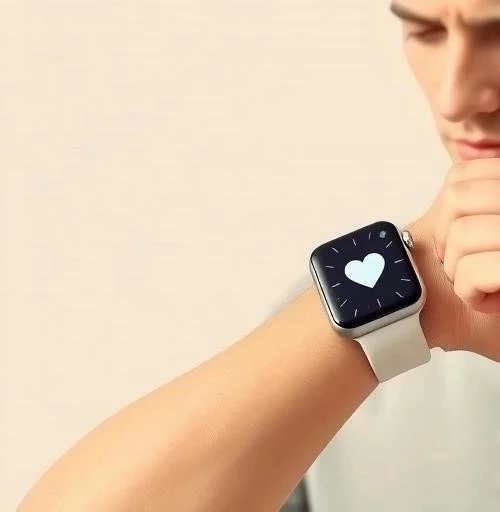
If your Apple Watch shows no heart-rate reading, displays dashes, or updates only occasionally, the cause may be a setting, poor contact with your skin, or a condition that makes the optical sensor less reliable․ Work through the checks below before assuming the watch is broken․
How heart-rate measurement works
The sensors on the back of Apple Watch use green light to detect changes in blood flow beneath your skin․ The watch uses those changes to estimate your heart rate․ For a reading, the sensor needs clear contact with your wrist․ Movement, a loose band, cold skin, tattoos, or dirt over the sensor can interfere with the signal․ Even in good conditions, wrist-based readings may occasionally be missing or inaccurate․
Check the fit and position
- Wear the watch just above your wrist bone, with the back of the case touching your skin․
- Fasten the band snugly enough to prevent the watch sliding, but not so tightly that it is uncomfortable․
- During a workout, you may need to tighten the band slightly․ Loosen it again afterward․
- Make sure clothing or a glove is not caught between the sensor and your wrist․
If the watch shifts when you move your hand, the optical sensor may lose contact․ Try another band or a different wrist, if comfortable, and see whether the reading returns․
Clean the watch and your skin
Remove the watch and wipe the sensor on its back with a soft, non-abrasive, lint-free cloth․ Clean and dry your wrist, too․ Sweat, lotion, sunscreen, dust, and moisture can affect contact․ Do not use sharp objects or harsh cleaning products on the sensor․ If the case or sensor is cracked, stop troubleshooting and contact Apple or an authorised service provider․
Review heart-rate and wrist settings
On your iPhone, open the Watch app and tap Privacy․ Check that Heart Rate is enabled․ On the watch, open Settings > Passcode and check that Wrist Detection is on․ If Wrist Detection is off, some background health measurements and notifications may not work as expected․ Also check that the watch is unlocked and worn on your wrist, rather than resting on a table․
Open the Heart Rate app directly and wait quietly for a reading․ If this works but background readings are missing, restart the watch and iPhone, then check that both are up to date․ A restart can clear a temporary software issue․ Avoid unpairing or erasing the watch as a first step; back up your data before considering a reset․
Consider conditions that affect the sensor
Cold weather can reduce blood flow near the skin on your wrist, making a reading harder to obtain․ Warm up indoors, keep the watch under a sleeve, and allow your wrist to warm before checking again․ Dense tattoos beneath the sensor may block its light; changing settings will not fix this․ Try wearing the watch on an untattooed area or use a compatible Bluetooth chest-strap monitor for workouts․ Thick wrist hair, very dry skin, and vigorous movement can also make readings less consistent․
During intervals, strength training, or activities with repeated wrist movement, the watch may lag behind changes in your heart rate or miss a reading․ Optical sensors work best when the watch is stable and movement is limited․ For workouts where rapid changes matter, a compatible chest strap can provide a steadier reading because it detects electrical activity rather than reflected light․
Check workout settings and data
Start a workout in the Workout app and check whether the heart-rate display appears there․ Confirm that you have selected the intended workout type and that Low Power Mode or other battery-saving options are not limiting background measurements; If the watch records readings during a workout but not at other times, revisit the privacy and Wrist Detection settings․ You can review recorded data in the iPhone Health app under Browse > Heart > Heart Rate․
Measurements from a watch may differ from a manual count, gym machine, or another wearable․ Devices use different sensors and methods, and readings can vary with movement and fit․ Compare trends over time rather than expecting every device to show exactly the same number․ Apple Watch is not a substitute for medical equipment or a professional diagnosis․
When to seek help
If the Heart Rate app consistently shows no data after you have cleaned the sensor, adjusted the fit, checked settings, and restarted the devices, contact Apple Support or an authorised service provider․ Explain when the problem began and whether the watch has been dropped, exposed to damage, or had its back replaced․ Do not try to open or repair the sensor yourself․
If you feel unwell, do not rely on the watch to rule out a health problem․ Seek medical advice for concerning symptoms such as chest pain, fainting, severe shortness of breath, or a persistent unusual heartbeat․ For an emergency, contact local emergency services․
4 Comments. Оставить новый
I appreciate the explanation of how the optical sensor works alongside the simple checks. It helps set realistic expectations without immediately assuming the watch is faulty.
A helpful overview, particularly the advice to check wrist settings and sensor contact. It would be reassuring for readers to know when to seek professional support if the issue continues.
This is a clear, practical troubleshooting guide. The fit and cleaning advice is especially useful for anyone getting inconsistent readings during workouts.
The reminder to avoid harsh cleaners and sharp objects is important. This guide is easy to follow and covers several common causes of missing heart-rate readings.