
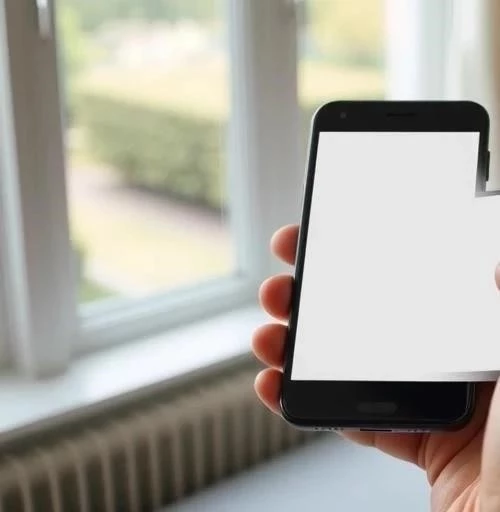
A Xiaomi phone can show full signal bars and still behave like a tiny, elegant island: calls work, messages arrive, but the internet has vanished. The bars show a connection to a mobile network, not a promise that data is flowing. The cause may be a setting, a SIM card, the carrier, or the phone’s software. Work through the checks below in order; the simplest fix is often the right one.
Start with the quick checks
- Toggle Airplane mode. Turn it on for about 15 seconds, then switch it off. This makes the phone register on the network again.
- Restart the phone. A restart can clear a temporary modem or network glitch. It is a useful first step, not a cure-all.
- Check mobile data. Open Settings and look under SIM cards & mobile networks or Mobile networks; Make sure mobile data is enabled for the SIM you intend to use.
- Check the data allowance. Your plan may have run out, expired, or been restricted. A carrier can also block data because of an account or payment issue.
Names and menu locations vary between MIUI and HyperOS versions, regions, and models. If a setting is hard to find, use the search field in Settings and search for “mobile data,” “APN,” or “preferred network type.”
When the signal is there but the internet is not
Look at the network icon. If it says 2G, E, or nothing at all, the phone may have fallen back to a slow network or lost its data connection. Go to the SIM’s network settings and choose 5G/4G/3G/2G auto (the wording differs by device). Avoid forcing 5G: coverage may be patchy, and an automatic option can provide a steadier connection.
Also test in another place. A lift, basement, thick-walled building, or rural stretch can block data even when a weak signal remains. If the connection returns outdoors, the phone may be fine; the local network is the likelier culprit. Ask someone using the same carrier nearby whether their data works. If it fails for them too, check for an outage or contact the carrier before changing phone settings.
Dual SIMs, data limits, and sneaky restrictions
On a dual-SIM Xiaomi, calls can use one SIM while mobile data is assigned to the other. In SIM cards & mobile networks, select the correct card as the default for data. If you have just swapped SIMs, check this setting again.
Next, look for a data limit or a warning that has stopped usage. Xiaomi’s Security app or system settings may let you set a monthly cap; once reached, mobile data can be restricted. Data Saver can also limit background activity. Turn it off briefly as a test, and check whether the affected app is allowed to use mobile data. If only one app is offline, inspect that app’s permissions and data restrictions instead of resetting the whole phone.
Check the APN—the network’s address card
An Access Point Name (APN) tells your phone how to reach the carrier’s data service. A wrong APN can leave calls working while internet access fails, especially after changing carriers, installing a configuration profile, or manually editing network settings.
Open the selected SIM’s settings and find Access Point Names. First, choose Reset or Reset to default, if available, then restart and test. If no usable profile appears, get the exact APN details from your carrier’s official website or support team and enter them precisely. Do not copy random settings from a forum: the correct values depend on the carrier and sometimes the plan.
SIM card, software, or network mode?
Remove the SIM only if you can do so safely; inspect it for damage, reseat it, and try it in another compatible phone if possible. Testing another working SIM in your Xiaomi is equally useful. If your SIM fails in both phones, ask the carrier for a replacement or account check. If several SIMs fail only in the Xiaomi, the phone’s settings, software, or hardware deserve attention.
Install official system updates when available, preferably over Wi-Fi with enough battery. If the problem began immediately after an update, reboot and check for a follow-up patch. A network-settings reset is a reasonable next step: find Reset Wi-Fi, mobile networks, and Bluetooth (or similar) in Settings. It usually removes saved Wi-Fi and Bluetooth pairings, so expect to reconnect them; it does not normally erase photos or apps. Read the confirmation screen before proceeding.
A sensible troubleshooting order
- Airplane mode, restart, and confirm the correct data SIM.
- Check plan status, data limits, coverage, and a possible carrier outage.
- Test the network mode and reset the APN to carrier defaults.
- Compare SIMs and phones, then update software or reset network settings.
If data still will not connect, note your Xiaomi model, software version, carrier, location, and the exact network icon. Give those details to the carrier first; if its network and your SIM are confirmed healthy, contact Xiaomi support or a repair center. Persistent failure across locations can point to a damaged SIM tray, antenna, or modem. Avoid a factory reset until support recommends it and your data is backed up: it is a much bigger step than a network reset.
The useful clue is the pattern: one app failing suggests an app restriction; one location suggests coverage; one SIM suggests the account or card; every SIM in every place suggests the phone. Follow that trail, and a silent data connection becomes a solvable problem rather than a mystery.
7 Comments. Оставить новый
The “tiny, elegant island” image is memorable, and the troubleshooting sequence feels like a calm guide rather than a pile of settings. I especially appreciate the reminder that signal bars measure connection, not internet.
The settings-search suggestion is a quietly brilliant touch. Menu names shift like sand across software versions, but searching for the setting gives readers a compass.
This article treats troubleshooting like detective work: check the easy clues first, then decide whether the phone, SIM, or carrier is the likely culprit. That approach can save readers from changing settings blindly.
The piece has the rhythm of a good field guide: begin with the obvious, notice the surroundings, and call in the network experts when the clues point beyond the device.
A useful detail is the warning not to force 5G. “Newer” does not always mean “steadier,” and that small bit of practical wisdom is more valuable than another generic restart tip.
Clear, patient, and refreshingly free of tech mysticism. The article makes a frustrating blank web page feel less like a mystery and more like a short list of testable possibilities.
I like that the advice separates a local coverage problem from a phone problem. Testing outdoors and asking someone on the same carrier turns guesswork into a simple comparison.