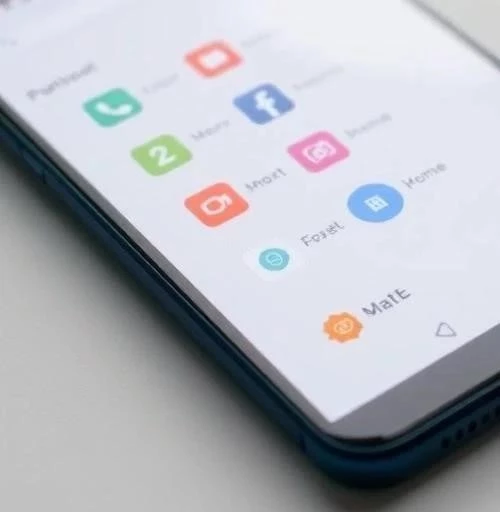
Removing the names beneath app icons can make a Xiaomi home screen look cleaner and less crowded. On some versions of MIUI and HyperOS, the built-in launcher offers a setting for this; on others, the option may be missing or named differently. Start with the system setting before installing another launcher, since it is the simplest and safest approach.
Use the Xiaomi home-screen setting
- Open Settings and tap Home screen. On some phones, you can reach the same menu by pressing and holding an empty area of the home screen, then tapping the settings icon.
- Look for Don’t show text, Hide icon labels, or a similarly named option. Depending on the software version, it may be under Home screen, More, or the launcher’s home-screen settings;
- Turn the option on, then return to the home screen. App names should disappear while the icons remain in place.
If you cannot find the switch, check that the Xiaomi system launcher and your phone’s software are up to date. Menu names and features vary by model, region, and launcher version, so the absence of this setting does not necessarily mean anything is wrong with your device.
If the option is unavailable
A third-party launcher, such as Nova Launcher, may let you hide labels independently of Xiaomi’s launcher. Install one from Google Play, set it as the default home app when prompted, then open its home-screen or icon settings and disable icon labels. The exact menu path depends on the launcher version. This approach gives you more control, but it changes the home-screen experience and may affect gestures, animations, or Xiaomi-specific features. Review its permissions and settings before using it.
Changing the icon grid or icon size is not the same as hiding names: those controls rearrange or resize icons, and can make labels harder to notice without removing them. Avoid installing an unknown “icon name remover” app when a launcher setting can do the job.
How to bring the names back
Return to the same home-screen setting and switch label display back on. If you used another launcher, restore the Xiaomi launcher under Settings → Home screen → Default launcher (the wording may differ), or change the label option in the third-party launcher.
What to expect
Hiding labels usually affects icons on the home screen, not app names in the app drawer, Settings, or search results. Keep in mind that icons alone can be harder to distinguish, especially for less frequently used apps. If quick recognition matters more than a minimalist look, hide labels only on a page with familiar apps—or leave them visible. In short, try Xiaomi’s built-in toggle first; use a reputable alternative launcher only if your version does not provide it.