
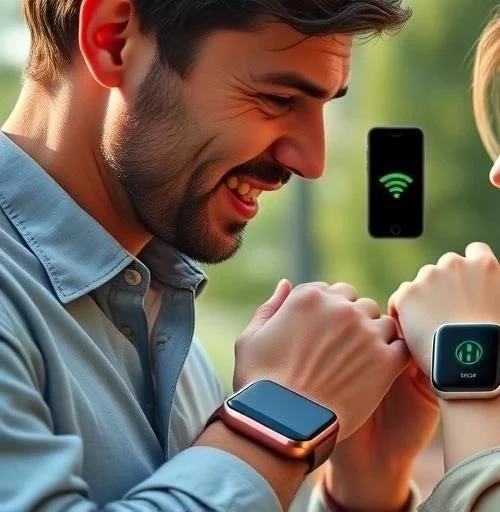
Apple Watch’s Walkie-Talkie feature lets two people exchange short, voice-based messages in near real time. It resembles using a handheld radio: one person presses a button and speaks, and the other hears the message through their watch. However, it is not a conventional radio and does not transmit directly between watches over a dedicated radio frequency. It uses an internet connection and Apple’s FaceTime audio services to carry the conversation.
What happens when you talk
After two users connect in the Walkie-Talkie app, either can start a voice transmission. The speaker touches and holds the talk button while speaking. The watch sends the audio over the available network connection; the other person’s watch receives it and plays it through its speaker or connected headphones. Releasing the button ends that transmission, so the other person can reply.
The exchange is usually half-duplex: only one person speaks at a time, much like with a traditional push-to-talk radio. If both users try to speak simultaneously, the app may indicate that the channel is occupied. Messages are intended for immediate listening, rather than for creating a permanent voice-message conversation.
What connection does it use?
Walkie-Talkie needs internet access. Depending on the devices and their current connections, that access may come from Wi-Fi, a cellular connection on the Apple Watch, or a paired iPhone’s connection. A cellular Apple Watch can use its own mobile data when supported and configured; a GPS-only model generally relies on Wi-Fi or a nearby connected iPhone for internet access. The watches do not have to be within ordinary Bluetooth range of each other if both can reach the internet.
As a result, performance depends on network conditions. Weak coverage, a congested network, or a temporary internet outage can delay audio or prevent a connection. The feature is not the same as an emergency radio: it does not provide communication when there is no suitable network connection, and it does not guarantee that a message will be delivered.
Setting it up
Walkie-Talkie is available on supported Apple Watch models and software versions, subject to regional availability. FaceTime audio must also be set up for the Apple Account used with the feature. The exact requirements can change as Apple updates its software, so the current compatibility information in Apple’s support materials is the best reference if the app is missing or will not connect.
- Open the Walkie-Talkie app on the watch.
- Choose a contact and send an invitation.
- Wait until the contact accepts. The person may need to check the invitation on their watch.
- When the contact is available, touch and hold the talk button, speak, and release it when finished.
Both people need to have the feature set up and be reachable. An invitation does not mean that the other person is automatically listening: they must accept it, and their availability settings affect whether a conversation can start. Contacts can be added or removed through the app.
Availability, sound, and privacy
The app provides controls for availability. When a user is marked unavailable, contacts cannot start a Walkie-Talkie conversation with them. Availability can be changed in the app or through the relevant control in Apple Watch Control Center. Focus settings and other watch settings may also affect alerts or whether a user is able to respond. If a contact appears unavailable, checking these settings and the network connection is a useful first step.
Audio normally plays through the Apple Watch speaker, though compatible Bluetooth headphones may be used. The watch can provide an alert when a transmission arrives, and sound behavior depends on settings such as volume and Silent Mode. Since the feature is designed for quick exchanges, it is sensible to check the speaker or headphones before relying on it in a noisy environment.
Walkie-Talkie is intended for conversations between contacts who have been invited and accepted. It is not a public channel where nearby strangers can tune in. Nevertheless, a voice transmission may be audible to people close to the recipient if it plays through the watch speaker. Users should consider their surroundings and avoid sharing sensitive information aloud.
Why it may not work
- No contact appears available: confirm that the invitation was accepted and that both people have Walkie-Talkie enabled.
- The app cannot connect: check Wi-Fi or cellular access, and make sure FaceTime audio is configured.
- There is no sound: check volume, Silent Mode, connected headphones, and whether the speaker is unobstructed.
- The feature is missing: check device and software compatibility and whether Walkie-Talkie is available in the user’s region.
In short, Apple Watch Walkie-Talkie combines a push-to-talk interface with internet-based audio. Holding the button sends a short live transmission to an accepted contact; releasing it gives the other person a turn. Its convenience comes from working across network connections, while its main limitation is that both users need supported devices, correct setup, and a working internet route.

9 Comments. Оставить новый
The article usefully notes that connection quality can affect whether audio arrives promptly.
The explanation of how users take turns speaking makes the feature easy to understand.
The comparison with push-to-talk radios is helpful, especially the clarification that the watches do not communicate directly by radio.
The discussion of cellular, Wi-Fi, and iPhone connectivity provides useful context for different watch models.
This overview provides a practical explanation of the feature’s limitations as well as its basic operation.
The article gives a straightforward overview of how a voice transmission is sent and received.
The distinction between an internet-based service and a traditional radio is clearly explained.
It is useful to understand that this feature depends on internet access and is not designed for use without coverage.
The explanation is clear and appropriately distinguishes immediate voice exchanges from saved voice messages.