
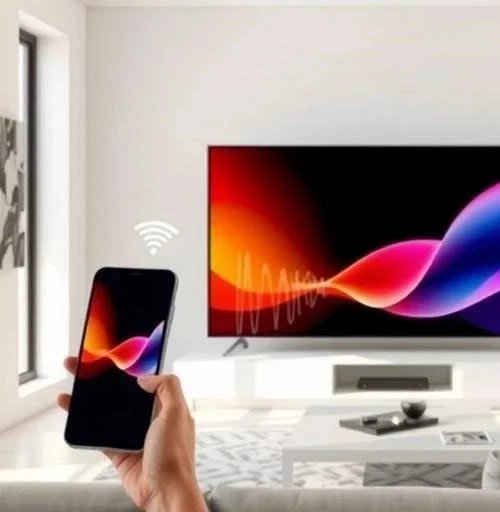
Xiaomi Wireless Display is a screen-mirroring feature that lets you show the picture and sound from a compatible phone or tablet on a television, projector, or other display without plugging in an HDMI cable. Depending on the device and software version, Xiaomi may label the option Cast, Wireless display, or Screen mirroring. The exact name and menu location can differ between MIUI, HyperOS, and individual models.
What does it do?
When you mirror a screen, the receiving display shows what is currently on your Xiaomi device; You can display photos, slides, websites, compatible apps, or a video, and use the phone as a remote control for what appears. This is useful for sharing content with a group, following a tutorial on a larger screen, or viewing media from the sofa.
Wireless Display is a connection method, not a television channel or a separate internet service. Depending on the phone and receiver, it may use a direct wireless connection such as Miracast/Wi-Fi Direct, or a casting system supported by the TV. As a result, compatibility matters: a television that has Wi-Fi does not necessarily support every type of screen mirroring. Some Xiaomi phones and TVs also offer separate casting options for sending a video from an app rather than duplicating the entire phone screen.
What you need
- A Xiaomi, Redmi, or POCO device with a casting or wireless-display option.
- A television, projector, streaming device, or HDMI receiver that supports a compatible casting standard.
- Power for the receiver and, when required by its casting method, a working Wi-Fi network.
If your TV does not support the phone’s casting method, a compatible streaming box or wireless HDMI receiver may provide an alternative. Check the product specifications before buying: “wireless HDMI” and “screen mirroring” are not guarantees of compatibility with every phone.
How to connect
- Turn on the TV or receiver and open its screen-mirroring, Miracast, or casting mode, if it requires one.
- On the Xiaomi device, open Settings and look for Connection & sharing, More connectivity options, or a similarly named menu. Menu wording varies by model and software version.
- Tap Cast or Wireless display, enable the feature if prompted, and wait for nearby devices to appear.
- Select the name of your TV or receiver. Accept any connection request shown on the television. To finish, return to the same phone menu and disconnect.
You can also search Settings for “Cast” if the option is difficult to find. On some versions, a Cast shortcut is available in Quick Settings; you may need to edit the shortcuts to add it.
Does it require Wi-Fi or internet?
The answer depends on the connection type. Some mirroring connections create a direct link between the phone and receiver, so an internet connection is not needed for the mirroring itself. Other casting setups expect both devices to be on the same Wi-Fi network. Internet access may still be necessary for online videos, websites, or streaming apps, even when the screen connection is working correctly.
Mirroring versus casting a video
Full-screen mirroring duplicates the phone display, including menus and notifications, and may use more battery. App-based casting sends supported media to the TV, which can play it independently; the phone may then act as a controller. The two features can have different device requirements. If an app has its own cast button, try that when you only want to watch a video.
Common problems and fixes
- The TV does not appear: Confirm that its receiver mode is enabled, bring the devices closer, and check that both support the same casting standard. Restarting Wi-Fi or the devices may help.
- The connection fails: Disconnect old sessions, approve prompts on both screens, and reconnect. If the TV uses network-based casting, put both devices on the same Wi-Fi network.
- The picture stutters: Reduce distance and obstacles, improve Wi-Fi signal, and close demanding apps. Crowded networks and low-power receivers can affect quality.
- Video or sound is missing: Check the TV input and volume, try another app, and remember that some protected content may restrict screen mirroring.
Privacy and practical tips
While mirroring, anything visible on the phone may also appear on the television. Turn on Do Not Disturb and close private pages or messages before presenting. Keep the phone charged during long sessions, since continuous wireless video can consume battery. For sensitive information, disconnect as soon as you finish and avoid pairing with unfamiliar receivers.
In short: Xiaomi Wireless Display is a convenient way to put a compatible phone’s screen on a larger display without a cable. Find the Cast or Wireless display setting, select a compatible receiver, and troubleshoot according to the connection method supported by both devices.

4 Comments. Оставить новый
This is a clear, helpful overview of Xiaomi screen mirroring. I especially appreciate the explanation that Wi-Fi support alone does not guarantee compatibility.
Good practical advice, particularly the reminder to check receiver specifications before buying. The menu names can vary, so that clarification is welcome.
The distinction between mirroring the whole phone screen and casting a video from an app is useful. It helps set realistic expectations before connecting.
A straightforward introduction for anyone trying to show phone content on a bigger display. The compatibility notes make the guide more useful than a simple list of steps.