
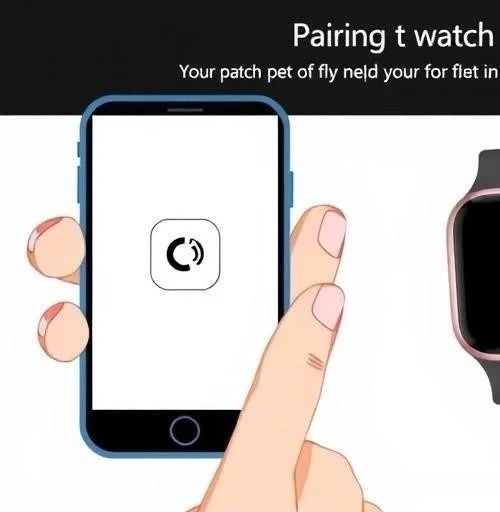
Pairing an Apple Watch with an iPhone connects the devices so the watch can use features such as notifications, calls, apps, activity tracking, and health tools․ The process is usually completed through the Watch app on the iPhone․ The exact screens may vary slightly depending on the iOS and watchOS versions․
Before you begin
- Check compatibility․ Confirm that your iPhone model supports the Apple Watch and watchOS version․ Requirements differ between models and software releases, so check Apple’s current compatibility information if you are unsure․
- Update the iPhone․ Install the latest iOS version available for your device․ An older system may not support a newer watch or its setup process․
- Prepare both devices․ Turn on Bluetooth and Wi-Fi on the iPhone, keep it connected to the internet, and make sure both devices have sufficient charge․ Keep them close together throughout setup․
- Have your passcode and Apple Account details ready․ You may be asked to enter the iPhone passcode, sign in, or confirm account security information․
Pair the watch automatically
- Put the Apple Watch on your wrist or place it near the iPhone, then press and hold the watch’s side button until the Apple logo appears․ Wait for the welcome screen․
- Unlock the iPhone and look for a message offering to set up the Apple Watch․ Tap Continue․ If no message appears, open the Watch app, tap All Watches or Start Pairing, and choose Pair New Watch․ The wording can differ by iOS version․
- Tap Set Up for Myself if you are configuring your own watch․ To set up a watch for a family member, select the family setup option if it is available and follow its instructions․
- When the pairing animation appears on the watch, hold the iPhone over it so the animation is centered in the viewfinder․ Keep the watch still until the iPhone confirms that it is paired․
- If the camera cannot read the animation, tap the option to pair manually․ On the watch, tap the information button to display its name, then select that name in the Watch app and enter the code shown on the watch․
- Choose whether to restore from a backup or set up the watch as new․ A backup can bring back supported settings and data from a previous setup․ If this is your first Apple Watch, choose the new-watch option․
- Follow the prompts to sign in if requested, create a watch passcode, and choose settings․ You can decide whether to share location, enable automatic updates, and configure features such as Siri, emergency services, and activity tracking․
- Review the available apps and notifications․ You can install compatible apps or add them later․ Keep the iPhone and watch near each other while settings and content synchronize; completion may take several minutes․
Finish setup and check the connection
When setup is complete, the watch face appears and the Watch app shows the paired watch․ Open Control Center on the watch to check its connection status․ A green iPhone icon generally indicates a connection; a red iPhone icon or a disconnected symbol can mean the devices are out of range or temporarily disconnected․ Keep Bluetooth enabled and bring the devices closer if needed․
Some features require additional setup․ For example, cellular service on a cellular model may require an eligible carrier plan, while Apple Pay and certain health functions require separate configuration․ Availability varies by region, model, account, and software version․ Review each prompt before enabling a feature․
If pairing does not work
- Make sure the watch is powered on, the iPhone is unlocked, and both devices are close together․ Check that Bluetooth and Wi-Fi are enabled․
- Restart both devices, then open the Watch app and try again․ If an update is offered during setup, keep the devices nearby and connected to power where practical․
- If the watch displays a normal watch face or says it is already paired, it may need to be erased before it can be paired with another iPhone․ Erasing removes content and settings from the watch; confirm that you have access to any needed backup before proceeding․
- If the pairing animation does not appear, use the manual pairing option․ If setup repeatedly fails, check Apple Support guidance for the specific error message and device models․
Pairing with a different iPhone
To move a watch to another iPhone, first make sure the old iPhone is backed up and available if possible․ Unpairing through the Watch app on the old iPhone creates a watch backup and removes the pairing; the app may also ask for the Apple Account password to disable Activation Lock․ Then start setup with the new iPhone and choose a backup if one is offered․ If the old iPhone is unavailable, the watch may need to be erased, and the account credentials associated with Activation Lock may still be required․
Once paired, use the Watch app to adjust faces, apps, notifications, and other preferences․ Keeping both devices updated and signed in to the appropriate account helps maintain a reliable connection and access to supported services․

1 Comment. Оставить новый
The guide provides a clear overview of the main preparation steps and pairing options. Mentioning that menu labels can vary by software version is useful, though readers may need to consult Apple’s current instructions for device-specific details.