
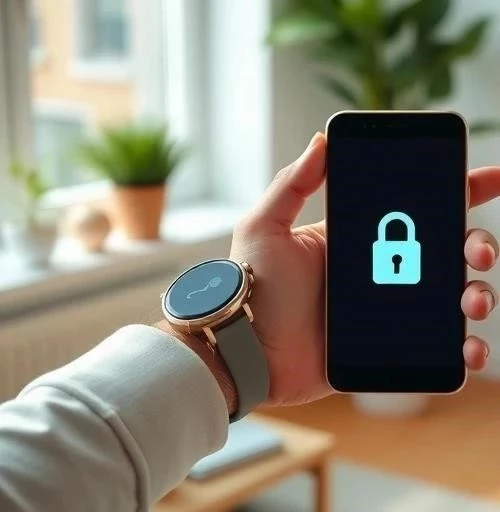
Apple Watch can help unlock a compatible iPhone when Face ID cannot recognize your face—for example, when you are wearing a mask. It does not remove the iPhone passcode or provide a way to access a device when its passcode is unknown. The feature must be set up in advance, and both devices need to meet Apple’s compatibility and security requirements.
Requirements
- An iPhone with Face ID running iOS 14.5 or later, and an Apple Watch Series 3 or later running watchOS 7.4 or later.
- Wi-Fi and Bluetooth enabled on both devices. They must be paired, nearby, and signed in to the same Apple Account with two-factor authentication.
- A passcode set on the iPhone and a passcode set on the Apple Watch. Wrist Detection must be enabled on the watch.
- The watch must be on your wrist, unlocked, and protected by its passcode. Its passcode is entered after you put it on, and the watch stays unlocked while it detects that it is being worn.
Apple may change compatibility requirements as software evolves. If an option is missing, update both devices and check Apple’s current support information.
Turn on the feature
- On the iPhone, open Settings, then tap Face ID & Passcode.
- Enter the iPhone passcode when prompted. Scroll to Unlock with Apple Watch.
- Find your watch in the list and switch on the option beside its name. If a setup message appears, follow the instructions on screen.
Unlock the iPhone
Put on the unlocked Apple Watch. Wake the iPhone by lifting it or tapping its screen, then look at it as you normally would for Face ID. If Face ID detects that your face is covered, the iPhone can unlock with the nearby watch instead. A gentle tap and notification on the watch confirm that it unlocked the phone.
If the iPhone remains locked, swipe up on its screen and enter the iPhone passcode. The watch does not reveal, reset, or replace that passcode. After unlocking with the watch, you can lock the iPhone from the watch notification if you did not intend to open it; the next unlock will require the iPhone passcode.
Troubleshooting and limits
Check that the watch is unlocked and on your wrist, Wrist Detection is on, and Bluetooth and Wi-Fi are enabled. Confirm that Unlock with Apple Watch remains enabled, then restart both devices if needed. If the watch was recently removed, the iPhone restarted, or several unlock attempts failed, enter the iPhone passcode first.
This feature is intended for convenience when Face ID is obstructed; it does not authenticate every action. Some tasks, including purchases or changing security settings, may still require Face ID, a passcode, or another verification step. Keep the watch secure: someone wearing your unlocked watch may be able to unlock your nearby iPhone.

3 Comments. Оставить новый
The distinction between setting up the feature in advance and recovering access to a phone with an unknown passcode is useful. The reminder to check current compatibility information also helps account for software changes.
The article clearly explains that Apple Watch unlocking is a convenience feature for Face ID situations, not a substitute for the iPhone passcode. The requirements and setup steps are easy to follow.
The instructions cover both enabling the option and using it to unlock the iPhone. Including the watch notification and the option to relock the phone adds practical context.