
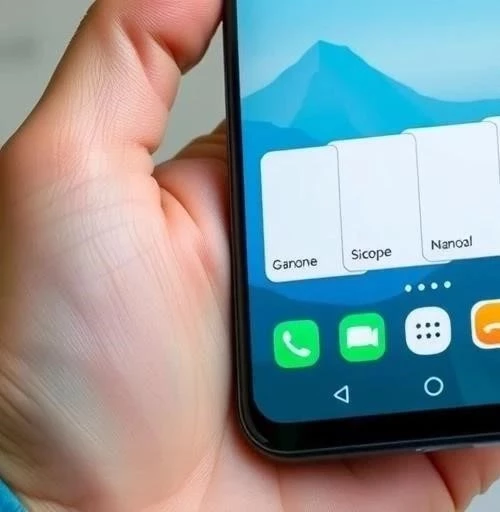
On Xiaomi phones‚ the multitasking menu is usually called the Recent apps screen‚ or simply Recents․ It displays apps you have opened recently and lets you switch between them‚ close them‚ or use supported features such as split screen and floating windows․ You normally open it with a gesture or a navigation button; it is not a separate app in the main Settings menu․
Open Recents with gesture navigation
- Open an app‚ or go to the Home screen․
- Place your finger at the very bottom edge of the display․
- Swipe up and pause briefly in the middle of the screen․ Do not lift your finger immediately: the short pause is what brings up the app overview․
- Lift your finger when the cards or tiles for your recent apps appear․
On some Xiaomi models‚ the animation or timing feels slightly different․ Start the swipe from the bottom edge rather than from inside an app‚ move upward‚ and hold for a moment․ A quick swipe up usually returns to the Home screen instead of opening Recents․
Open Recents with the navigation buttons
If your phone uses three-button navigation‚ tap the square or three-line Recent apps button at the bottom of the display․ Its appearance depends on the model and software version․ The other navigation buttons are generally Back and Home․ Pressing the Recent apps button opens the same multitasking screen as the gesture․
Change the navigation method
If you are unsure which controls your phone uses‚ look in Settings for the system navigation option․ On many devices‚ the path is Settings > Home screen > System navigation․ Choose Gestures or Buttons‚ depending on your preference․ Menu names and locations can vary slightly between MIUI and HyperOS versions‚ phone models‚ and regional software․ If you do not see that exact path‚ search Settings for “System navigation” or “Full screen display․”
After switching to gestures‚ read the on-screen tutorial: it explains how to go Home‚ go Back‚ and open recent apps․ Some versions let you hide or show the gesture indicator at the bottom․ Hiding the indicator does not normally disable the gestures‚ but the first few swipes may take practice․
What you can do in the multitasking menu
- Switch apps: Tap a recent-app card to return to it․ Swipe through the cards to find the app you want․
- Close an app: Swipe its card upward or sideways‚ depending on the layout․ Some versions show a close control when you press and hold a card․
- Close several apps: Use the clear or “X” control‚ if available․ This usually dismisses recent tasks‚ but it is not necessary to clear the list routinely․
- Use split screen: On supported phones and with compatible apps‚ press and hold an app card or tap its menu icon‚ then choose Split screen․ Select a second app for the other part of the display․
- Open a floating window: If the option is offered‚ use the card’s menu to open the app in a movable window․ Availability depends on the device‚ software‚ and app․
- Keep an app available: Some versions offer a lock icon or a lock command on a card․ This can help prevent the app from being removed by a clear-all action; it does not necessarily stop Android from managing its memory․
If the menu does not appear
First check whether you are using gestures or buttons‚ then try the matching method above․ With gestures‚ begin at the bottom edge and pause after swiping up․ With buttons‚ make sure the navigation bar is visible; it may be hidden in full-screen mode․ Restarting the phone can resolve a temporary interface issue․ Also check for a system update if navigation has stopped responding․
Not every Xiaomi phone has the same Recents layout or offers the same multitasking tools․ Split screen‚ floating windows‚ card locks‚ and clear-all controls may be absent‚ renamed‚ or limited on particular models and software releases․ If an option is missing‚ it may not be supported rather than hidden elsewhere․
In short
The Xiaomi multitasking menu is the Recent apps screen․ Swipe up from the bottom and pause to open it when gestures are enabled‚ or tap the square/Recent apps navigation button when button navigation is enabled․ Use Settings’ system-navigation controls if you need to change how you access it․
5 Comments. Оставить новый
A straightforward explanation of how to switch between recent apps. The distinction between a quick swipe and a swipe with a brief pause is particularly useful.
The gesture instructions are clear, especially the reminder to pause midway through the swipe. That detail should help anyone who keeps returning to the Home screen instead of opening Recents.
Helpful guide for Xiaomi users. I appreciate that it explains both gesture and button navigation and notes that the menu names can differ across MIUI and HyperOS.
Good practical advice for different Xiaomi navigation setups. The steps are simple to follow, and the note about model and software differences sets realistic expectations.
This made it easy to find the Recent apps screen on my phone. The Settings search suggestion is useful when the navigation option is in a different place.