
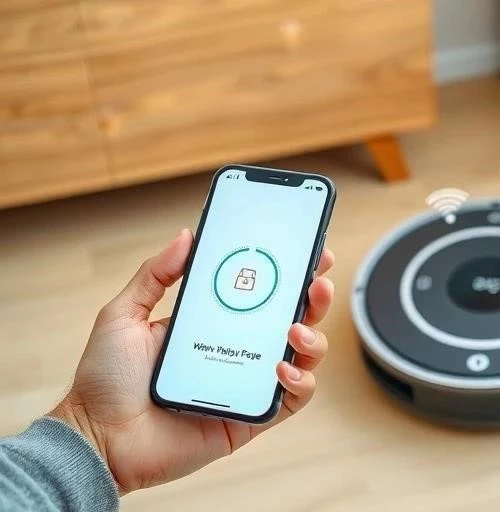
Think of your robot vacuum as a tiny explorer: before it can accept commands from your phone, it needs a map of your home network. The setup is usually quick, though button names and reset methods can vary between Xiaomi models. Keep the vacuum, phone, and Wi-Fi router nearby, and follow the app’s instructions for your exact device.
Before you begin
- Charge the vacuum and switch it on. Place it near the router for setup.
- Install Xiaomi Home (sometimes called Mi Home) from your phone’s official app store.
- Connect your phone to your home Wi-Fi and check that you know its password.
- When available, use a 2.4 GHz Wi-Fi network. Many robot vacuums cannot set up on 5 GHz alone. If your router combines both bands under one name, consult its settings or your vacuum’s manual.
- Allow the app to use the permissions it requests for device discovery, such as Bluetooth or location. Requirements differ by phone and app version.
Connect step by step
- Sign in; Open Xiaomi Home and log in or create an account. Choose the correct country or region in the app. A mismatch between the region and the vacuum’s sales market can stop the device appearing or connecting.
- Add the vacuum. Tap the + or Add device button. Let the app scan nearby devices, or select your vacuum’s model from the list. Keep the phone close while it searches.
- Put the vacuum in pairing mode. Follow the app’s on-screen directions. Depending on the model, this may involve holding two buttons until a voice prompt or blinking Wi-Fi indicator appears. The button combination is not universal, so use the model-specific instructions rather than guessing.
- Choose your network. Select your home Wi-Fi and enter its password carefully. Passwords are case-sensitive. Keep the phone connected to the same network during setup, then tap Next or Connect.
- Wait for the hand-off. The app sends the network details to the vacuum. Leave both devices awake and nearby until the progress indicator finishes. Give the robot a clear name and room location if the app offers those options.
Once connected, the vacuum should appear on the Xiaomi Home screen. Try a basic command, such as starting or pausing a clean. If that works, the little explorer has found its signal—and is ready to begin mapping.
If connection fails
- Check the Wi-Fi password, router signal, and selected network band. Avoid guest networks, office networks, and Wi-Fi that requires a browser sign-in; these may block setup.
- Restart the router, phone, and vacuum, then try again with the robot close to the router.
- Reset the vacuum’s Wi-Fi only by using the reset procedure for your model, then add it again in the app; Resetting network settings is different from a full factory reset.
- If the app cannot find the robot, confirm that Bluetooth and other requested permissions are enabled. Update Xiaomi Home and check that your phone has internet access.
- If the vacuum was previously linked to another account, remove it from that account first when possible. A region mismatch or an existing device binding may also need resolving.
A final, practical note
Keep your Wi-Fi password private, use a secure home network, and download the app only from an official store. Exact menus and pairing signals vary by model, so the vacuum’s manual and in-app prompts are the final authority. If setup still stalls, note the model number and the step where it fails before contacting Xiaomi support.
5 Comments. Оставить новый
I appreciate the reminder that the right region matters. It’s the sort of quiet detail that can save someone from an evening of tapping every button while the vacuum sits there, politely refusing to join civilization.
A useful little map through the setup maze. The note about combined Wi-Fi bands is especially welcome; routers love hiding complexity behind one friendly network name.
The “tiny explorer” image makes setup feel less like wrestling with a router and more like giving a robot its first compass. A wonderfully clear guide, especially for anyone whose Wi-Fi has more bands than a jazz quartet.
The best part is the gentle advice not to guess the button combination. That could prevent a simple setup from turning into an accidental factory-reset mystery worthy of a detective novel.
This guide treats setup like a small expedition, complete with the phone and vacuum staying close until the hand-off is done. Practical, friendly, and refreshingly honest about how much model instructions can differ.