
That tiny click when your screen goes dark is the phone’s way of closing the curtains. On Xiaomi, you can usually turn this sound on or off—but changing it to a different recording is a separate matter. The exact options depend on your MIUI or HyperOS version, region, and phone model.
First, find the lock-sound setting
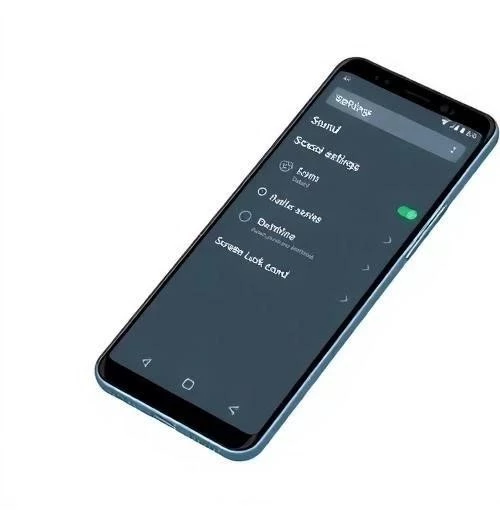
- Open Settings.
- Tap Sound & vibration.
- Look for Additional settings, More sound settings, or a similarly named menu.
- Switch Play sound when locking device or Screen lock sound on or off.
Lock the phone with the power button to test it. If the labels don’t match, use the search bar at the top of Settings and search for lock sound or screen lock. Xiaomi moves options around between software releases, so Settings search is often the quickest route through the maze.
Can you replace the sound with your own?
On most Xiaomi phones, the built-in setting is a switch, not a sound picker. In other words, the standard interface lets you mute or restore the default effect, but does not let you choose an MP3 or another custom clip specifically for screen locking. If you see only an on/off control, you haven’t missed a hidden list of tones.
You can explore the Themes app: some themes include system sound effects, and their available controls vary by device and region. Open a theme’s details and check whether it offers sound customization before applying it. A theme may change several system sounds together rather than the lock sound alone, and some themes don’t affect it at all. Try a reversible change and test the result; don’t assume every theme changes the same sounds.
If the sound is missing
- Raise the media or system volume and check that the phone isn’t in Silent or Do Not Disturb mode.
- Return to the lock-sound setting and confirm it is enabled.
- Restart the phone, then test again. A software update can also move or rename the control.
- If you use a theme, switch temporarily to the default theme to see whether it is affecting system sounds.
Also remember that locking and unlocking are different events: your version may offer a sound for locking but none for unlocking. Bluetooth headphones, connected accessories, or a very low system volume can make a sound seem absent, too.
What about apps or advanced tweaks?
Be cautious with apps that promise to replace the lock sound. Android restricts access to system events, so many such apps cannot reliably detect a lock or play a sound at exactly the right moment. Rooting or replacing system audio files may offer deeper control on some models, but can create security, update, or stability problems. It’s rarely worth risking your phone for a half-second effect.
The short version
To manage the sound, go to Settings → Sound & vibration → Additional settings and toggle the screen-lock sound. To use a different sound, check whether your Themes app explicitly supports system-sound changes—but know that Xiaomi usually does not provide a built-in, standalone custom lock-tone picker. Sometimes the most satisfying customization is simply choosing whether your digital door clicks shut in silence.


1 Comment. Оставить новый
A helpful little map through Xiaomi’s settings maze—and a welcome reminder that sometimes the lock-screen “customization” is simply learning where the off switch lives. The theme advice is especially useful: experiment, but keep an easy route back to the default.