
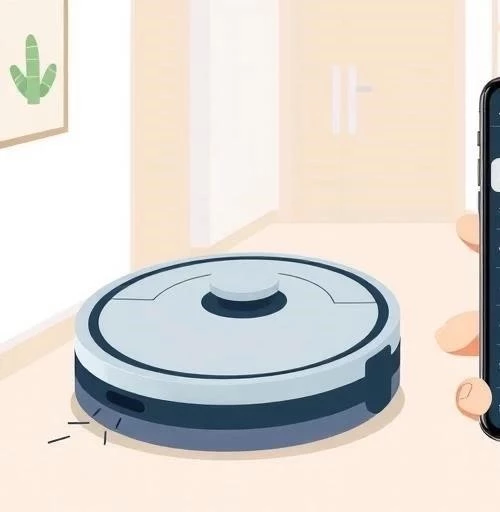
Your Xiaomi robot vacuum may understand Russian perfectly well—or may be stubbornly announcing its plans in Chinese․ The fix is usually a downloadable voice pack, not a change to the vacuum’s physical settings․ The exact menus depend on the model, app, firmware and sales region, so treat the steps below as a map rather than a promise that every screen will look identical․
Before you begin
- Charge the vacuum and connect it to Wi-Fi․ Many Xiaomi models require a 2․4 GHz network for setup․
- Install or update the Xiaomi Home (Mi Home) app, then sign in to the account that controls the vacuum․
- Keep the vacuum online while changing its voice․ A language pack may need to download to the robot․
Choose the Russian voice pack
- Open Xiaomi Home and tap your robot vacuum on the device list․
- Tap the three-dot menu in the upper-right corner to open device settings․
- Look for Voice settings, Voice pack, Voice assistant or a similarly named option․ Menu wording varies by app version and model․
- Open the available packs, find Russian (sometimes shown as “Русский”), and tap Download or Use․
- Wait for the download and installation to finish․ Leave the app open and the robot connected; don’t switch it off mid-update․
- Test the result by starting or pausing a cleaning session․ If the robot is silent or still speaks another language, reopen the voice-pack menu and check that Russian is selected․
This changes the robot’s spoken announcements—such as cleaning status, charging and error messages․ It does not necessarily change the language of the Xiaomi Home app, your phone, or the text shown on the vacuum’s device page․ To change the app interface, adjust the app’s language setting if available, or the phone’s language settings; app behavior differs across versions․
If Russian is missing
First update Xiaomi Home, reopen it, and check the voice-pack list again․ Then restart the app and the vacuum, confirm the robot is online, and look for a firmware update in the device settings․ Install updates only through the official app, with enough battery power and a stable connection․ A pack can be temporarily unavailable while a download service or device is offline․
Next, check the account’s Region in Xiaomi Home settings․ Some models and voice packs are offered only in particular regions․ Changing the region may make a device disappear from the app or require you to add it again, so note the current region and consider the consequences before switching․ If you do try another region, use the one appropriate for your model and market, then check the voice list․ Availability is not guaranteed: a region change cannot add support that the vacuum’s firmware does not have․
Important model differences
“Xiaomi robot vacuum” covers many generations and related products․ A Xiaomi-branded model may use Xiaomi Home, while some Roborock-branded devices use the Roborock app; follow the app named in your model’s manual․ Older models may offer fewer packs, and a device made for the Chinese domestic market may have a restricted language list․ The app’s general interface language and the robot’s voice language are separate settings․
Avoid unofficial firmware, mystery download links and “region unlock” files unless you fully understand the risks․ Installing an incompatible voice pack or firmware can disable features, break updates or make the robot unusable․ If Russian is absent after official updates and a region check, contact Xiaomi support with the exact model number, app version and current region․ Those details help establish whether Russian is supported for that particular unit․
Quick troubleshooting
- Download stuck: check Wi-Fi, keep the robot docked, and try again later․
- Russian downloaded but not heard: select it as the active pack, then restart the robot․
- No voice menu: verify the correct app and model, update the app, and consult the model’s manual․
- Robot vanished after a region change: return to the original region and check whether it reappears before attempting to pair it again․
In the usual case, the whole job takes only a few taps: open the robot in Xiaomi Home, find its voice settings, download Russian, and test an announcement․ If the option isn’t there, the limitation is likely tied to that model, firmware or region—not a hidden button you have somehow failed to discover․

6 Comments. Оставить новый
This is the kind of guide that respects the reader’s time: clear steps, sensible cautions, and no claim that every Xiaomi model follows the same secret hallway.
The “map rather than a promise” warning is refreshingly honest. Smart-home menus have a talent for moving house between updates, so that caveat may save readers a small expedition.
A tiny language change with a surprisingly cozy payoff: the vacuum can go from sounding like a mysterious appliance to a familiar voice announcing its next move.
The troubleshooting advice feels calm rather than magical: update, restart, check the connection, and look again. A useful antidote to blaming the vacuum for having a regional identity.
Good practical detail about keeping the robot online during installation. Firmware and voice packs are the sort of downloads that seem to pause precisely when nobody is watching.
I appreciate the distinction between the robot’s spoken announcements and the app’s interface language. One setting changes the little machine’s voice; the other changes the human’s control panel.