
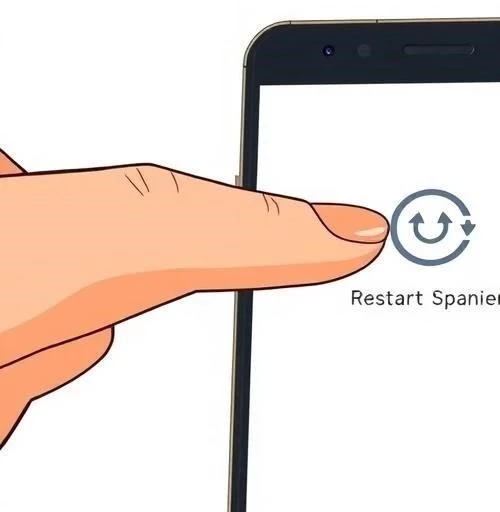
If your Xiaomi phone is showing a screen titled Main Menu‚ it has most likely opened Mi Recovery (also called Recovery Mode). This is a maintenance menu‚ not the normal home screen. You can usually leave it without deleting anything. The key is to select Reboot—not Wipe Data.
Try the safe restart first
- Use the Volume Up and Volume Down buttons to move through the menu. On many models‚ Power confirms the highlighted choice.
- Highlight Reboot and press Power.
- If another screen appears‚ choose Reboot to System or Reboot to MIUI‚ then confirm.
- Wait a few minutes for the phone to start. The first boot after a restart or update can take longer than usual.
Menu wording and button behavior can vary between Xiaomi‚ Redmi‚ and POCO models. Read each option carefully before confirming. If the screen offers only Reboot‚ select it and follow any on-screen prompt.
If the phone does not respond
Press and hold the Power button for about 10–20 seconds‚ until the screen goes dark or the phone vibrates. Release it and allow the device to restart. If that does not work‚ connect the phone to a reliable charger for 20–30 minutes‚ then try again. Avoid repeatedly pressing several buttons together‚ since a button combination may reopen Recovery Mode.
Why does Main Menu keep returning?
A common cause is a stuck or pressed Volume button. Xiaomi phones can enter Recovery Mode when they start while a volume key is held down. Remove the case‚ check that the buttons click freely‚ and make sure nothing is pressing them. Then restart using Power alone.
The menu may also appear after an interrupted update‚ an unexpected shutdown‚ or a system problem. If the phone briefly starts and then returns to Recovery‚ try one normal reboot and make sure the buttons are not stuck. Do not keep selecting random options: some choices can erase data or change the phone’s software.
Important: avoid “Wipe Data” unless you accept data loss
Wipe Data performs a factory reset and can erase photos‚ apps‚ messages‚ and other files stored on the device. It is not a way to exit the menu. Choose it only if you understand the consequences‚ have a backup‚ and are prepared to set up the phone again. A reset may also require the Google or Xiaomi account previously linked to the device.
Connect with MiAssistant is intended for recovery or service procedures‚ not for a regular restart. Do not use it unless you know what the procedure involves or are following official Xiaomi support instructions.
If the menu is actually on the home screen
If you see app icons and can swipe around‚ you may mean the launcher’s app drawer or a screen labelled “Main menu‚” rather than Mi Recovery. Press the Home gesture or navigation button‚ or swipe up or back to return to the home screen. You can also restart the phone from its power menu.
When to contact support
If Reboot repeatedly returns to Main Menu‚ the phone cannot reach Android‚ or the buttons appear damaged‚ stop before choosing any erase or unlock option. Contact Xiaomi support or an authorized repair center. Explain what happened and mention whether the phone recently updated‚ fell‚ or got wet. If the phone does start‚ back up important data promptly.
In short: select Reboot → Reboot to System. If necessary‚ hold Power to restart. Check for a stuck volume key‚ and do not select Wipe Data unless you intend to erase the device.
5 Comments. Оставить новый
The clear warning about avoiding “Wipe Data” is especially helpful. It’s easy to mistake that option for a routine restart.
This explains the difference between restarting and factory resetting in a straightforward way. A reassuring guide for anyone who sees this menu unexpectedly.
I appreciate the simple instructions for navigating the menu and choosing Reboot. The advice to give the phone a few minutes to start is useful too.
Helpful, practical steps. Checking for a stuck volume button is a good reminder when Recovery Mode keeps coming back.
Good guidance for troubleshooting without risking your data. The reminder to remove the case and check the buttons is easy to overlook.